Gunshots that land a beat after the muzzle flash. The steps below fix bluetooth audio sync delay tws earbuds gaming setups suffer from, codec by codec. Rhythm games that insist you are late on notes your fingers swear were on time. When you set out to fix Bluetooth audio sync delay when using TWS earbuds for gaming, you are fighting physics and codecs, not a broken phone — but the fight is worth having, because the gap between a bad Bluetooth audio chain and a well-tuned one is the difference between roughly 300 ms and roughly 80 ms of delay, and only the second is playable for anything timing-sensitive. This guide maps where the delay accumulates, which settings genuinely shrink it, and where the honest limit sits.
Where the Milliseconds Go
Bluetooth audio delay is a stack: the phone encodes audio into a codec, transmits it (often buffering against interference), the earbuds decode it, and the app adds its own buffer on top. Standard codecs stack up like this in practice:
| Codec / mode | Typical real-world latency | Notes |
|---|---|---|
| SBC (default) | ~200–250 ms | Universal fallback; what you get when anything mismatches |
| AAC | ~150–200 ms | Good quality; latency varies by implementation |
| aptX | ~120–150 ms | Requires support on both ends |
| aptX Low Latency / aptX Adaptive gaming | ~40–90 ms | Rare on true-wireless buds; check both devices support it |
| LE Audio / LC3 with game mode | ~30–80 ms claimed | Newer phones and buds; implementation-dependent |
| Dedicated “Game Mode” on gaming TWS | ~50–100 ms typical | Usually a low-buffer mode, sometimes proprietary |
Notice the pattern: the codec and mode matter more than the brand on the box, and both ends of the link must support the fast option or the chain silently falls back to SBC. Separately, do not confuse this transport delay with emulator-internal audio latency — if sound is late even on speakers, work through audio latency in emulators first.
Fix Bluetooth Audio Sync Delay TWS Earbuds Gaming Chains: Steps in Order
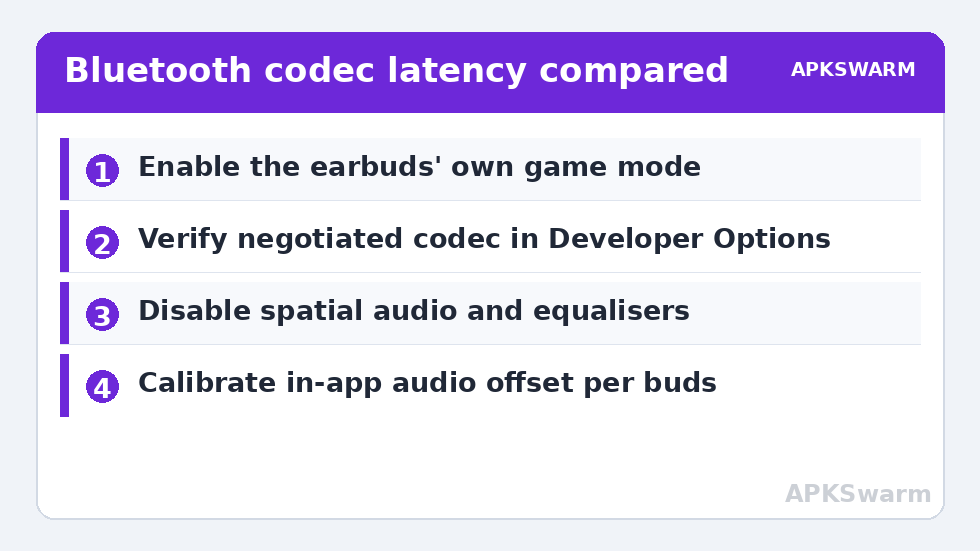
1. Enable the Earbuds’ Own Game / Low-Latency Mode
Most gaming-oriented TWS buds hide their low-latency mode behind a case-button gesture or the companion app (Soundcore, EarFun, ASUS, JBL, and others all do this). This mode shrinks the receive buffer and often switches codec behaviour. It is the single largest reduction most users can get, and it costs a little battery and interference resilience — an acceptable trade at a desk, a worse one on a train.
2. Verify the Codec Actually Negotiated
Developer Options > Bluetooth Audio Codec shows what the link is really using (on many builds this is display-only while connected). If you expected aptX and see SBC, something in the chain lacks support or a setting forced the fallback: check the buds’ app for a “prioritise sound quality” mode (which may force a slower codec), and on Samsung devices check that the buds are not connected through a mode intended for calls. Also disable “Dual audio”/audio sharing features, which add buffering.
3. Remove System Audio Processing
Equalisers, spatial audio, Dolby Atmos, and OEM “sound enhancers” insert processing and buffering upstream of Bluetooth encode. Disable them while gaming (Settings > Sound > Sound quality and effects, brand-dependent). Absolute Volume mismatches do not add latency, but the processing toggles do.
4. Use the App’s Own Compensation Where It Exists
Rhythm games and some emulators/media players include an audio offset / calibration setting precisely because Bluetooth delay varies by hardware. Calibrate it once per set of buds using the in-app test; a well-calibrated 180 ms chain can feel better in a rhythm game than an uncalibrated 120 ms one. Video players generally auto-compensate, which is why films look fine on the same buds that feel broken in games.
5. Cut Interference and Distance
A struggling 2.4 GHz link retransmits, and retransmission is buffering. Keep the phone within a metre or two with a clear path, avoid playing next to a busy microwave or a saturated USB-3 hub (a real 2.4 GHz noise source), and if your router offers it, game on the 5 GHz Wi-Fi band so Wi-Fi and Bluetooth are not sharing airtime as aggressively. These steps do not lower the codec floor, but they remove the spikes above it. The full index of sibling fixes is at Performance Fixes.
All figures are estimates based on typical titles and stock settings; individual games vary widely.
The Honest Floor, and When to Go Wired
With mainstream TWS buds on SBC/AAC, you will not get below roughly 120–180 ms end-to-end, and no setting in this guide changes that. For competitive rhythm play, fighting games where audio cues matter, or speedrun timing, a wired connection (USB-C DAC or 3.5 mm where present) or 2.4 GHz-dongle gaming buds remain categorically better. Treat Bluetooth tuning as making casual and mid-core play feel right — which it genuinely does — rather than as a route to wired numbers. Input-side delay is a separate chain; if your buttons also feel late, read touch input lag on 60Hz vs 120Hz displays for the display end of it.
Confirming the Improvement
Use a consistent test: a rhythm-game calibration screen, an emulator menu with an instant click, or a clapperboard-style test video with audio-offset readouts. Test before changes, after enabling game mode, and after codec verification, writing down the compensation value that feels synchronised in the rhythm test. If the number did not move after enabling “game mode,” verify in the buds’ app that the mode actually engaged — several brands reset it when the buds return to the case.
Brand Notes: Where the Game Mode Hides
Samsung Galaxy Buds: the Galaxy Wearable app offers a “Game mode” under earbud settings / Labs depending on model; note that on Galaxy phones the buds’ codec (Samsung’s Scalable codec) behaves differently from the aptX path — verify what is negotiated rather than assuming. Sony: the Sound Connect app exposes low-latency priorities indirectly via “Prioritise Stable Connection” vs sound quality, plus DSEE and spatial processing toggles that should be off for gaming tests. JBL, EarFun, Soundcore and similar: a labelled Game Mode in the companion app, usually also bound to a triple-tap gesture — and commonly reset to off when buds are reset or the app updates. AirPods on Android: you get AAC at best, no companion app, and no low-latency mode; they are fine earbuds for music on Android and a structurally poor gaming choice there, which no setting fixes. The pattern across brands: the control exists, it is in the app, and it resets more often than you would like — build a ten-second check into your routine when the delay suddenly returns.
Frequently Asked Questions
Why do videos look in sync but games feel delayed on the same earbuds?
Video players know the Bluetooth delay and hold the picture back to match the sound. Games cannot do that — delaying the picture would delay your inputs’ results too. So the same 200 ms chain is invisible in Netflix and obvious the moment you press a button.
Which is better for gaming: aptX or my buds’ game mode?
Whichever yields the lower measured offset on your hardware — often the game mode, because it attacks buffer size as well as codec. If your phone and buds both support an actual low-latency codec variant (aptX LL/Adaptive gaming mode, LE Audio), that is the best case; verify the negotiated codec in Developer Options rather than trusting the box.
Does Bluetooth 5.3 fix audio delay?
The version number alone, no. Latency improvements come from codecs and features — LE Audio with LC3, low-latency codec variants, and aggressive game modes — not from the headline Bluetooth version. A Bluetooth 5.0 chain with a low-latency codec beats a 5.3 chain stuck on SBC.
Can an app reduce Bluetooth delay for all games?
No. A normal app cannot change the codec negotiation or the earbuds’ buffer. Apps can only add their own compensation (presenting visuals timed to the delayed audio) inside themselves. Be wary of “latency booster” apps claiming system-wide fixes.
My delay got worse after a phone update. What happened?
Updates occasionally reset audio effect toggles, re-enable spatial processing, or change codec preference order. Re-run steps 2 and 3: confirm the negotiated codec and that system audio effects are off, and re-check the buds’ game mode, which firmware updates sometimes switch back to standard.