Every performance problem in mobile gaming and emulation eventually reduces to a handful of physical limits: the chip can only compute so fast, shed heat so quickly, read storage so rapidly, and the memory can only hold so much at once. This is a complete troubleshooting guide mobile gaming emulation problems can be routed through, step by step. This complete troubleshooting guide for mobile gaming and emulation performance is organised around that fact. Instead of a grab-bag of tips, it gives you a diagnostic order — a sequence that identifies which limit you are hitting before you change a single setting — because the most common failure in troubleshooting is applying correct fixes to the wrong bottleneck: lowering graphics for a storage fault, clearing caches for a thermal one, buying a cooler for a driver bug. Work the sequence, and each step either fixes you or tells you where to go next.
Step 0: Define the Problem in One Sentence
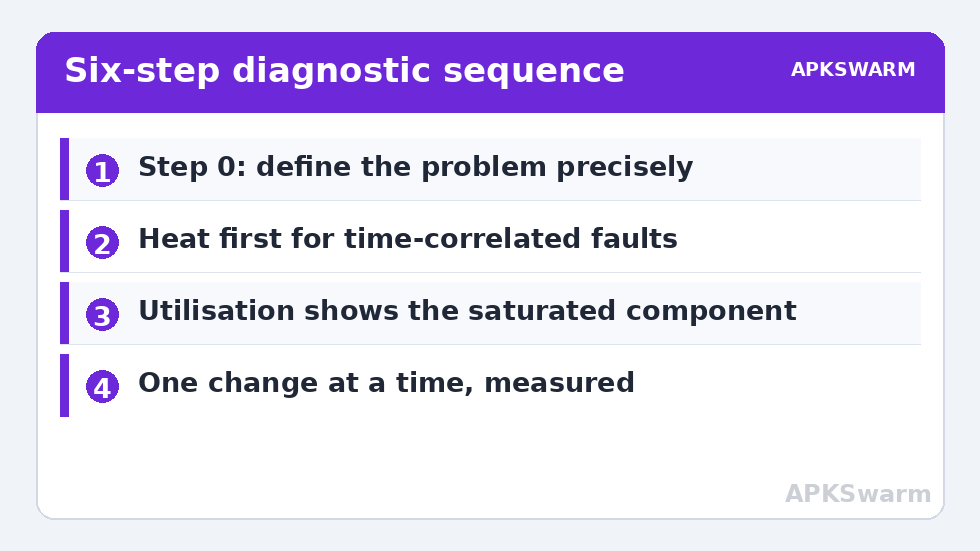
Vague problems get vague fixes. Write down: what happens (low average FPS, hitching, tearing, late audio, crashes), when it starts (from launch, after ~15 minutes, in specific scenes), and where (one title, all emulators, everything including native games). Each axis eliminates suspects. Problems in one title only are usually that title’s settings or compatibility. Problems everywhere are system-level. Problems that grow with time are thermal or accumulation. Problems from the first frame are configuration or capability. If you cannot fill in the sentence yet, spend ten minutes observing with an overlay — the toolkit is monitoring FPS, CPU temp, and RAM — because every later step depends on this description.
Step 1: Heat — the Prime Suspect for Anything Time-Correlated
Log clocks and battery temperature across a session. Clocks sagging 25%+ with battery temperature climbing into the low-to-mid 40s °C means thermal throttling, and no other fix on this page will outrun physics. Resolve via the dedicated path: case off, airflow, workload reduction, honest performance-mode choices — fully detailed in fixing thermal throttling and overheating. The specific presentation where a session degrades on a schedule is also dissected in frame drops after 15 minutes of gaming, which separates heat from its three impostors (background waves, memory loops, battery thresholds).
Step 2: Utilisation — Find Which Component Is Saturated
With heat ruled out, watch utilisation during the problem scene. GPU pinned near 99% means you are render-bound: lower internal resolution, disable heavy effects, or address dynamic resolution behaviour via disabling dynamic resolution scaling. GPU low but FPS also low means the CPU/emulation side is the wall — in emulators that points to settings accuracy options, wrong backend, or a title the chip simply cannot full-speed; in that case audio symptoms will follow, handled in audio latency and buffer fixes. On MediaTek hardware specifically, frame pacing can be poor despite healthy utilisation; Dimensity micro-stuttering covers the driver-level causes. If neither CPU nor GPU is busy during hitches, suspect storage or memory: frames stall waiting on data, not computation.
Step 3: Storage and Memory — the Silent Stalls
Frame-time spikes with idle silicon mean the game is waiting. Waiting on storage shows during area transitions, texture streaming, and first loads: test by moving the title or its heavy assets to internal storage and re-measuring, and audit the card itself with microSD bottleneck troubleshooting. Waiting on memory shows as progressive degradation and app reloads: check free-RAM trends, close the heavy residents, and review swap configuration using virtual RAM optimisation and the session routine in background RAM reduction. Do not clear shader caches as a reflex during this step — the shader cache guide explains the narrow set of symptoms where clearing is medicine instead of harm.
Step 4: Presentation and Inputs — When Frames Are Fine but It Feels Wrong
A flat frame-time graph with unhappy players means the problem is downstream of rendering. Image splitting during pans is synchronisation — screen tearing and V-Sync settings. Controls that feel late despite good frames are a latency-chain problem: budget the chain with touch input lag on 60Hz vs 120Hz displays for touch, or, if sound trails your actions over wireless audio, Bluetooth audio sync fixes. A controller that changed personality overnight is usually a pairing/layout casualty of sleep: controller mis-mapping after sleep.
Step 5: Crashes and Refusals — Faults That Stop Play Entirely
Crashes sort by timing. Instant death on launch after an Android upgrade is permissions until proven otherwise — scoped storage crash fixes. Death at a repeatable point during loading, or when big assets allocate, is the staged diagnosis in force close errors on high-resolution games. Black screens that appear only when custom content loads belong to texture pack troubleshooting. And if apps around your gaming stack keep vanishing or failing to launch each other, check the battery-management layer via frontend battery optimisation exemptions before reinstalling anything.
The full library behind every step above is gathered in the Performance Fixes index — bookmark it; this sequence is designed to route you there, not replace it.
All figures are estimates based on typical titles and stock settings; individual games vary widely.
Complete Troubleshooting Guide Mobile Gaming Emulation: Rules That Keep It Honest
- One change at a time. Two changes plus improvement equals no knowledge.
- Measure before and after, same scene. Impressions are not data; frame-time graphs are.
- Match the fix to the proven bottleneck. A perfect thermal fix does nothing for a storage fault.
- Respect the capability ceiling. Some chips cannot full-speed some systems; recognising that early saves days. Settings optimise within the ceiling; they do not raise it.
- Prefer reversible, in-menu changes. In-game settings and system toggles before file edits, sideloads, or anything involving another app’s data.
- Record what worked. Updates reset settings; your notes are the fastest fix next time. Brand-level responsiveness features are configured once via Game Mode and CPU boosters and then left alone.
Step 6: Software State — Updates, and the Reset Decision
If every measured step comes back clean and the problem persists, interrogate the software state itself. A fault that began on a specific date with no settings change usually has a changelog behind it: check the game’s recent updates, the emulator’s release notes, and your phone’s last firmware update, in that order. Roll-forward fixes (the next patch) are common enough that checking the developer’s known-issues list is a legitimate diagnostic step, not procrastination. Reinstallation earns its place only here, done cleanly — uninstall, reboot, fresh install from the official store, re-grant permissions deliberately — because a reinstall performed before the earlier steps mostly resets your settings to defaults and calls it a cure when the defaults happen to differ. The factory reset sits beyond even that: reserve it for corruption that spans multiple unrelated apps, and treat “the reset fixed it” as a non-answer you accept only when the alternative is a phone you cannot use. In professional practice it is the last page of the manual, and it should be in yours too.
Frequently Asked Questions
Where should a beginner start troubleshooting?
With Step 0: describe the problem precisely — what happens, when it starts, and in which titles. Then check heat first, because it is the most common and the most misdiagnosed cause. Half of all “mystery” performance problems resolve into either thermals or a single saturated component once measured.
How do I know if my phone is simply too weak for a game or emulator?
If clocks are healthy (not throttling), one component is saturated (usually CPU for emulation), and lowering internal resolution and accuracy settings still cannot reach target speed in a repeatable scene, you are at the capability ceiling. At that point the honest options are a less demanding title, a lighter emulator core, or newer hardware.
Why do fixes from forums make my problem worse?
Because they were fixes for someone else’s bottleneck. Disabling sync helps latency and causes tearing; clearing caches helps corruption and causes compile stutter; performance mode helps benchmarks and hurts long sessions. Diagnosis-first is slower for ten minutes and faster for the whole evening.
Should I factory reset my phone to fix gaming performance?
Almost never as an early step. A reset fixes accumulated software mess, which is a real but uncommon cause, at maximum cost. Exhaust the measured steps here first — if a clean reboot changes nothing about your frame-time graphs, a reset very likely will not either.
Do these steps apply to both native games and emulators?
Yes — the bottleneck model is identical. Emulators add two specifics: the CPU usually matters more (it is translating another machine), and per-core settings like backends and shader compilation dominate the details. The dedicated emulator branches are linked from Steps 1–3 above.