Your handheld has a touchscreen, physical controls, and — connected over USB-C or Bluetooth — the option of a real keyboard and mouse. Learning to configure android keyboard mouse touchscreen handheld input properly sounds like a five-minute job, and then you discover the mouse pointer behaves differently in every app, the keyboard types in the front end but not in the emulator, and the on-screen keyboard keeps invading games. This guide sorts the whole stack: pairing and pointer settings, when mouse input genuinely helps (strategy, point-and-click, front-end management), emulator-specific mapping, and the touchscreen settings to tame when your hands are the controller.
Who this is for: owners of larger Android handhelds — Odin line, Retroid Pocket 5, RG556-class devices — who dock, desk-play, or manage big libraries, plus anyone using a handheld as a light emulation PC. The principles also serve phone-plus-controller setups, but handhelds are the focus because their docks and stands make keyboard/mouse play a real posture rather than a stunt.
Connecting: USB-C Hubs, Bluetooth, and What Android Sees
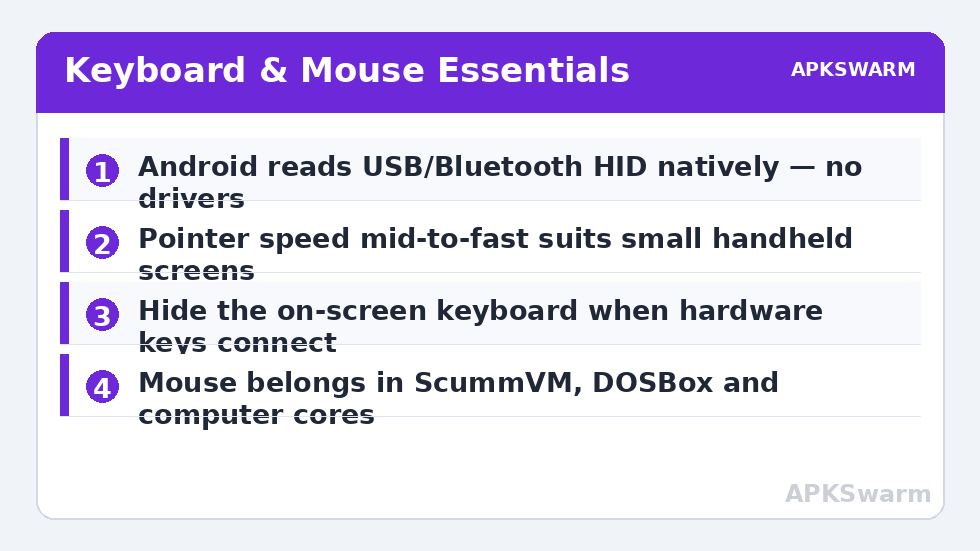
Android treats keyboards and mice as standard HID input — no drivers, no apps. Plug a USB receiver or wired device into a USB-C hub (the same dock from a TV setup works; see the video-out guide for dock selection) and a pointer appears. Bluetooth pairing lives in Settings > Connected devices; a combined keyboard-with-trackpad unit is the most practical single purchase for handheld use, since it is one pairing and one battery.
Two immediate settings matter. Pointer speed (Settings > System > Languages & input > Pointer speed on most builds) — handheld screens are small, so a mid-to-fast pointer crosses them without wrist drama; adjust before judging any mouse “floaty.” Physical keyboard settings in the same Languages & input area control whether the on-screen keyboard still appears when a hardware keyboard is connected — set it to stay hidden, or every text field becomes a two-keyboard argument. While there, enable keyboard shortcuts help (where offered) so Android’s own shortcuts (like Alt+Tab task switching on some builds) become usable.
A third choice appears on the first Bluetooth pairing: range and reliability versus convenience. A 2.4 GHz USB receiver in the hub gives the most console-like pointer — lower latency, no pairing sleep quirks — at the price of a permanently occupied port. Bluetooth frees the port and lets one keyboard serve the phone too, but some keyboards sleep aggressively and eat the first keystroke after a pause. For desk sessions, start with the receiver; for travel, Bluetooth with a keyboard whose sleep behaviour you have already made peace with. Either way, pair and configure at home, not in the café where you planned to use it.
Where a Mouse Genuinely Belongs in Emulation
Be honest about the use cases and the mouse earns its place. Point-and-click adventures (ScummVM) are transformed — the mouse is the native input the games were built for. Strategy and simulation titles through DOSBox-family cores and computer emulators (Amiga, classic Mac, C64) become playable instead of theoretical. Light-gun-style games in cores that support mouse-as-lightgun are a legitimate couch option. And library management — renaming files, moving saves between folders in a file manager, editing configs — is simply faster with pointer and keys than with a D-pad and patience, especially alongside a tidy structure like the one in our organisation guide.
Where it does not belong: replacing the D-pad and buttons for platformers and fighters because it was nearby. Map the mouse to the task it is good at and leave gamepads to theirs. RetroArch reflects this split well — its mouse support is per-core and strongest exactly in the computer/adventure cores named above.
Emulator and Front-End Configuration Notes
- RetroArch: input settings include mouse device selection per player; the ScummVM and DOSBox cores read the pointer natively once the right port is assigned. Save per-core input configs so your platformer cores never see the mouse mapping.
- ScummVM standalone: works with the system pointer out of the box; enable its own keymapper for function keys (save menus) on the physical keyboard.
- Front ends: Daijishō and peers accept keyboard navigation (arrows + Enter) naturally; a keyboard makes bulk operations — favourites, hiding entries — markedly quicker. Physical-button philosophy on the device itself is the sibling topic in the Retroid button mapping guide.
- Android games with keyboard support: a minority support it natively; for the rest, touch-mapping tools (the class of utility Retroid bundles in Handheld Settings) translate keys to screen taps. That is a per-game project, not a global setting — budget your enthusiasm accordingly.
Taming the Touchscreen When Hands Are the Controller
Even in a keyboard/mouse setup, the touchscreen stays live, and its default behaviours intrude: palms registering during handheld play, edge gestures fighting emulator swipes, the on-screen keyboard appearing over games when a text field lurks in a menu. Fixes, in order: inside emulators, enable the emulator’s own full-screen/immersive mode so system gestures need a deliberate edge swipe; disable “tap to wake”-style gestures if your build offers them and you play in bags or grips; and in Android’s gesture settings, reduce edge sensitivity where the option exists. If you play touch-native games on the handheld too, per-app immersive settings keep those choices from leaking into each other.
Performance context while you are configuring — heavier point-and-click and computer emulation titles still obey the same chipset rules as everything else:
All figures are estimates based on typical titles and stock settings; individual games vary widely.
The rest of the control and configuration library sits under Handheld Tweaks.
Building the Desk Setup: Stands, Hubs, and Posture
If keyboard-and-mouse sessions are a regular posture rather than an experiment, arrange the desk like it matters. A simple folding stand that holds the handheld at a slight recline transforms usability — typing while a device lies flat is a neck injury with extra steps, and a stand also frees the bottom port for the hub cable without strain. Route the hub once and leave it: hub on the desk, power supply plugged into the hub’s PD input so the handheld charges during desk sessions, keyboard receiver permanently in a hub port. That permanence is the point — a setup that requires assembly gets used twice. On the software side, create one Android user-visible convention for yourself: desk mode means the keyboard’s media keys and the system’s own shortcuts are live, while the emulator hotkeys from your handheld scheme stay unchanged, so muscle memory survives the transition between couch and desk. Finally, mind the screen: desk play happens at reading distance, where the sharpness and scaling choices from the front-end and calibration guides are more visible than at couch range — a few minutes re-checking integer scaling at desk distance pays off every session after.
Frequently Asked Questions
Do I need an app to use a keyboard and mouse with my handheld?
No. Android supports USB and Bluetooth keyboards and mice natively as standard input devices. You only need apps for special cases like mapping keys to touchscreen taps in games without controller support.
Why does the on-screen keyboard keep appearing when my physical keyboard is connected?
There is a toggle for exactly this in Settings > System > Languages & input > Physical keyboard — enable the option to keep the virtual keyboard hidden while a hardware keyboard is attached (wording varies slightly by build).
Which games actually play better with a mouse?
Point-and-click adventures via ScummVM, strategy and simulation titles in DOSBox and computer cores, and mouse-supported light-gun modes. For platformers, fighters, and racers, the handheld’s own controls remain the better tool.
Can I use one keyboard and mouse with both my handheld and my PC?
Yes, with the right hardware: multi-device Bluetooth keyboards/mice that switch hosts with a button, or a USB switch on a wired setup. The handheld needs no reconfiguration when the device returns — Android reconnects paired HID devices automatically.
My mouse pointer feels laggy in games. What helps?
Raise pointer speed first, then check the basics: TV/monitor Game Mode if docked (the largest single fix), a 2.4 GHz receiver instead of Bluetooth for the mouse, and the emulator’s own input latency settings. In RetroArch computer cores the pointer should feel near-native once display lag is handled.