Retroid handhelds ship with more physical inputs than their menus first suggest — a Home button, Back, volume keys, function buttons — and Android lets you put nearly all of them to work. Learning how to map physical home back volume buttons retroid devices expose turns dead plastic into save-state keys, emulator menu shortcuts, and front-end navigation that never needs the touchscreen. This guide covers what Android allows natively, what Retroid’s own settings expose, the button-remapping apps that fill the gaps, and the per-emulator layer where the real quality-of-life wins live.
Scope note: this covers the Pocket line — RP3/RP3+, RP4/RP4 Pro, RP5, Pocket Flip, and the Mini — running their Android builds. Button hardware varies a little by model (the Flip and RP5 arrange things differently from the RP4 generation, and some models expose an extra function/turbo-style key), so treat the locations described here as the pattern and confirm against your unit. The mapping logic is the same across all of them.
What Each Button Is Doing Right Now
Out of the box: Home returns to the launcher (or your front end, if set as default home), Back is Android’s back gesture in button form, volume keys adjust media volume, and the power button sleeps/wakes. Inside emulators, most of these keep their Android jobs — which is why pressing Home mid-boss fight exits your game. Mapping is largely the art of deciding which buttons keep Android duties and which get reassigned per context.
Retroid’s settings (Settings > Handheld Settings on most builds) expose a few gems owners miss: options governing Home button behaviour, virtual mouse/keyboard toggles, and on some builds a key-mapping utility aimed at touchscreen games — the same class of tool that puts floating controls into Android games without native controller support. Explore that section fully before installing anything; the factory options cover more than forum posts suggest.
The Three Layers of Mapping
Layer 1 — Android system level. Accessibility-based remappers (Key Mapper is the respected open-source option) can reassign hardware keys system-wide or per-app: volume-up long-press becomes a screenshot, Back becomes a front-end shortcut, and so on. Rules that keep you sane: never remap the only way to perform an essential action (keep at least one path to Home and one to volume), and prefer per-app rules over global ones — a volume key should still be a volume key in a video app.
Layer 2 — the front end. Daijishō and similar launchers accept controller navigation natively; the face buttons and D-pad do the work, and Android’s Back button behaviour inside the front end is usually already sensible. Set your front end as the default Home app so the Home button becomes “return to library” — the single most console-like change available, and the foundation the Daijishō setup guide builds on.
Layer 3 — inside the emulator. This is where mapping earns its keep: RetroArch’s hotkey system (hold a hotkey-enable button, usually Select, plus a second key) gives you save state, load state, fast-forward, rewind, and menu access without touching the screen. Standalone emulators (DuckStation, PPSSPP, Dolphin, NetherSX2) each have their own hotkey/mapping pages — spend the ten minutes in each to make the combos consistent across all of them. Consistency is the feature: your fingers should learn one language for every system.
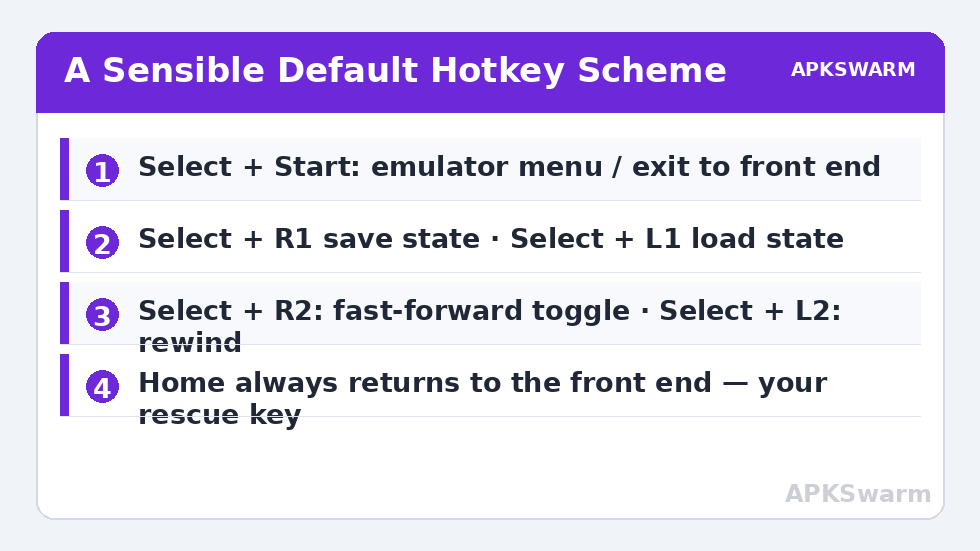
A Sensible Default Scheme
- Select (hotkey enable) + Start: emulator menu / exit to front end
- Select + R1: save state | Select + L1: load state
- Select + R2: fast-forward toggle (racing through RPG random encounters is a lifestyle)
- Select + L2: rewind where the core supports it
- Volume keys: leave global volume alone — your ears will thank you — except on the Flip-style models where a long-press rule for brightness is genuinely handy in bed
- Home: front end (via default launcher), never an emulator function — you need one button that always rescues you
Stick calibration intertwines with button work more than people expect: if face inputs feel “wrong” in menus, confirm the sticks rest at true centre (the test in the hall stick calibration guide) before blaming mappings — a drifting centre makes menu navigation feel haunted. And touchscreen-only Android games are a separate problem class, solved by the on-screen mapping approach in the keyboard and mouse input guide.
Troubleshooting: When Mappings Misbehave
A remapper works in menus but not in games: the emulator is reading the controller directly and ignoring the accessibility layer, or the remapper’s per-app rule excludes the emulator. Scope the rule to the emulator app explicitly. Double inputs: usually a button mapped both in a system remapper and inside the emulator — remove one. Mapping lost after update: export your remapper configuration and each emulator’s config to the SD card; firmware OTAs and emulator updates both occasionally reset these, and the restore takes a minute if you backed up (the card discipline from the organisation guide keeps a configs folder exactly for this). A long-press rule fires when you wanted a short press: lengthen the long-press threshold in the remapper rather than retraining your hands — thresholds around half a second suit most people, and the setting exists because thumbs differ. Volume keys stop working entirely after a global remap: you mapped the keys without a fallback action; edit the rule to preserve the original function on short press and put your new function on the long press, which is the pattern this guide recommends from the start.
Performance expectations while you are in the settings anyway:
All figures are estimates based on typical titles and stock settings; individual games vary widely.
Find more Retroid and handheld control topics in the Handheld Tweaks category.
Per-Game Profiles and Sharing Your Configuration
Once a global scheme feels right, resist the urge to keep bending it per game inside the global settings — that road ends with a scheme that suits nothing. Instead, use per-game or per-core input profiles where the emulators offer them. RetroArch’s per-core and per-game remap files exist precisely for the exceptions: the one N64 title whose C-button layout wants the right stick, the PS1 game that reads L2/R2 constantly and deserves them swapped onto the triggers you can reach. Standalone emulators handle this unevenly — Dolphin and PPSSPP have respectable per-game configuration; others are global-only — so keep a short note in your configs folder listing which games you adjusted and why. That note is also what makes your setup shareable and recoverable: a friend with the same device can import your remapper profile and emulator configs wholesale, and when you move to your next Retroid, your scheme moves with you instead of being rebuilt from memory. Five minutes of export after every mapping session is the cheapest insurance in this entire guide — treat the configs folder like the save folder it sits beside, and back it up on the same schedule.
Frequently Asked Questions
Can I remap the volume buttons to emulator functions?
Yes, with an accessibility remapper like Key Mapper, ideally as per-app or long-press rules so the keys still control volume where you need them. Avoid global remaps that leave you with no hardware volume control at all.
What is the best hotkey-enable button on Retroid devices?
Select is the community standard: it is rarely used in-game on retro systems, easy to hold with the left hand, and supported as the hotkey modifier in RetroArch and most standalone emulators.
Why does my Home button exit emulators to Android instead of my front end?
Because the stock launcher is still your default home app. Set your front end (for example Daijishō) as the default home app in Android settings and Home will return you to your library instead.
Do remapping apps need root?
No. Key Mapper and similar tools work through Android’s accessibility services. Grant the accessibility permission thoughtfully — it is powerful — and prefer open-source remappers from trusted sources.
My mappings reset after an update. How do I prevent losing them?
Export them. Save the remapper profile and each emulator’s configuration files to a configs folder on your SD card. Restoring after an update then takes a minute instead of a full re-setup.