A front end should disappear. You pick up the handheld, press power, tap a box cover, and you are in the game — no folder diving, no Android launcher clutter. This daijisho emulator frontend setup guide takes Daijishō from fresh install to that state: platforms pointed at the right emulator apps, artwork scraped cleanly, widgets arranged so the home screen works with a D-pad alone, and the small settings that separate a tidy library from a mess of duplicates and missing art.
Context for newcomers: Daijishō is a free Android launcher-style front end built specifically for emulation handhelds. It organises your games by platform (“players” in its vocabulary), launches them into standalone emulators or RetroArch cores, and can replace your home screen entirely. It runs on any Android handheld or phone — Retroid Pocket devices, the Ayn Odin line, Anbernic’s Android models — and it is the front end most of our Handheld Tweaks guides assume as the default.
Install and First-Run Decisions
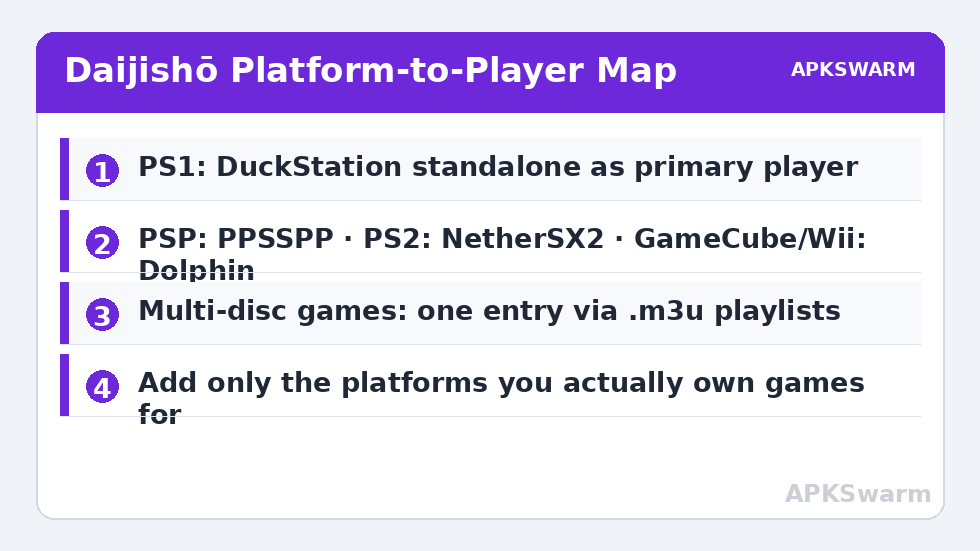
Install Daijishō from the Google Play Store on the device itself. On first launch it asks to become your home app — say yes if this device is primarily for gaming; you can always revert in Android’s default-apps settings. Then it offers a platform preset list. Resist ticking everything. Add only the systems you actually own games for; every unused platform is a tab you will scroll past forever.
Before adding games, settle your folder structure on the SD card: one folder per system, named consistently (for example /Games/PSX, /Games/GBA, /Games/DC). Daijishō does not care about folder names — you map them manually — but you will care in six months when you migrate cards. If your card is currently chaos, fix that first with the method in our microSD organisation guide.
Platforms and Players: The Part Everyone Rushes
For each platform you define one or more “players” — the emulator that launches its games. Get these choices right and Daijishō feels invisible; get them wrong and you will fight it weekly.
- PS1: DuckStation standalone as primary player. It is faster and more accurate than any RetroArch core on Android handhelds, and Daijishō passes games to it cleanly.
- PSP: PPSSPP standalone. PS2: NetherSX2. GameCube/Wii: Dolphin standalone.
- GBA: mGBA via RetroArch or Pizza Boy — RetroArch-mGBA is the reliable default. SNES/Mega Drive/NES: RetroArch cores (Snes9x, Genesis Plus GX, Mesen/FCEUmm) are all excellent.
- N64: Mupen64Plus FZ standalone tends to behave better per-game than the RetroArch core.
- Dreamcast: Flycast standalone or the RetroArch Flycast core — both strong; the standalone offers easier per-game configuration.
When Daijishō scans a platform folder, it matches files to players by extension. Problems here are almost always extension problems: compressed archives it cannot read into the player, or multi-disc games showing as separate entries. For multi-disc PS1 titles, use .m3u playlists so Daijishō lists one entry that handles disc swapping — the cleanest library hygiene tip in this entire guide.
Scraping Artwork Without the Headaches
Daijishō scrapes from community databases and needs a free account on the scraping service it uses for full metadata. The realistic workflow: connect to stable Wi-Fi (interrupted scrapes are the top cause of patchy libraries — if your handheld’s Wi-Fi is flaky, fix that with the Wi-Fi troubleshooting guide first), run the platform sync, then walk away. A few hundred games can take a while.
When matches come back wrong, it is usually your file names. Scrapers match on name similarity, so names like “Game (USA) (Rev 1).zip” match well while “gme_final2.bin” matches nothing. Rename to clean, standard titles — the No-Intro/Redump naming conventions are the gold standard because your legally dumped games can be renamed to match them. Daijishō also lets you manually assign artwork per game for stubborn entries: long-press the game, edit details, pick local images. For a deeper scraping workflow across devices, see our guide on scraping box art automatically.
One more expectation to set honestly: box art and metadata are downloaded media, cached on your device. If you later move the library card to a different handheld, the games travel but Daijishō’s database does not — you will re-sync on the new device.
Widgets, Themes, and D-Pad-First Layout
Daijishō’s home screen is built from widgets: platform shortcuts, a favourites row, recently played, and decorative elements like a clock or a shuffle-play button. The setup that works best on handhelds is restrained — one row of platform widgets, one “recently played” strip, and nothing that requires touch. Every widget should be reachable and readable via D-pad navigation because that is how you will actually use it on the couch.
Themes restyle colours and wallpapers. Dark themes save a little battery on OLED devices (like the RG556) and nothing meaningful on LCDs; choose what you enjoy looking at. Set a per-platform wallpaper if you like the visual separation, but keep fanart subtle — busy backgrounds over box art grids hurt readability.
Performance check before you declare it finished — if your library spans an older chipset, confirm the heavy platforms’ emulators are set sensibly for it:
All figures are estimates based on typical titles and stock settings; individual games vary widely.
Backup, Sync, and Moving Devices
Daijishō stores its configuration in its app data, and Android does not make that trivially portable. Use the in-app backup/export option where your build offers it, and keep a note of your platform-to-folder mappings somewhere boring like a text file in the library root. If you keep saves synced between devices — the trick covered in the Syncthing save-sync guide — point sync at emulator save folders, not at Daijishō itself; the front end is replaceable, your saves are not.
Troubleshooting the First Week
The setup issues that generate the most confused forum posts, solved: A platform scans but launches nothing — the player’s launch intent does not match the emulator’s expectations; re-select the player from Daijishō’s known-apps list rather than typing package names by hand. Games appear but artwork does not — the sync ran before Wi-Fi stabilised or the scraping account session expired; re-run sync for that platform on a stable connection. A RetroArch platform opens the wrong core — you set the core at the platform level but a per-game override exists; long-press the game and clear or correct its player. The D-pad skips widgets oddly — one of your widgets is an odd shape breaking the focus grid; simplify the layout until navigation is predictable, then rebuild — restraint here is usability. Daijishō vanished as home app after an update — Android occasionally resets the default launcher after major updates; re-select it in default-apps settings. None of these are data-loss events: your library, saves, and emulator configs are untouched by all of them.
Frequently Asked Questions
Is Daijishō free, and does it contain the emulators?
Daijishō itself is free. It does not emulate anything — it organises and launches the standalone emulators and RetroArch cores you install separately, passing the game file you select to the player you configured.
Why do some games appear twice in my library?
Usually because both an archive and its extracted file are in the folder, or a multi-disc game is listed per-disc. Keep one copy per game and use .m3u playlists for multi-disc titles to collapse them into a single entry.
The scraper matched the wrong game. How do I fix it?
Rename the file to the standard No-Intro/Redump title for that game and re-sync, or long-press the entry and assign artwork and details manually. Scrapers match on file names, so clean names fix most mismatches permanently.
Can Daijishō replace my Android home screen completely?
Yes — set it as the default home app and the device boots straight into your library. You can revert any time in Android Settings under default apps, and the app drawer button still reaches regular Android when you need it.
Does Daijishō work on phones, or only handhelds?
It works on any Android device. On a phone paired with a telescopic controller it behaves identically, though most people keep it on dedicated handhelds where D-pad-first navigation makes the most sense.