A library of grey rectangles is a library you stop opening. Scraping — automatically fetching box art, screenshots, descriptions, and logos for every game you own — is what turns a folder of files into a collection you browse for fun. This guide shows how to scrape game box art logos android handheld libraries use properly: which metadata sources exist, why file naming decides your success rate before any tool runs, the two real workflows (on-device and PC-side), and how to fix the stubborn mismatches that survive both.
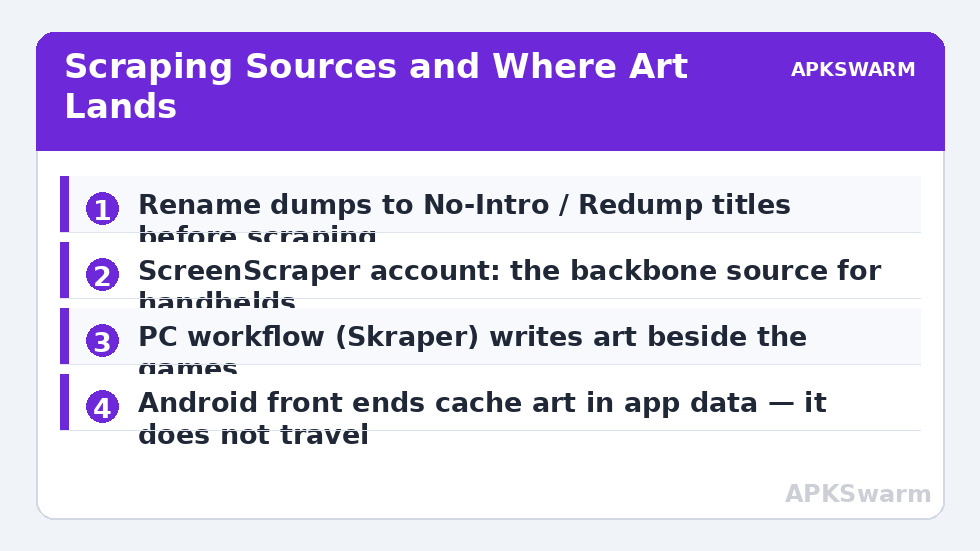
Ground rule first, because it shapes everything else: scrapers identify games by file name (and, on some services, by file hash). They do not “recognise” games magically. A collection dumped from your own cartridges and discs, then renamed to standard No-Intro (cartridge) and Redump (disc) titles, will scrape at a near-total success rate. A collection named “mario_final_FINAL2.zip” will fail no matter which tool you buy. Ninety percent of scraping quality is a rename you do once.
The Data Sources Behind the Curtain
- ScreenScraper — the backbone of most handheld scraping. Huge database, box art in multiple regions, screenshots, videos, manuals, and wheel logos (transparent title art). Free accounts work; contributing/registered tiers raise API speed and thread counts. Matches by name and by CRC/hash for known dumps.
- TheGamesDB and IGDB — used by some front ends and PC tools; stronger on modern metadata and descriptions, weaker on deep retro variants than ScreenScraper.
- LaunchBox Games Database — the source behind LaunchBox on Android; excellent curated art.
- libretro thumbnails — the RetroArch project’s own art repositories, organised strictly by No-Intro/Redump names; free, fast, and perfect for box art + screenshots + title screens if you stay inside RetroArch conventions.
Whichever source, the practical lesson repeats: standard names win. Before scraping a new system folder, run a renaming pass. Tools like the ROM managers discussed in the PC workflow below can rename against DAT files automatically for your own dumps.
Workflow One: Scrape on the Handheld
Android front ends (Daijishō, and similar): connect to stable Wi-Fi, add your ScreenScraper account credentials in the sync settings, and run a platform sync. The front end downloads art into its own cache — note that this art lives with the app, not beside your games, so it does not travel if you move the card. Our Daijishō setup guide covers its sync settings in context. If sync keeps dying, the culprit is usually the handheld’s connection, not the service — intermittent Wi-Fi is endemic on budget devices, and the Anbernic Wi-Fi fix guide lists the router-side changes that stabilise it.
Linux firmwares (KNULLI/Batocera family, ArkOS-family, muOS): EmulationStation-based systems carry a built-in scraper in the main menu — choose your source, choose art style (box art, screenshot, mix image, video for systems that support it), and let it run plugged into power. muOS takes a leaner approach, expecting artwork in its catalogue folders, which many users prepare on PC (below) and copy across. Batocera-lineage systems also support per-game manual edits from the game options menu for fixing mismatches in place.
Workflow Two: Scrape on PC, Copy Across
For large libraries, the PC workflow is faster and survives card changes, because the art lands beside the games. The standard tool is Skraper (which uses ScreenScraper data): point it at your roms folder, choose your front end’s media format, select the art composition you want (pure box art, or the popular “mix” images combining box, screenshot, and logo), and let it generate. ARRM is the alternative with finer template control.
Where the media must live depends on the consumer:
- EmulationStation/KNULLI: a media (or downloaded_media) folder per system beside the games, with gamelist.xml tying entries together.
- muOS: box art inside its catalogue structure, named to match the game files.
- RetroArch: thumbnails in the RetroArch thumbnails directory, organised by playlist name, in the three flavours (boxart, screenshots, title screens) — retrievable from inside RetroArch’s own thumbnail downloader too.
Because the art sits next to the games, organise the card first — the layout in our dual-card organisation guide is designed so PC-side scraping drops straight in without path repairs.
Fixing Mismatches and Missing Art
After the first pass you will have a residue: wrong matches (sequels matched to originals, regional variants confused) and blanks. Work them in this order. First, rename the file to the canonical No-Intro/Redump title and re-scrape just that game — most blanks die here. Second, use the scraper’s manual search (EmulationStation and Skraper both allow searching by name and picking the correct entry). Third, for genuinely absent titles — homebrew, translations, hacks of games you own — supply your own image: drop a correctly named PNG into the media folder and, where a gamelist.xml is used, point the entry at it. Scrapers respect existing local art on re-runs if you set them not to overwrite.
Regional preference also lives in settings: choose your region priority (for example USA, then Europe, then Japan) once, globally, or you will end up with a library that mixes box art regions at random and looks untidy for no technical reason. The same one-time discipline applies to language: descriptions scrape in the language your account and tool settings request, so set it before the first big run rather than re-scraping a thousand entries later because the text came down in the wrong language. And a final storage note — artwork is not free. A large library’s media folders can run to several gigabytes once screenshots, mixes, and any videos are included, which belongs in your card-size planning rather than arriving as a surprise the day a scrape stops halfway for lack of space.
One expectation check unrelated to art: if you are setting up a new device at the same time, use the estimator to keep per-system performance assumptions honest while you build:
All figures are estimates based on typical titles and stock settings; individual games vary widely.
More library-craft topics are collected under Handheld Tweaks.
Art Styles: Consistency Is the Whole Aesthetic
A scraped library looks “off” for one usual reason: inconsistency. Decide the art direction per library, not per game. Choose whether boxes display as pure box art or as mix images (box art composited over a screenshot with the wheel logo — the ScreenScraper mixes Skraper generates beautifully). Choose 2D box faces or 3D-rendered box angles. Choose whether screenshots or title screens fill the second slot in front ends that show both. Any single choice looks deliberate; a library that mixes all of them looks like a rummage sale. The same logic applies to metadata depth: scraping full descriptions, genres, and release dates makes browse-by-metadata features in EmulationStation systems genuinely useful, but only if you scrape them for every platform rather than two favourites. Set the template once in your tool, apply it to every system folder in the same session, and your library reads as one collection — which, to the person browsing it on the couch, is the entire point of scraping in the first place.
Frequently Asked Questions
Why did the scraper find art for most games but miss some?
Almost always file naming. Scrapers match by name and hash, so non-standard names fail. Rename the misses to No-Intro/Redump titles and re-scrape those entries individually.
Is a ScreenScraper account required?
For full-speed scraping with metadata, effectively yes — it is free for a basic account. Some tools (libretro thumbnail downloads inside RetroArch) work without accounts but cover box art and screenshots only.
Where does scraped art get stored?
It depends on the tool. Android front ends cache art in app data; EmulationStation systems keep media folders beside the games; PC tools like Skraper write art next to your game files, which makes it portable across devices.
Can I scrape video previews too?
Yes, on ScreenScraper-based workflows and EmulationStation systems that support them. They cost a lot of card space and scraping time, so enable videos only for favourite systems.
The art matched the wrong game in a series. How do I correct it?
Use the per-game edit or manual search in your scraper, pick the correct database entry, and lock it in. Verifying the file name matches the canonical title first prevents the same mismatch returning on the next full re-scrape.