The Odin 2 Portal takes the formula that made its predecessor a benchmark — a Snapdragon 8 Gen 2 with power to spare — and wraps it in a larger body with a 7-inch, 1080p OLED panel that refreshes at up to 120 Hz. That screen changes what setup means: refresh-rate decisions, OLED-specific brightness discipline and latency settings now matter as much as emulator choices. This odin 2 portal setup guide works through the first-day configuration in order — updates, display, performance profiles, controls, video-out and storage — so the big screen flatters your library instead of exposing its rough edges.
The library, as always here, is your own: games dumped from the cartridges and discs you own, plus homebrew. The Portal’s power makes it tempting to treat it as a general Android machine as well; resist installing half the Play Store on day one. Set it up as a games device first, and everything else it does well becomes a bonus rather than a distraction.
First Steps: Updates, Accounts and the Big Battery
The Portal’s roughly 8,000 mAh battery typically arrives part-charged, but run the first setup plugged in anyway. Connect to Wi-Fi and apply AYN’s over-the-air update before configuring anything — on the Odin line, early firmware revisions have historically refined fan curves, sleep behaviour and display behaviour, and you want to calibrate against the firmware you will keep. Sign in to the Play Store, set a PIN, and confirm the clock and time zone, which RetroAchievements and cloud save tools quietly depend on.
If you owned the earlier model, most of this will feel like coming home. Our Odin 2 battery and performance tweaks guide covers the profile and background-drain logic in depth, and nearly all of it transfers — the Portal’s larger panel changes the numbers slightly, not the principles. Owners of both devices consistently report the same lesson: the settings you choose on day one decide whether the big battery feels endless or merely large.
The OLED Panel and the 120 Hz Question
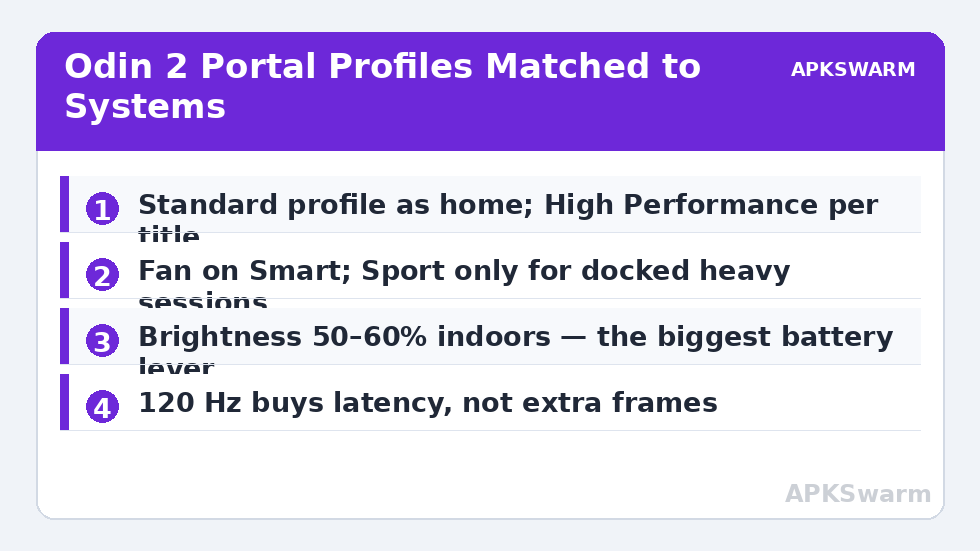
Set the display refresh deliberately rather than leaving it on a default you never chose. For retro emulation, the honest answer is that most classic systems output at roughly 60 Hz, and a 120 Hz panel does not add frames the games never had. What the higher refresh genuinely buys is lower input latency — the panel scans out sooner — and smoother front-end and Android motion. Black frame insertion in RetroArch, for those who use it, also behaves differently at 120 Hz and is worth an experiment on 2D systems.
OLED discipline matters more than refresh bravado. Brightness is the dominant power draw on an OLED, and community-reported session lengths on this class of device swing by hours between moderate and maximum brightness. Start around 50–60% indoors. If your build offers a natural or sRGB-style colour mode, choose it: wide-gamut stretching makes saturated retro palettes glow in a way that looks exciting for a screenshot and wrong for a three-hour RPG session.
Performance Profiles: Match Them to the System
| Profile | Use it for | Typical effect |
|---|---|---|
| Standard | PS1 and below, GBA, DS, most PSP | Quiet, cool, longest sessions |
| High Performance | GameCube, Wii, PS2, demanding Switch-era experiments | Full clocks, audible fan in quiet rooms |
| Fan: Smart | Almost everything | Ramps under real load, near-silent on 2D |
| Fan: Sport | Docked or charging heavy sessions | Maximum cooling at maximum noise |
The Snapdragon 8 Gen 2 is fast enough that the standard profile already overpowers the entire 16-bit and PlayStation catalogue. Reserve High Performance for the systems that can use it, per title, and let the fan live on Smart. Sustained heavy sessions are where this device earns its size: it dissipates heat better than smaller 8 Gen 2 handhelds simply by having more body to do it with, but a blocked rear or a soft surface under the base will still negotiate performance downward over a long session.
Curious what a specific system actually demands before you commit to a profile? The frame calculator linked from the APKSwarm homepage estimates the emulation load at a given internal resolution, which turns profile selection from folklore into a quick calculation:
All figures are estimates based on typical titles and stock settings; individual games vary widely.
Controls: Calibration, Sticks and the Extra Buttons
Calibrate before you judge. In the system gamepad test, keep thumbs off the sticks while the centre is captured, then trace slow, complete circles — two to three seconds each — to the gate in all directions, and run the triggers through their full travel. Verify a dead-centre rest position and a clean round trace. Hall sticks on this class of device need very little deadzone once calibrated; start near 0.05 in your emulators and add only what a specific game demonstrably needs.
Set one hotkey scheme and keep it across every emulator: Select as the modifier, Select + R1 save state, Select + L1 load state, Select + Start for the menu, and a long-press or combination for fast-forward on the systems that support it. The Portal’s extra front buttons are best spent on front-end duties — a guaranteed return-to-library rescue key is worth more than a third save-state shortcut — because the day you need it is the day an emulator has stopped listening to everything else.
Video-Out: The Couch Configuration
The Portal’s USB-C port carries DisplayPort Alt Mode, which makes it a genuinely good couch device: one rated USB-C video cable or a dock with power pass-through, a television in Game Mode with overscan disabled, and you are playing your own dumped library on the big screen with the handheld as the controller. Our video-out setup guide covers cable ratings, dock choices and the TV picture settings (Game Mode on, Screen Fit or Just Scan for picture size) that make the difference between a soft, cropped image and a correct one.
Set emulator scaling for the television separately from the handheld screen where your emulator allows per-display or docked profiles. Integer scaling that looks perfect on the 7-inch panel is also the right starting point at 1080p on the TV; the resolution choices are identical, only the viewing distance changed. Wired controllers through a dock’s USB ports remove Bluetooth latency from the equation entirely for the games where you notice it most.
Storage, Front End and Battery Habits
Keep Android, emulators and your front end on internal storage, and your library on the microSD card in standard per-system folders, with every emulator’s save and state paths pointed at the card. Configure your front end once, scrape once your folder names are final, and use .m3u playlists so multi-disc games appear as single entries. The setup rhythm is deliberately similar across devices — compare the TrimUI Smart Pro setup guide to see the same discipline expressed in a Linux firmware, and note that the folder layout barely changes.
Close the day with the habits that protect the hardware’s best asset. The Portal’s battery will typically deliver long sessions — community reports cluster around 8–12 hours on lighter systems at moderate brightness and substantially less under sustained 3D load — but lithium longevity is decided by charging habits, not session length. The full routine is in our guide to retro handheld battery health and charging habits; the short version is to avoid living on a fast charger, avoid routine 100%-to-empty cycles, and store the device around half charge if it will sit for weeks.
Frequently Asked Questions
Does 120 Hz actually improve retro games on the Portal?
It does not add frames to games that render near 60 Hz, but it does reduce input latency and makes the interface feel faster, and it gives RetroArch’s black frame insertion a better canvas. Think of it as a responsiveness upgrade, not a graphics one.
Which performance profile should be my default?
Standard, with the fan on Smart. The 8 Gen 2 overpowers everything up to PlayStation in that profile. Raise to High Performance per title for GameCube, Wii and PS2 sessions rather than living there permanently.
How long does the Odin 2 Portal battery typically last?
Community reports typically cluster around 8–12 hours for lighter systems at moderate brightness, and roughly half that under sustained heavy 3D emulation. Brightness is the largest single variable you control.
Can the Portal replace a docked console for TV play?
For your own dumped library, largely yes: DisplayPort Alt Mode over USB-C, a dock with power pass-through, and a TV in Game Mode with overscan off makes a proper couch setup. Wired controllers via the dock remove the last latency excuse.
What microSD card should I use in the Portal?
A name-brand A2 card from a reputable seller; 256 GB suits a large GameCube, Wii and PS2 collection built from your own discs. Format it in the device as portable storage and test any new card before trusting it with saves.