Setting up retroarch playlists and thumbnails android users can browse with pleasure comes down to one insight: RetroArch does not organise your library by folder names or file magic, it organises it by database matching. A playlist is a list built by scanning your own game dumps against RetroArch’s databases, and thumbnails appear only when a scanned entry’s name matches the artwork database exactly. Once you understand that chain — folder, scan, database match, playlist, thumbnail — every common failure becomes predictable. This guide builds the chain step by step and fixes each way it breaks.
Before you scan: folders and filenames that match
Scanning rewards boring consistency. Keep one top-level games folder with a subfolder per system, containing only games you dumped from your own cartridges and discs, named in the standard No-Intro or Redump style that the databases expect. If you followed the directory discipline in our RetroArch Android beginner setup guide, you are most of the way there already. Renamed, abbreviated or repacked files are the number one cause of games that scan into a playlist with no artwork, or do not scan at all.
| Library habit | Scan result | Thumbnail result |
|---|---|---|
| Standard database filenames | Matched and added correctly | Box art, title and in-game shots available |
| Shortened or custom filenames | Often added unmatched or skipped | No artwork until renamed or manually matched |
| Compressed archives kept intact | Scanned by hash where supported | Artwork follows the database entry |
| Mixed regions in one folder | Matched per file, region noted in entry name | Regional artwork where the database has it |
Grant RetroArch access to the folder through Android’s file picker when prompted, and prefer internal storage or a fast SD card for the library you scan most, because a full scan reads every file. For help with grants that silently fail, the folder-access walkthrough in our guide to setting up memory card folders and directory access covers the scoped-storage traps in detail. You can always start from the APKSwarm homepage to find those supporting guides quickly.
Scanning directories and building playlists
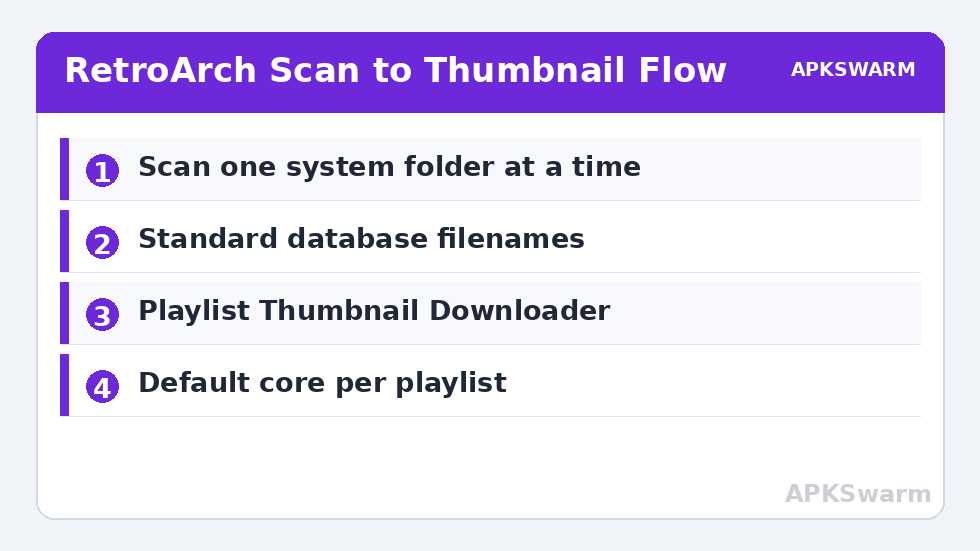
Open the playlist tab, choose Import Content, then Scan Directory, and point RetroArch at one system folder at a time. Scanning per system is slower to set up and dramatically easier to debug than scanning one giant mixed folder, because a problem stays confined to the playlist you are building. When the scan finishes, the new playlist appears in the playlist tab with an icon for its system. Run one game from the playlist — not from Load Content — to confirm the entry launches with the core you expect, then assign a default core for the whole playlist under Manage Playlists so future entries behave consistently.
- Update first: Main Menu, Online Updater — update databases, core info files and controller profiles before scanning.
- Scan one system: Import Content, Scan Directory, select a single system folder.
- Set the default core: Manage Playlists, choose the playlist, assign its core.
- Launch from the playlist: Confirm art, name and core behaviour on two or three games.
- Repeat per system: Build the library in verified slices rather than one giant scan.
If a scan adds nothing, the causes rank in a reliable order: the folder grant did not stick, the files use an extension RetroArch does not associate with that system, or the database for that system is out of date. A manual scan is the safety valve — it lets you add files with a custom system name and a forced core when database matching fails entirely, at the cost of doing the naming yourself. Reserve it for homebrew and translations, where no database entry exists to match.
Thumbnails: the three artwork types and how they download
RetroArch offers three thumbnail types per game: box art, title screen and in-game screenshot. Under Settings, User Interface, Appearance, choose which type the playlist shows, and note that many players prefer box art for browsing and screenshots for a second view. Download artwork from Main Menu, Online Updater, Playlist Thumbnail Downloader, then pick a playlist. The downloader compares each entry’s exact name against the thumbnail server and fetches matching images, which is why filename discipline from the first section decides your success rate before you touch this menu.
Downloads can be large — a full box-art set for a big library is commonly several hundred megabytes — so run the downloader on Wi-Fi and keep thumbnails on the same storage as the app where possible. If one beloved game has no artwork after a clean scan, its database name and thumbnail name differ slightly; rename the playlist entry label to the database form under Manage Playlists and run the downloader again for that playlist. On-demand thumbnail downloading, enabled in network settings in many builds, fetches artwork as you browse and is a good compromise for very large libraries on limited storage.
Once your playlists look right, a fair next question is what all that rendering polish costs on your hardware — use the site’s frame calculator to sanity-check your chip against the cores and shaders you plan to pair with this library.
All figures are estimates based on typical titles and stock settings; individual games vary widely.
Cleaning playlists: duplicates, dead entries and favourites
Playlists rot in predictable ways. You move a folder and every entry in one playlist becomes a dead path. You scan twice and own duplicates. You test forty games and want six of them within reach. RetroArch’s tools handle each case: the playlist cleanup function under Manage Playlists removes entries whose files no longer exist; deleting a playlist file and rescanning is the blunt but reliable fix for a deeply confused playlist, since your games and saves are untouched by playlist deletion. Favourites and the History playlist deserve active use — favourites for your rotation, history for the game you were just playing, rather than scrolling a 300-entry list.
- Dead entries after moving files: Run playlist cleanup, or delete the playlist and rescan the new folder.
- Duplicates: Usually two scans of overlapping folders; remove one source folder and rescan.
- Wrong core on one game: Open the game, set its core association from the playlist entry menu, leave the playlist default alone.
- Missing game you own: Check the filename against the database, fix it, rescan that folder only.
Contentless but useful housekeeping: turn on playlist compression only if you edit playlists by hand and understand the format change, and back up the playlists folder itself before a phone migration. The files are tiny, plain text, and restoring them on a new device with the same folder layout rebuilds your whole library presentation in seconds.
Subsystems, special folders and the games scanning hides
Some content legitimately resists scanning. Multi-disc games should be grouped with an .m3u playlist file listing your own disc images, which scanning handles as one entry and which also makes disc swapping clean. Add-on and subsystem content — games that run through another cartridge or base unit — loads through the Subsystems menu and is best kept in a manually curated playlist. Homebrew, fan translations and your own patched dumps have no database entry to match, so manual scan with a sensible custom name is the honest route, and their thumbnails will be absent unless you supply your own images in the thumbnail folder structure.
None of this is a defect in your setup; it is the database system working as designed. The professional habit is a two-tier library: scanned playlists for retail games with full artwork, and one clearly named manual playlist for everything else. Players who go on to tune how those games actually run, rather than how they are listed, will find the natural sequel is our Dolphin per-game settings guide for standalone tuning and the scaling choices in our integer scaling explainer for inside RetroArch itself.
Keeping it fast: playlist size, storage and updates
A phone can hold enormous playlists before RetroArch slows, but thumbnail browsing is where weak storage shows itself: hundreds of small image reads punish a slow SD card. If scrolling artwork stutters while games themselves run perfectly, move the thumbnail directory to internal storage under Settings, Directory, and leave the games where they are. After major RetroArch updates, re-run the database and thumbnail updater once; artwork sets genuinely grow over time, and games that had no box art last year often have it now.
Finally, protect the work. Your scanned playlists, thumbnails and core settings represent an hour of setup that a phone reset erases. Copy the RetroArch configuration, playlists and thumbnails folders into one dated backup whenever the library changes significantly. Restoring them is the difference between a new phone feeling like home in ten minutes and an evening of rescanning — and it keeps your carefully matched library exactly as you built it.
Frequently Asked Questions
Why did some of my games not appear after scanning?
Usually because their filenames do not match RetroArch’s database entries, the folder grant did not stick, or the database for that system needs updating in the Online Updater. Rename the files to the standard database form, confirm RetroArch can see the folder, update the databases, and rescan that one system folder.
Why do my games have no box art even though they scanned correctly?
Thumbnails download separately from scanning. Run Playlist Thumbnail Downloader in the Online Updater for that playlist, and make sure the entry name matches the thumbnail database exactly. If one game still has no art, edit its playlist label to the database form and download again.
Can I add homebrew and fan translations to a playlist?
Yes, with a manual scan. Manual scan lets you add files with a custom system name and a fixed core when no database entry exists to match, which is the normal situation for homebrew and translations. Their thumbnails will be missing unless you add your own images in the same folder structure RetroArch uses.
How do I fix a playlist full of games that no longer launch?
The file paths have changed, usually because the games folder moved. Run the cleanup option under Manage Playlists to remove dead entries, or delete the playlist file entirely and rescan the folder in its new location. Deleting a playlist never deletes your games, saves or settings.
Do thumbnails use a lot of storage space?
A full set for a large library commonly reaches several hundred megabytes across box art, title screens and screenshots. Use the on-demand thumbnail option to fetch artwork as you browse, choose one thumbnail type instead of all three, or keep the thumbnail folder on internal storage where space and speed are easier to manage.