Finding the flycast emulator best settings android players can rely on means accepting that Flycast is two emulators in one: a Dreamcast emulator for games you dumped from your own discs, and a NAOMI and NAOMI 2 arcade emulator for boards you own. It is more demanding and more configurable than simpler Dreamcast apps, and that range is exactly why defaults disappoint. This guide sets a clean baseline — BIOS handling, Vulkan rendering, resolution, texture options and controller setup — then shows where per-game changes belong, so a fix for one stubborn title never breaks five well-behaved ones.
Flycast vs Redream: what the extra settings buy you
If you have already used the simpler alternative covered in our Redream Dreamcast emulator Android TV setup, Flycast will feel busier, and deliberately so. Redream hides most accuracy choices behind sensible defaults. Flycast exposes them: multiple rendering paths, per-texture controls, NAOMI support, online play features and much deeper debugging of awkward games. The reward is compatibility and control; the cost is that you are now responsible for choices Redream made for you.
| Factor | Flycast | Simpler alternatives |
|---|---|---|
| Systems covered | Dreamcast, NAOMI, NAOMI 2, Atomiswave | Dreamcast only in most cases |
| BIOS requirement | Dreamcast BIOS dumped from your own console | Built-in BIOS replacement in some apps |
| Renderer | Vulkan and OpenGL with per-game overrides | Single tuned rendering path |
| Best fit | Players who tune per game and play arcade titles | Players who want a quick sofa setup |
Neither approach is wrong. Choose Flycast when you own NAOMI games, when a specific Dreamcast title misbehaves elsewhere, or when you enjoy tuning. The baseline below assumes a Snapdragon 7-series or 8-series phone for the resolution figures; weaker chips should start one tier lower throughout. For the full picture of recent guides and tools, the APKSwarm homepage collects everything in one place.
BIOS files, game formats and first-launch setup
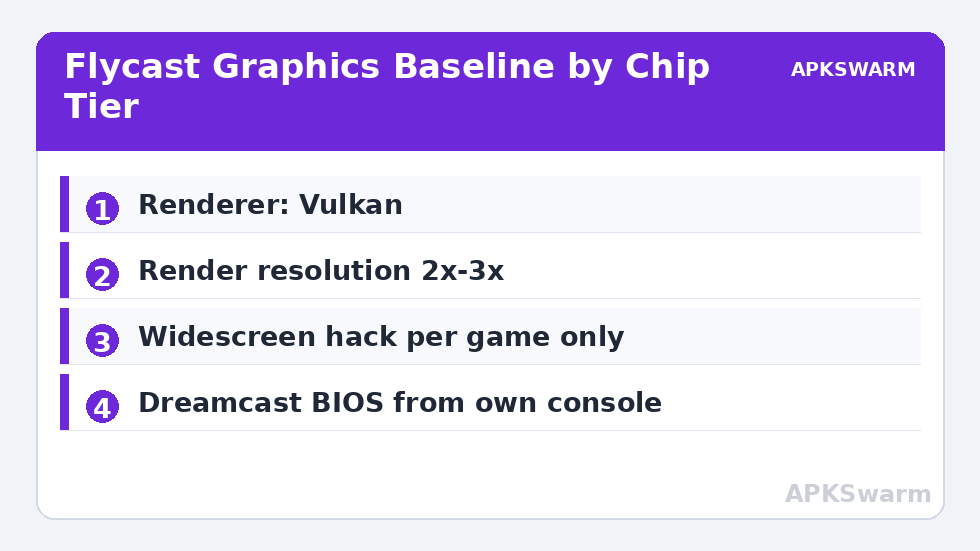
Flycast needs a Dreamcast BIOS, and the legal route is the only route this guide supports: dump it from a Dreamcast console you own, using a homebrew dumping method on that hardware. Place the BIOS file in the data folder Flycast shows you on first launch, inside the dc subfolder, and leave the filename exactly as dumped. NAOMI titles additionally need the NAOMI BIOS for the board revision you own. If Flycast reports that no BIOS was found, the folder path is wrong far more often than the file is.
For games themselves, use disc images you created from your own Dreamcast discs. GDI images preserve the original disc layout most faithfully and are the safest choice for compatibility; CHD images compress the same data into far less storage and are well supported, which matters on a 128 GB phone. CDI images were historically made for burning and sometimes had content cut to fit a CD, so an original game that shows missing music or odd behaviour in CDI form often works correctly from a proper GDI or CHD dump of the same disc. Set your content folders once, let Flycast scan them, and confirm every game launches to its title screen before you spend time tuning graphics for a library that may contain one bad dump.
Vulkan, resolution and the core graphics baseline
Start in Settings, Video. Select the Vulkan renderer on any reasonably modern Snapdragon or Dimensity device, for the same low-overhead reasons explained in our guide to enabling the Vulkan renderer in mobile emulators: Flycast issues many small draw calls, and Vulkan handles that pattern with less CPU cost than OpenGL. Keep OpenGL as a named fallback for individual games with driver-specific glitches, not as your global default.
- Render resolution: 2x (960p-class internal output) on Snapdragon 7-series, 3x on 8-series, 1x on entry chips.
- Texture filtering: Default or bilinear; avoid heavy forced filtering while diagnosing a glitch.
- Anisotropic filtering: 4x as a balanced starting point where offered; it mainly helps racing and flight games at glancing angles.
- Widescreen hack: Off globally; enable per game only after checking for stretched menus and culling problems.
- V-Sync: On, to prevent tearing when the game holds full speed.
Two settings deserve special care. Synchronous rendering and threaded emulation options trade accuracy for speed differently across builds, so change one at a time and re-test the same scene. And order-independent transparency, where available, fixes a class of Dreamcast see-through-object errors at real GPU cost — enable it per game for titles with visibly wrong transparency rather than globally, or you will pay for it in every game to fix a problem only a few have.
Texture upscaling, filtering and when to leave them off
Flycast can load replacement texture packs and upscale textures, and the honest summary is that both are per-game luxuries, not baseline settings. Texture upscaling smooths native textures in real time and can help flat-shaded arcade titles, but it costs CPU on texture-heavy scenes and can introduce hitches precisely when new areas stream in. Community reports consistently place it in the try-it-and-measure category: if a game stutters on area transitions with upscaling on and runs cleanly with it off, believe the second result.
Replacement textures are stricter still. A pack must match your exact game version and region, sit in the texture load folder Flycast specifies, and have texture loading enabled, or nothing will appear — silently. When a pack half-loads, the result looks like a rendering bug, so your first diagnostic step for sudden graphical weirdness is to disable texture loading entirely and re-test.
To sanity-check whether your phone can sustain the resolution you have chosen, use the site’s frame calculator with your chip tier and target frame rate before locking in 3x rendering for the whole library.
All figures are estimates based on typical titles and stock settings; individual games vary widely.
NAOMI and Atomiswave specifics
NAOMI games run on arcade hardware closely related to the Dreamcast, and Flycast treats them as first-class content, but setup has extra steps. Each game needs the correct NAOMI BIOS for its board, rotary and light-gun titles need their specific input types selected, and many arcade games have service-menu settings — difficulty, continues, coin behaviour — stored in per-game non-volatile memory. If a NAOMI game boots to a test menu or refuses to start a credit, that is usually the emulated cabinet asking for service-menu configuration, not a broken dump.
Performance expectations also shift. NAOMI 2 titles with their extra geometry hardware are the most demanding content Flycast runs on Android, and typical community-reported experience is that they need a flagship-class chip to hold full speed at raised resolutions, while original NAOMI and Dreamcast titles are comfortable a tier lower. Start NAOMI 2 games at native resolution, confirm full speed, and raise resolution only for titles that prove they have headroom. Save your working configuration per game as soon as it works; arcade titles are where global changes cause the most collateral damage, a lesson that carries directly into the per-game profile habits covered in our Dolphin per-game settings guide.
Controllers, VMU saves and screen rotation
Flycast maps standard Android gamepads well once you assign controls under Settings, Input. Map the analogue stick, triggers, face buttons and Start first, then bind a menu shortcut so you can reach save states and settings without a touchscreen. Dreamcast triggers were analogue, and racing games in particular read them that way, so if your pad reports digital triggers, expect on-off throttle behaviour and adjust the game’s own deadzone options if it offers them. For the handful of games with vertical or rotated display modes, Flycast’s screen rotation option handles them per game rather than forcing you to rotate the whole app.
- Map the pad: Stick, triggers, face buttons, Start, then a menu hotkey.
- Set VMU behaviour: Confirm a virtual VMU is assigned per controller port so in-game saves have somewhere to go.
- Test a save: Save in game, close the game fully, relaunch and load before trusting the setup.
- Back up the data folder: Copy Flycast’s VMU files elsewhere before phone changes or reinstalls.
VMU files are small, precious and easy to back up, so there is no excuse for losing a forty-hour save to a phone upgrade. Keep one dated backup folder and rotate it monthly. If a game claims no memory card is present, the VMU assignment for that port has been cleared — a settings issue, not lost data, until you have checked the data folder itself.
Fixing the glitches Flycast is known for
Most Flycast problems fall into four buckets with distinct fixes. Flickering or incorrectly sorted transparent objects call for per-game transparency accuracy options. A game that runs too fast or too slow despite a full-speed counter usually has a frame-limit or region mismatch, so confirm the game region matches its intended 50 Hz or 60 Hz timing. Audio crackle means emulation is below full speed, which on a capable phone usually traces back to an over-high resolution or an accuracy option enabled globally that only one game needs. And games that crash at the same repeatable point in both Vulkan and OpenGL are telling you the dump is suspect — re-dump from your own disc rather than stacking workarounds.
Keep notes as you tune. A short line per problem game — what was wrong, which single setting fixed it — becomes your personal compatibility list and saves you re-diagnosing the same title after an app update. Players building a tidy, browsable library around those tuned games will also benefit from the scanning discipline in our RetroArch playlists and thumbnails guide, since Flycast’s own library view rewards the same clean folder habits.
Frequently Asked Questions
Do I need a BIOS file to use Flycast on Android?
Yes. Flycast requires a Dreamcast BIOS dumped from a console you own, placed in the dc subfolder of Flycast’s data folder, and NAOMI games need the corresponding NAOMI BIOS from your own board. Without a valid BIOS the emulator will report that none was found and games will not boot.
What resolution should I use in Flycast on a mid-range phone?
Start at 2x internal resolution on a Snapdragon 7-series phone, 1x on entry-level chips, and 3x only on flagship hardware. Raise or lower per game based on whether demanding scenes hold full speed, and lower resolution before enabling frameskip or disabling accuracy options.
Why do transparent objects flicker or sort incorrectly in my game?
The Dreamcast handled transparency in a way that is expensive to reproduce exactly, so some games show sorting errors at default settings. Enable the transparency accuracy option for that game only, in its per-game configuration, and accept the performance cost there rather than paying it across your whole library.
GDI, CHD or CDI: which format is best for my own Dreamcast dumps?
GDI preserves the original disc layout most faithfully and is the safest compatibility choice. CHD compresses the same content to much less storage and is well supported in Flycast. CDI images were made for burning and sometimes had content removed, so prefer a fresh GDI or CHD dump from your own disc if a CDI shows problems.
Why does my NAOMI game boot to a test menu instead of starting?
That is the emulated arcade cabinet asking for service-menu configuration, which is normal first-run behaviour for many NAOMI titles. Enter the service menu using the mapped test and service buttons, set coin and difficulty options, save, and the game should boot into attract mode and accept credits normally afterwards.