Learning to use dolphin per game settings android players can trust changes Dolphin from an emulator you constantly re-tune into one you set up once per problem title and then simply play. Dolphin’s global settings should describe your phone — its chip, its screen, a sensible resolution. Its per-game settings should describe the exceptions: the game that needs bounding box, the racer that hates a speed hack, the title that only behaves at native resolution. This guide shows where those per-game profiles live on Android, which options are safe to individualise, and how to build a small library of fixes for games dumped from your own GameCube and Wii discs.
Global settings first: per-game profiles need a sane baseline
Per-game settings override the global ones, so a messy global profile poisons every exception you build on top of it. Set the global baseline first using our full Dolphin emulator Android best settings guide: Vulkan backend, an internal resolution matched to your chip tier, shader compilation set to build before starting, and the general speed hacks at their defaults. Play three or four well-behaved games on that baseline and confirm they hold full speed. Only games that still misbehave after that test earn a per-game profile.
| Setting scope | What belongs there | Example |
|---|---|---|
| Global | Anything about your phone, not a game | Vulkan backend, 2x resolution on a 7-series chip |
| Per-game graphics | Accuracy fixes one title needs | Bounding Box enabled for a paper-effect game |
| Per-game hacks | Speed or display quirks of one title | Widescreen hack off for a game with stretched menus |
| Per-game controls | Input schemes unique to one title | Rotated Wii Remote layout for a sideways-held game |
The discipline is one sentence long: if the change describes your hardware, it is global; if it describes a game, it is per-game. Everything else in this article follows from that rule, and the same philosophy runs through the rest of our tuning coverage on the APKSwarm homepage.
Where per-game settings live on Android
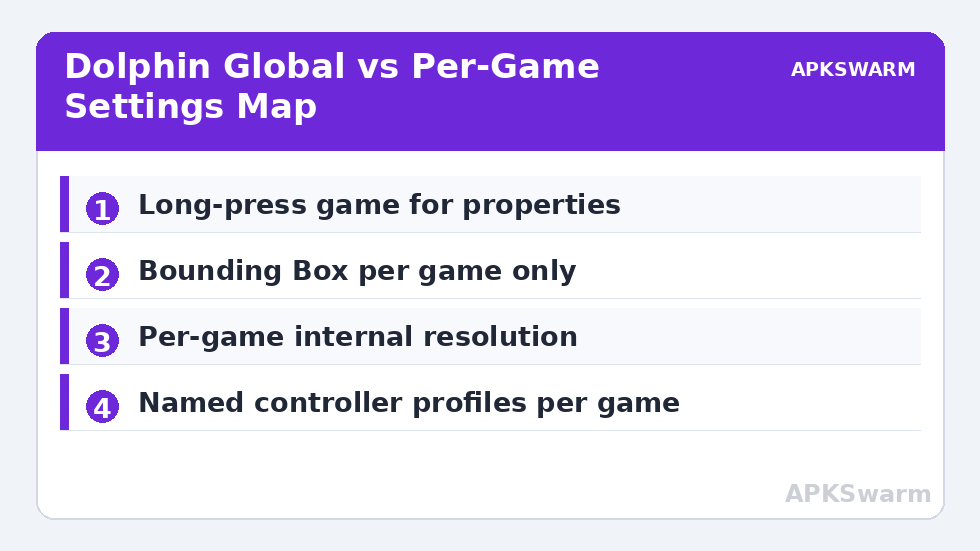
Long-press a game in Dolphin’s library grid and open its properties to reach game-specific options, including graphics settings that override the globals while that title runs. In current Android builds you can adjust the most important per-game items there: internal resolution, hacks, and enhancements for that title alone. Underneath the interface, Dolphin stores these as game configuration files keyed by the game’s ID, in the GameSettings folder inside Dolphin’s data directory. That detail matters for two reasons. First, backing up that one small folder preserves every fix you have ever made. Second, a fix shared by the community is usually described by game ID and setting name, which maps directly onto what you see in that folder.
Two cautions. Editing configuration files by hand while Dolphin is running invites the app to overwrite your edit on exit, so close the emulator fully before manual edits, and prefer the in-app interface whenever the option exists there. And per-game files survive game-file moves — they key on the game ID, not the path — so a fix follows your dump of the same game even after you reorganise storage, which is exactly what you want.
The accuracy fixes worth individualising
A short list of settings accounts for most per-game profiles in practice. Bounding Box emulation fixes the famous paper and stencil effects in a handful of titles and costs real performance everywhere, so it is the textbook per-game-only setting. EFB and XFB copy behaviour controls how framebuffer effects render; games with blurry picture-in-picture screens, broken photo modes or missing video thumbnails usually need stricter copy settings for that title. Texture Cache Accuracy set to Safe fixes garbled text and flickering sprites in some games at a speed cost. Vertex Rounding helps titles with visibly wobbling vertices.
- Broken paper or stencil effects: Enable Bounding Box for that game only.
- Garbled text or flickering 2D elements: Raise Texture Cache Accuracy to Safe for that game.
- Missing effects or black picture-in-picture: Tighten EFB copy behaviour for that game and re-test the same scene.
- Wobbling geometry: Enable Vertex Rounding per game; it is cheap but pointless globally.
- One game, one fix: Change exactly one setting, re-test, write down the result before changing another.
When a symptom could be several causes, work through the ordered diagnostic in our guide to fixing graphical glitches and missing textures first, then save the winning change as that game’s profile. A profile built from a diagnosed cause survives updates; a profile built from random toggling does not.
Per-game resolution, widescreen and performance profiles
Resolution is the per-game setting you will use most. A demanding open-world title may need 1x or 1.5x on a mid-range phone while light party and 2D games on the same device run beautifully at 3x. Per-game resolution lets both be true at once. Set it by testing the game’s heaviest typical scene — a busy town, a full-grid race start — not its title screen, and leave a note of the value that held full speed.
Widescreen handling is the second classic. The widescreen hack stretches 3D rendering to 16:9 convincingly in some games and breaks culling, menus or 2D elements in others, and Wii titles with native widescreen should simply use their own 16:9 mode instead. Decide per game, by looking, and record the decision. To compare resolutions honestly before you commit, use the site’s frame calculator with your chip tier — it will flag the combinations that are typically GPU-bound at high internal resolutions.
All figures are estimates based on typical titles and stock settings; individual games vary widely.
Controller profiles per game
GameCube games share one pad layout, but Wii games do not share anything so convenient. A sideways Wii Remote racer, a pointer-driven adventure and a Classic Controller platformer each want a different mapping, and Dolphin lets you save named controller profiles and attach them per game. Build the profile inside the game’s context, name it after the game, and test the awkward inputs — tilting, shaking, pointer aiming — before you are an hour in. Touch-overlay players should also set overlay layout per game, because a layout that suits a slow adventure covers the screen in a fast racer.
Emulated versus real Wii Remote choices belong in the same per-game decision. Pointer accuracy titles are usually happier with an emulated pointer mapped to the right stick or touch drag, while motion-heavy party games can justify pairing a real controller you own. The profile stores the choice, so the next launch feels native instead of negotiated. Players coming from tighter retro setups will recognise the pattern from our integer scaling setup guide: a small number of deliberate, saved, per-context decisions beat daily menu-diving every time.
Backing up, sharing and resetting profiles
- Back up GameSettings: Copy Dolphin’s GameSettings folder somewhere safe whenever you add a fix you would hate to redo.
- Note the game ID: Record which ID each fix belongs to, so a shared profile or community note maps to the right title and region.
- Reset by removal: To return one game to global behaviour, remove its per-game overrides rather than changing your globals to accommodate it.
- Re-test after updates: Emulator updates occasionally fix the underlying quirk; try disabling your workaround once per major update.
That last habit matters more than it sounds. Typical community experience is that a meaningful share of older per-game workarounds become unnecessary within a year of emulator development, and a leftover accuracy fix costs performance forever for a bug that no longer exists. A five-minute re-test per major update keeps your profiles lean. The same curatorial instinct — patches and fixes attached to the specific game that needs them — is exactly how widescreen patching works on the PlayStation 2 side, as our NetherSX2 widescreen patches guide shows in detail.
Frequently Asked Questions
How do I open per-game settings in Dolphin on Android?
Long-press the game in Dolphin’s library and open its properties, where game-specific graphics options override your global settings for that title only. Dolphin stores the result as a configuration file keyed by the game’s ID in its GameSettings folder, so the fix survives moving the game file itself.
Which settings should never be set per game?
Settings that describe your phone rather than a game — the video backend, your baseline internal resolution, and general shader behaviour — belong in the global profile. Per-game profiles should hold exceptions: accuracy fixes, a lower resolution for one heavy title, widescreen decisions and controller layouts unique to that game.
Why does one of my games need Bounding Box enabled?
A small number of GameCube and Wii titles use the hardware’s bounding box feature for paper, stencil and transition effects, and those effects render broken or invisible without it. It costs noticeable performance, which is why you enable it in that game’s profile only and leave it off globally.
Will my per-game settings transfer to a new phone?
Yes, if you back up Dolphin’s GameSettings folder and restore it into the same location on the new device. Because profiles are keyed by game ID rather than file path, your fixes reattach to the same games automatically once the same dumps are present in the library.
A per-game fix stopped working after an update. What should I do?
First try disabling the workaround entirely, because the update may have fixed the underlying quirk and the old setting can now cause the symptom. If the problem returns, re-enable one setting at a time and re-test the same scene, and note the Dolphin version in your records for that game.