A clean retroarch android beginner setup guide cores installation takes about twenty minutes, and most of that time should go on three decisions: where your legally backed-up games live, which core loads each system, and how your controller is recognised. RetroArch itself is not an emulator — it is a frontend for libretro cores, each of which emulates one system or engine. That modular design is powerful, but it explains why beginners get lost: a setting that exists for one core may not exist for another, and the menu mixes global options with per-core options. This walkthrough builds a tidy base setup on Android, step by step, for games you own. Nothing here involves downloading game files — you supply your own backups, stored in a folder structure you control.
retroarch android beginner setup guide cores: first launch and directories
Install RetroArch from the Play Store or the official RetroArch site, launch it once, and grant storage permission when prompted. Before downloading anything, open Settings > Directory and review where RetroArch expects things. The defaults work, but beginners benefit from one change: point File Browser at a single top-level folder you create, for example a folder called RetroGames with subfolders per system — NES, SNES, Genesis, PSX, and so on, containing only your own backups.
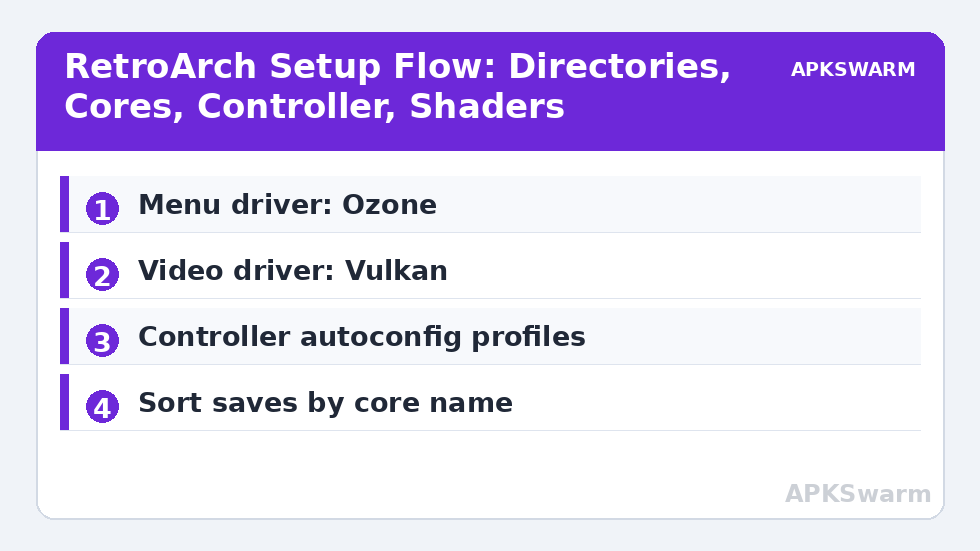
Under Settings > Directory, note the locations for Save Files and Save States as well. By default RetroArch sorts saves by core name, which prevents the classic problem of two systems overwriting each other’s files. Leave Sort Saves into Folders by Core Name enabled in Settings > Saving, and enable Auto Save State only if you understand that it creates a state on exit for every game — useful, but it can surprise you when a game resumes mid-scene instead of at its title screen.
Set your menu driver under Settings > Drivers > Menu. Ozone is the default on Android and the best choice for touch plus controller navigation, with large text and clear sections. The older XMB interface looks elegant but its horizontal ribbon is fiddly on a phone screen.
Downloading cores and loading your first game
From the Main Menu choose Load Core > Download a Core. Cores are the actual emulators. A reliable starter set for typical Snapdragon hardware looks like this:
- NES: Mesen or Nestopia UE — both accurate; Mesen uses slightly more CPU.
- SNES: Snes9x (current) — fast, compatible, and gentle on battery.
- Game Boy / Color / Advance: SameBoy for GB and GBC accuracy, mGBA for Advance.
- Genesis / Mega Drive: Genesis Plus GX — also covers Master System and Game Gear.
- PlayStation: PCSX ReARMed for speed on modest chips, or SwanStation for higher accuracy features on stronger hardware.
- N64: Mupen64Plus-Next with the GLideN64 plugin for most games.
- Arcade and newer 3D systems: Add these later, once the basics work — core count is not a goal.
Download two or three cores, not forty. Then use Load Content, browse to your folder, pick a game you own, and choose its core when asked. Tick the option to remember the association — RetroArch phrases this through Set Core Association in the playlist — so that system always launches with the right core. After one game runs, use Main Menu > Import Content > Scan Directory on your RetroGames folder. Scanning builds playlists per system in the left-hand menu, with box-art thumbnails available later from the Online Updater if you want them.
All figures are estimates based on typical titles and stock settings; individual games vary widely.
Controller auto-config and manual remapping
RetroArch’s controller system works in two layers. The first layer is autoconfig profiles: when you connect a common Bluetooth or USB gamepad, RetroArch matches its hardware ID against a database and loads a profile, showing a confirmation message with the device name. For most Xbox, PlayStation, 8BitDo, and Switch-style controllers on Android, this just works — no mapping required for the standard RetroPad layout of D-pad, face buttons, shoulders, triggers, and twin sticks.
Check the result in Settings > Input > RetroPad Binds > Port 1 Controls. Each RetroPad button shows the physical input bound to it. If a pad is not recognised, download updated profiles from Main Menu > Online Updater > Update Controller Profiles, reconnect, and only map by hand if it still fails. Manual mapping is done with Bind All, pressing each requested button in turn; use Mouse Index and analogue settings only if you know a game needs them.
The second layer is per-game flexibility. While a game is running, open the Quick Menu > Controls to remap that core’s buttons — for example moving a SNES game’s run button — then choose Save Game Remap File or Save Core Remap File depending on scope. Global binds stay untouched, which is exactly how it should be. Also set a Menu Toggle Gamepad Combo under Settings > Input > Hotkeys, such as L3 + R3, so you can open the Quick Menu without touching the screen. The rest of the Emulation Configs archive builds on this base, including setting up RetroAchievements in RetroArch and the visual tweaks in loading custom CRT shaders and filters.
Video settings, shaders, and keeping performance honest
Under Settings > Video, set Fullscreen Mode on, Threaded Video on for Android (it smooths pacing on most devices), and VSync on. Choose Video Driver as Vulkan if your cores support it — most of the starter cores above do — and fall back to gl for any core that misbehaves, setting that per core rather than globally if needed. Set Aspect Ratio to Core Provided so each system displays at the shape its games were designed for, and turn Integer Scale on for handheld systems where crisp, even pixels matter most and screen size allows it.
Shaders live in the Quick Menu > Shaders while a game runs. Start with one lightweight preset to learn the system: load a shader preset such as a simple CRT or LCD-grid effect from the slang presets folder, preview it, and use Save > Save Global Preset or Save Core Preset to keep it. Handheld systems look convincing with an LCD grid shader; home consoles suit a mild CRT effect. On Snapdragon 6xx-class chips, avoid stacking multiple shader passes — a single-pass preset preserves full speed in 8-bit and 16-bit cores, while heavy multi-pass CRT shaders are better reserved for Snapdragon 8-series devices or plugged-in play. Latency settings deserve restraint for beginners: Run-Ahead under Settings > Latency can reduce input lag in 8-bit and 16-bit cores, but set it to 1 frame, confirm the game still runs at full speed, and never enable it in 3D cores on a budget phone.
Finish in Settings > Configuration: confirm Save Configuration on Quit matches your habit, and learn the difference between global configuration, per-core overrides (Quick Menu > Overrides), and remap files. That three-layer model — global, core, game — is the whole secret to RetroArch. Change things at the narrowest layer that solves the problem, the same discipline recommended in our PPSSPP guide for budget Snapdragon phones, and your setup will stay understandable a year from now.
Frequently Asked Questions
What is a core in RetroArch and how many should I install?
A core is the actual emulator for one system, loaded inside RetroArch’s shared frontend. Install only the cores for systems you own games for — two or three to start. Adding dozens of unused cores only makes menus confusing and updates slower.
Why does RetroArch not recognise my Bluetooth controller?
First update controller profiles from the Online Updater, then disconnect and reconnect the pad so RetroArch can match it again. If it is still unrecognised, map it manually with Bind All under Settings, Input, Port 1 Controls, and save the autoconfig profile for next time.
Where should I store my games for scanning to work?
Use one top-level folder with a subfolder per system, containing your own game backups, and point the File Browser and Scan Directory tools at it. Consistent folder names help RetroArch build clean per-system playlists and match thumbnails correctly.
Should I use Vulkan or OpenGL as the RetroArch video driver?
Use Vulkan as the global driver if your device supports it, since most popular cores work well with it and pacing is usually smoother. If one core shows glitches, set that core to the gl driver with a per-core override instead of changing the global setting.
Do CRT shaders slow down games on a mid-range phone?
Lightweight single-pass presets generally run at full speed for 8-bit and 16-bit systems even on Snapdragon 6xx chips. Heavy multi-pass CRT shaders cost real GPU time, so test them per core and reserve them for stronger hardware or simpler systems.