A stable 60 FPS target in PS2 emulation is less about one magic switch and more about a disciplined nethersx2 aethersx2 best settings 60 fps profile: the right renderer, a sensible upscale multiplier for your chip, and speed hacks applied in the correct order. NetherSX2 is a community-patched build based on AetherSX2, so the menus are nearly identical and this guide names settings as they appear in both apps. One legal point comes first and is non-negotiable: PS2 emulation requires a BIOS file, and that BIOS must be dumped from your own PlayStation 2 console. Only configure the emulator for games you own. There is no legitimate shortcut around that step, and no setting in this article changes it.
nethersx2 aethersx2 best settings 60 fps: renderer and upscale multiplier
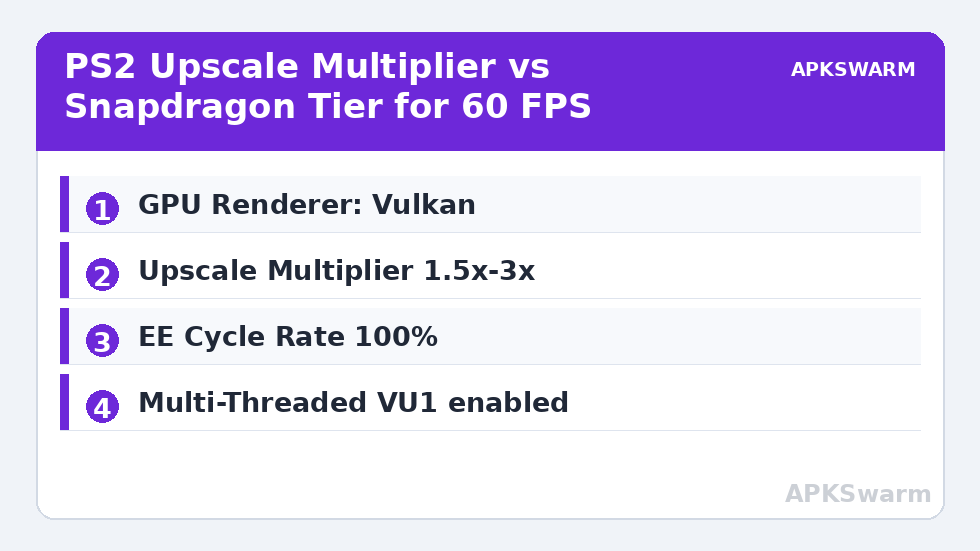
Open App Settings > Graphics. Set GPU Renderer to Vulkan on Snapdragon devices. Vulkan handles the PS2’s unusual graphics pipeline — especially games that constantly switch blend modes — with less driver overhead than OpenGL on Adreno GPUs. Keep OpenGL as a per-game fallback for titles that show incorrect transparency or missing fog under Vulkan.
Upscale Multiplier decides whether 60 FPS is realistic at all:
- Snapdragon 845 and 855 class: 1.5x to 2x Native (roughly 720p to 900p) is a sensible target. Many well-optimised games hold full speed at 2x, while heavy titles with large alpha effects need 1x.
- Snapdragon 865, 870, and 888 class: 2x to 2.5x works for most of the library, with 3x reserved for lighter 2D and early 3D games.
- Snapdragon 8 Gen 1 and newer: 3x is a comfortable baseline and 4x is realistic for many titles, though sustained sessions still depend on cooling.
- Snapdragon 6xx and lower 7xx class: Be honest about the ceiling. At 1x Native, a curated set of lighter PS2 games can run well, but demanding 3D titles will not hold 60 FPS consistently on this hardware regardless of hacks.
Set Aspect Ratio to your preference, but know that the Widescreen Patches option under Game Properties changes the game’s internal rendering, not just stretching. Enable widescreen patches per game, and disable them if you see pop-in at the screen edges where objects were culled for a 4:3 view.
Display, filtering, and shader settings that cost little
Under Graphics, set Texture Filtering to Bilinear (PS2) for accuracy or Bilinear (Forced) if you prefer a uniformly smoother look. Anisotropic Filtering at 4x or 8x is inexpensive on modern Adreno GPUs and improves road and ground textures in racing and sports games. Trilinear Filtering can stay on Automatic.
Enable FXAA only if you dislike shimmer at lower upscale multipliers — it softens the whole image, which some players like on a small screen and others find blurry. Integer Scaling is primarily useful for 2D games where you want perfectly even pixels; leave it off for 3D titles. Set VSync on to prevent tearing, and if your phone has a 90 Hz or 120 Hz display, understand that the emulator still targets the game’s original 50 or 60 Hz output — a high-refresh panel does not raise a PS2 game’s internal frame rate.
All figures are estimates based on typical titles and stock settings; individual games vary widely.
Emulation settings: EE cycle rate, cycle skip, and speed hacks
The biggest gains live in App Settings > Emulation. EE Cycle Rate controls the emulated Emotion Engine clock. Leave it at 100% (Normal Speed) for your base profile. Reducing it to 75% or 50% — underclocking — helps some games reach full speed on weaker chips because the emulator has less PS2 CPU work to do, but it can also lower a game’s internal frame rate and introduce uneven pacing. Treat it as a per-game experiment, not a global fix.
EE Cycle Skip (also labelled Maximum Underclocking) should start at Disabled (Default). Setting it to Mild or Moderate skips emulated CPU cycles and can rescue a borderline game, at the cost of choppier animation even when the speed counter reads 100%. If a game only becomes playable with aggressive cycle skip, that is information: the title is simply heavy for your chip, and 1x rendering with mild skip is the honest compromise.
Enable Multi-Threaded VU1 (MTVU) on any device with four or more cores — it moves VU1 work to its own thread and is one of the few settings that helps almost universally. Enable Instant VU1 as well, but disable it for the rare game that freezes on loading screens with it on. Fast CDVD reduces loading times from your game images and is safe to leave enabled.
Under System settings in the same menu, enable Host VSync Timing only if you experience audio drift; it can add a small amount of input latency. Set Frame Limiter to Normal Speed and leave Turbo and Slow Motion mapped to hotkeys rather than active by default.
Game fixes and per-game properties
Both apps let you long-press a game and open Game Properties to override global settings for a single title. This is where fixes belong. Skipdraw Range, Half-Pixel Offset, and Align Sprite under Graphics fixes solve specific artefacts — double images in one racer, vertical lines in one RPG — and enabling them globally will break other games. Change one fix at a time, test the exact scene that had the problem, and note the value in the game’s properties so a later app update does not leave you guessing.
Audio, controllers, and managing heat during long sessions
In App Settings > Audio, set Synchronization Mode to TimeStretch, which adjusts audio pitch smoothly when speed fluctuates slightly, rather than crackling. If a game still crackles after graphics are sorted, increase Latency one step. Audio problems in PS2 emulation almost always mean the emulation itself is below full speed — no audio toggle fixes a game running at 80% speed.
For controls, map a Bluetooth controller under Controller Settings and bind a hotkey for the Quick Menu and for save states. PS2 games were designed around analogue buttons and twin sticks, and touchscreen overlays are a poor substitute for action and racing titles. Save states are excellent for testing settings, but keep normal memory-card saves as your primary progress, since states can carry a bad setting’s glitch forward. The wider Emulation Configs collection covers related tuning, from PPSSPP settings on budget Snapdragon chips to fixing artefacts in our guide to graphical glitches and missing textures, and the cross-emulator Vulkan FPS guide.
Finally, thermals decide real-world results more than any menu. Typical expectations, not guarantees: an actively cooled or well-ventilated flagship-class Snapdragon can hold its upscale target for a full session, while a thin mid-range phone at 2x may hold full speed for fifteen minutes and then dip as clocks fall. Playing at 1.5x instead of 2x, removing the case, and avoiding fast charging while playing are boring, effective solutions. Chasing 60 FPS in a game that originally targeted 30 FPS also requires a 60 FPS patch for that specific title where one exists — without it, full speed means the game’s original frame rate, rendered perfectly, which is the correct goal.
Frequently Asked Questions
Where do I legally get the PS2 BIOS for NetherSX2 or AetherSX2?
You dump it from your own PlayStation 2 console using a homebrew dumping tool on that console. There is no legal download source for a BIOS. If you do not own a PS2, you do not have a lawful way to supply this required file.
What upscale multiplier gives 60 FPS on a Snapdragon 865?
Start at 2x Native. Most games hold full speed there, lighter titles can go to 2.5x or 3x, and the heaviest games with large transparency effects may need 1.5x. Adjust per game rather than forcing one multiplier across the whole library.
Should I lower the EE Cycle Rate to gain speed?
Only as a per-game experiment. Underclocking the EE reduces the emulator’s workload but can lower the game’s internal frame rate and cause uneven pacing. Try rendering at a lower upscale multiplier first, and keep the global profile at 100%.
Why does my game show 100% speed but still feel choppy?
EE Cycle Skip is the usual cause: the emulator reports full speed while skipping emulated CPU work, so animation updates unevenly. Set Cycle Skip back to Disabled, reduce the upscale multiplier, and confirm MTVU is enabled for a smoother result.
Is a 60 FPS patch the same as running at full speed?
No. Full speed means the game runs at its original frame rate — 30 or 60 depending on the title — without slowdown. A 60 FPS patch modifies a 30 FPS game to render more frames and is a separate, game-specific change with its own side effects.