An 8000 mAh battery and a Snapdragon 8 Gen 2 should not die before dinner, yet plenty of Odin 2 owners report exactly that. These ayn odin 2 performance tweaks battery life settings are about closing the gap between the spec sheet and the sofa: matching the performance profile to the system you are actually emulating, taming the settings that burn charge in the background, and knowing which compromises cost you nothing in the game. The Odin 2’s problem is rarely the battery — it is defaults chosen for benchmarks, not for Tuesday night.
Reference points so the advice stays honest. The Odin 2 pairs the Snapdragon 8 Gen 2 with a 6-inch 1080p screen and that 8000 mAh cell across the Base (8 GB RAM), Pro (12 GB), and Max (16 GB) tiers. In typical use, expect somewhere in the region of 8–12 hours on 16-bit and PS1-era emulation at moderate brightness, 5–8 hours on GameCube and PS2, and less on the heaviest Switch-era titles. Your numbers will move with brightness, Wi-Fi, and fan behaviour — which is precisely why the tweaks below are ordered by impact.
Performance Profiles: Stop Paying for Clocks You Are Not Using
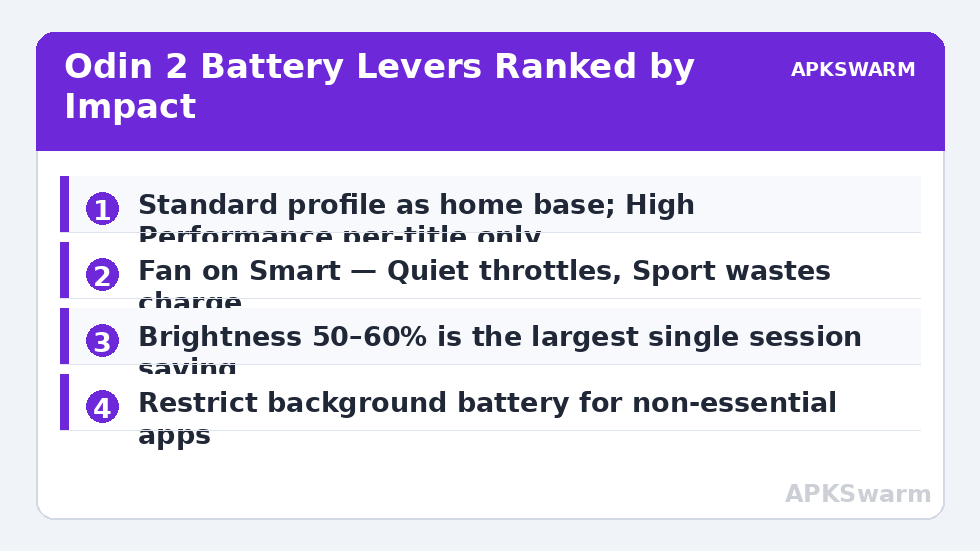
Pull down the quick settings and you will find AYN’s performance selector — Standard, Performance, and High Performance — alongside fan control (Quiet, Smart, Sport). The single most expensive habit on this device is living in High Performance permanently. That profile raises sustained clock targets for the 8 Gen 2’s Cortex-X3 and A715 cluster, which the chip only needs for PS2 upscaling, GameCube at higher resolutions, and Switch emulation. For everything PS1-era and below, High Performance delivers the identical frame rate at measurably worse battery and heat.
Build the habit the other way: Standard as home base, Performance for GameCube/PS2, High Performance only when a specific title demonstrably needs it. Pair it with the Smart fan profile. The fan on Quiet lets heat soak in until the governor sheds clocks anyway; on Sport it spends battery moving air you may not need. Smart is the efficient middle — near-silent on retro systems, active on 3D ones.
The Screen: Your Biggest Battery Lever
A 6-inch 1080p LCD at full brightness is the largest single power draw in retro sessions, bigger than the SoC on light emulators. Dropping from maximum to around 50–60% brightness — still perfectly readable indoors — is regularly worth hours across a charge. Two related settings matter more than people expect:
- Screen timeout: set 2 minutes. Handhelds get set down mid-session constantly; a 10-minute timeout is a silent tax.
- Refresh behaviour: the panel is 60 Hz, so there is no 120 Hz tax to remove — but do disable any “smart resolution” style toggles in emulator front ends that rescale output per game; fixed settings sip, dynamic settings hunt.
If you play docked or on a TV regularly, note that video-out keeps the panel and SoC working hard — see the video-out setup guide for the thermal side of that. And for choosing front ends that stay light, the Daijishō setup guide includes its battery-friendly wallpaper and widget options.
Background Drain: Android Is Still Android
The Odin 2 runs a fairly clean Android 13 build, but it is still Android. Open Settings > Apps and be unsentimental: disable or uninstall the preinstalled extras you never open, and restrict background battery for everything except your front end and sync tools. Google Play services sync, location services, and Bluetooth scanning all nibble while you play. Airplane mode during offline retro sessions is the nuclear option and it works — Wi-Fi radios on a handheld actively scanning for networks are a classic standby and session drain.
Standby deserves its own paragraph because Odin 2 owners complain about it disproportionately. A healthy unit typically loses only a small percentage overnight; if yours loses a lot, the cause is almost always an app holding a wakelock — a front end widget refreshing, a scraper mid-job, or a chat app. Settings > Battery shows the offenders. Our deeper walkthrough on optimizing sleep mode and standby drain gives you the full diagnostic routine that applies here too.
Per-Emulator Efficiency Settings
Inside the emulators, three settings dominate power draw:
- Internal resolution: render at the lowest multiple that still looks clean on a 6-inch screen. PS2 at 2x rather than 3x, PSP at 3x rather than 4x — the visual difference at arm’s length is small; the GPU load difference is not.
- Ubershaders / shader pre-compilation: on Dolphin, pre-compiling shaders costs a burst of power at load time and saves repeated stutter-and-spike costs during play. Hybrid Ubershaders is the efficient setting on 8 Gen 2.
- Vulkan everywhere it is stable: on Adreno 740, Vulkan backends in Dolphin, NetherSX2, and PPSSPP are usually both faster and lighter than OpenGL equivalents.
Unsure whether a title’s demands justify the Performance profile at all? Run it through the estimator mindset first:
All figures are estimates based on typical titles and stock settings; individual games vary widely.
Frame-rate caps are the final trick: where an emulator offers a limiter separate from vsync, cap menu-heavy and 2D titles at 60 rather than letting them free-run. There is no headroom to spend on menus.
Charging Habits That Protect the Cell
The Odin 2 supports fast charging up to 65 W-class USB-C PD on most revisions, and fast charging plus heavy emulation is the fastest way to age the battery — heat is the enemy of lithium longevity. For daily play, charge slower when you can (a standard 18–30 W charger is kinder), play plugged-in only for docked sessions with the fan on Smart or Sport, and avoid leaving the device at 100% on a charger for days between sessions. Lithium cells are happiest stored mid-charge; if the Odin goes in a drawer for a month, leave it around 50–60%.
Browse the full Handheld Tweaks category for more device care, including the thermal discipline shared with its smaller sibling in the Pocket Flip hinge and thermal care guide.
Small Wins That Add Up Across a Charge
Individually minor, collectively worth real time: use dark wallpapers and themes (the LCD backlight dominates, so this helps less than on OLED — but the front-end idle screen is lit for much of a browsing session, and dark themes do trim that). Turn off haptic/vibration feedback in menus. Set the keyboard to not light or animate extras if you use one. Prefer wired or low-latency earbuds over older Bluetooth audio stacks where your setup allows, since legacy Bluetooth audio keeps radios busier. Keep the launcher’s live widgets minimal — the same advice given for standby drain — because a home screen that polls is a home screen that spends. Finally, learn your own baseline: pick one game you play often, note its percentage-per-hour at your chosen settings once, and use that as your personal yardstick. Every tweak in this article can then be judged against a number that is yours, not a reviewer’s.
Frequently Asked Questions
How long should an Odin 2 battery actually last?
Typically 8–12 hours for PS1-era and below at moderate brightness, 5–8 hours for GameCube and PS2, and less for the heaviest Switch titles. If you are far below those ranges on retro systems, a background app or the High Performance profile is the likely cause.
Does High Performance mode damage the battery?
Not directly, but the extra heat and faster discharge cycles age lithium cells faster over months. Use it per-title rather than as a permanent setting.
Why does my Odin 2 lose charge while asleep?
Usually a wakelock: a syncing app, a front end widget, or Wi-Fi scanning. Check Settings > Battery for offenders, restrict background use, and try airplane mode overnight to confirm it is a radio/app issue rather than a failing cell.
Is it safe to play while fast charging?
Occasionally, yes. As a daily habit it combines charge heat with SoC heat and accelerates battery ageing. For long plugged-in sessions, use a slower charger and the Smart or Sport fan profile.
Does lowering emulator resolution really save much battery?
Yes — GPU load scales steeply with internal resolution. Dropping one step (for example PS2 from 3x to 2x) is one of the largest single savings available, with minimal visual cost on a 6-inch screen.