Nearly every guide in troubleshooting eventually says “check your temperature” or “watch your frame times” — this one shows you the instruments. You will learn to monitor fps cpu temp ram usage android exposes through built-in and free tools. Learning how to monitor real-time FPS, CPU temp, and RAM usage on Android turns vague impressions (“it feels laggy after a while”) into evidence you can act on, and it is the shared foundation of almost every other fix on this site. The good news: between built-in developer tools, OEM gaming overlays, and a handful of reputable apps, you can measure everything that matters without root. The caution: some of these tools consume resources themselves, and a few popular “monitors” are ad-delivery vehicles that make performance worse. Choose deliberately.
What Each Metric Actually Tells You
| Metric | What it diagnoses | Danger sign |
|---|---|---|
| FPS + frame-time graph | Smoothness and its consistency | Good average, spiky graph = pacing problem |
| CPU/GPU clock speeds | Whether hardware is boosting or throttling | Clocks sagging 25%+ over a session |
| CPU / battery temperature | Heat headroom (SoC sensors vary in availability) | Battery temp climbing past ~43°C while gaming |
| Free RAM & swap activity | Memory pressure and reload loops | Free RAM trending down, apps restarting |
| GPU utilisation % | Whether you are GPU-bound or CPU-bound | 99% GPU = render-bound; low GPU + low FPS = CPU/emulation-bound |
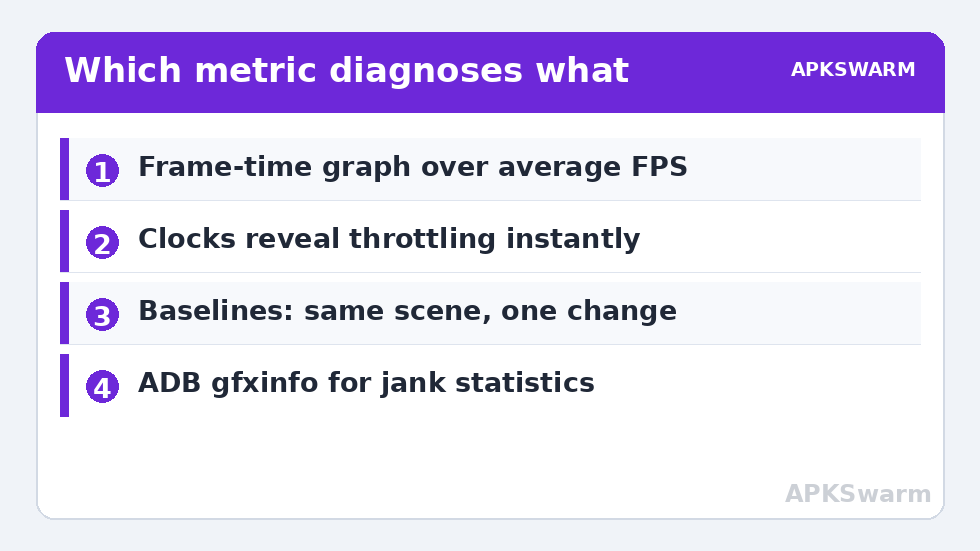
The clock-speed row is the one most players skip and the one that settles the most arguments, because it separates “the phone slowed down” from “the game got heavier.” The full thermal interpretation lives in the thermal throttling guide.
Monitor FPS CPU Temp RAM Usage Android Devices Expose: Your Options
Option 1: The OEM Game Overlay (Start Here)
Samsung Game Booster, Xiaomi Game Turbo, OnePlus Games, and gaming-phone suites (ROG Armoury Crate, RedMagic Game Space) all include a real-time overlay showing FPS, temperature, and CPU/GPU load — zero install, minimal overhead, designed for exactly this. If your phone has one, it is the right default. Enable it per its app settings, add your games and emulators, and learn its graph view if it offers one.
Option 2: Developer Options — GPU Rendering Profile & Refresh Rate
Enable Developer Options (tap Build number seven times), then: “Show refresh rate” displays the panel’s current Hz (useful for the checks in the input lag guide), and “Profile GPU rendering > On screen as bars” draws per-frame render times where a bar crossing the green line means a dropped frame budget. Crude, free, and honest.
Option 3: Reputable Third-Party Monitors
Franco Kernel Manager (works read-only for monitoring on many devices), DevCheck, and Takostat-style FPS overlays cover FPS, clocks, temperatures, and RAM in configurable floating windows, and some log to file for the before/after method used in mid-session frame drop diagnosis. Install from the Play Store only, check the permission list — a monitoring app needs no access to your contacts, files, or accessibility service — and avoid anything whose description promises boosting, cleaning, or cooling alongside monitoring.
Option 4: In-Emulator Statistics
RetroArch’s statistics overlay, PPSSPP’s debug readouts, and similar in-emulator displays report the numbers closest to the actual problem: emulation speed percentage, internal frame times, and core-specific load. When the fault is inside one emulator, these beat any system tool.
Measurement Discipline: Baselines or It Didn’t Happen
- Pick one repeatable scene per game/emulator — same area, same action loop.
- Log three minutes cold (first session of the day) and note averages and worst spikes.
- Change exactly one setting.
- Re-log the identical scene and compare. File the numbers somewhere; memory lies, especially about “feels smoother.”
This discipline is what separates the procedures in the complete troubleshooting guide from random tweaking, and the full set of instruments is indexed with the other diagnostics at Performance Fixes.
All figures are estimates based on typical titles and stock settings; individual games vary widely.
Overhead and Honesty Notes
Floating overlays cost a small amount of CPU and GPU; on a struggling device, measure with the lightest tool (OEM overlay or in-emulator stats) and confirm any dramatic finding with the overlay off. Temperature readings also deserve scepticism: many phones expose battery temperature readily but hide true SoC junction temperature, so compare a phone against its own baseline rather than against someone else’s screenshot. And never leave a heavy logging setup running permanently — it becomes part of the load described in background RAM consumption.
Option 5: PC-Side Monitoring for Deep Dives (Still No Root)
When a problem resists on-device tools, a computer and a USB cable unlock the professional tier without rooting anything. scrcpy mirrors the phone to the PC and can display rendering information while you play on the device itself; its real value here is a big-screen view of overlays plus an honest look at delivered frame pacing. ADB (Android Debug Bridge, part of Google’s free platform-tools) exposes the numbers apps cannot: adb shell dumpsys gfxinfo <package> reports per-frame render times and jank statistics for a session after the fact — run it immediately after a stuttery run and read the “Janky frames” percentage and the 90th/95th percentile frame times, which quantify exactly the hitches averages hide. adb shell dumpsys batterystats and the thermal service dumps (adb shell dumpsys thermalservice on many devices) reveal temperature histories and throttling events with timestamps you can line up against your session notes. Perfetto, Google’s trace platform, is the final step: a short system trace captured during the problem scene shows CPU scheduling, GPU work, and binder calls on one timeline — overkill for most players, decisive when a background process is stealing cycles and every on-device tool swears nothing is running. None of these require root; they require enabling Developer Options and USB debugging, and they are the same instruments Android’s own engineers use, which is why this guide teaches them instead of a gallery of booster apps.
Keeping a Settings and Measurement Log
Instruments are only half the system; the other half is a record. Keep a plain notes file — date, game or emulator, scene used, the five key numbers, and any setting you changed — and update it whenever you tune. Three entries in, patterns you would never have spotted become obvious: the title that always degrades at the same battery temperature, the emulator whose frame times improved after a specific backend switch, the “mystery” stutter that recurs on the evenings your cloud backup runs. This log is also what makes every other guide on this site faster the second time you need it, because emulator and game updates will reset your settings eventually, and the person who wrote down the working values restores them in two minutes instead of re-deriving them over a weekend. Treat the log as part of the hobby’s kit, no different from the controller in your bag.
Frequently Asked Questions
Can I monitor FPS and temperature without root?
Yes. OEM game overlays, Developer Options tools, in-emulator statistics, and mainstream monitoring apps all work without root for FPS, clocks, RAM, and battery temperature. Root adds deeper SoC sensor access on some devices, but it is not required for any diagnosis in these guides.
Which temperature matters — CPU or battery?
Both, for different reasons. CPU/SoC temperature explains immediate throttling behaviour; battery temperature explains session-length degradation and long-term battery health. Many phones only expose battery temperature to apps, which is still useful as a trend if you compare against your own baseline.
Does running an overlay reduce performance?
Slightly. A lightweight OEM or in-emulator overlay costs very little; heavy third-party overlays with graphs and logging cost more. On borderline devices, use the lightest tool that shows your metric, and sanity-check big conclusions with the overlay disabled.
My FPS counter says 60 but the game stutters. What should I look at?
The frame-time graph, not the average. Averages hide pacing: sixty frames delivered unevenly feels worse than a locked 50. If your tool only shows FPS, switch to one with a frame-time or frametime-history view — RetroArch’s statistics and several monitors offer it.
Are “booster + monitor” combo apps safe to use?
Be sceptical. The reputable monitors are monitoring-only tools with modest permissions. Combo apps bundling cleaners, coolers, and boosters tend to be ad-heavy, permission-hungry, and occasionally the cause of the background load you are measuring. Install monitoring from known developers via the Play Store.