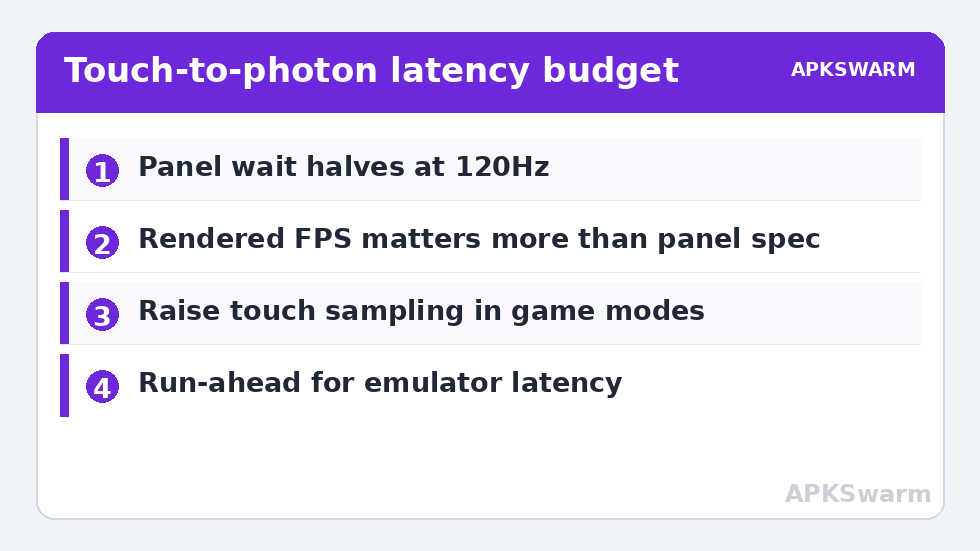
Total input lag is a chain, and the display is only one link in it. This guide shows how to fix touch screen input lag 60hz 120hz display setups both suffer from, link by link. To fix touch screen input lag on 60Hz vs 120Hz displays properly, you have to know the budget: a touch is sampled by the digitiser, processed by the game, rendered by the GPU, and finally shown when the panel refreshes. A 60 Hz panel can add up to 16.7 ms just waiting for the next refresh; a 120 Hz panel halves that to 8.3 ms. That difference is real and measurable — but it is not the whole chain, and owners of 120 Hz phones who still feel mushy controls usually have a bottleneck somewhere else in the pipeline. This guide budgets the whole chain, then fixes each link in order of size.
Budget the Chain Before Spending Effort
Typical contributions on a modern Android phone: touch sampling 4–8 ms (panels sample touch at 120–480 Hz, independent of display refresh), game processing and render queue 16–33 ms, display refresh wait 8–17 ms, pixel response a few ms. Two lessons follow. First, moving from 60 Hz to 120 Hz removes roughly 8 ms — worthwhile, but smaller than fixing a bloated render queue. Second, if your game renders at 40 fps on a 120 Hz panel, you get neither the smoothness nor the latency benefit; the panel cannot show frames that do not exist. This is why the measurement toolkit in monitoring FPS, CPU temp, and RAM comes first: confirm your actual rendered frame rate before optimising the display side. Slow-motion camera tests (record your finger and screen at 240 fps slow-mo on a second phone) give a surprisingly honest end-to-end number if you want one.
Fix Touch Screen Input Lag 60Hz 120Hz Display Chains: The Fixes in Order
1. Make Sure the Higher Refresh Rate Is Actually Engaged
Many phones ship in adaptive mode and quietly run games at 60 Hz. Check per-app refresh settings (Settings > Display > App refresh rate on stock Android; Motion Smoothness on Samsung; Refresh rate > per-app customisation on Xiaomi). Set your game to the fixed high rate and verify in an overlay that the panel rate and the game’s rendered rate both moved. Also disable battery-saver, which commonly forces 60 Hz.
2. Match the In-Game Frame Cap to the Panel
A cap slightly mismatched to the refresh rate creates uneven delivery. On a 120 Hz panel prefer caps of 60 or 120; on 90 Hz, 90 or 45. Uncapped rendering on a weak GPU produces wildly varying frame times that feel like input inconsistency. The relationship with sync is detailed in the V-Sync and screen tearing guide.
3. Raise Touch Sampling Where the OEM Allows It
Gaming modes on Samsung (Game Booster), Xiaomi (Game Turbo), OnePlus, and gaming phones expose touch response / touch sampling enhancements. These genuinely reduce the digitiser link of the chain. What they cannot do is fix render-side lag — again, chain thinking. Activating the system-level responsiveness pieces is covered alongside Game Mode and CPU booster settings.
4. Remove Processing Layers Between You and the Panel
Screen protectors rarely matter electrically, but a thick or lifting tempered-glass protector can blunt tap registration at edges; OEM “glove mode”/increased touch sensitivity (Settings > Display on Samsung and Pixels) compensates. In emulators, run-ahead and frame-delay features trade CPU for latency directly: RetroArch run-ahead of 1–2 frames is the single biggest latency cut available in emulation when the device has CPU headroom, at the cost of more processing per frame.
5. Keep Your Hands and Hardware Honest
Grip cases that force palm contact near edges trigger palm-rejection delays. Wet or very dry fingers register inconsistently. These mundane causes account for more “my 120 Hz phone feels laggy” reports than panel specifications do.
The complete category, including controller-side latency, is indexed in Performance Fixes; for gamepads specifically, controller input mis-mapping after sleep covers the related wake-up faults.
All figures are estimates based on typical titles and stock settings; individual games vary widely.
Realistic Expectations: 60 Hz vs 120 Hz
On equal hardware, the move from a 60 Hz to a 120 Hz pipeline typically cuts end-to-end touch-to-photon latency by roughly 15–25 ms in total — part from the refresh wait, part because the render loop usually samples input more often at higher target rates. Competitive players feel it; casual players notice smoothness more than latency. What 120 Hz will never fix: a game rendering at 30 fps (each frame still waits as long as it ever did), network latency in online play, or Bluetooth controller delay. If your chain audit shows the display contributing the smallest share, spend your effort on the render side — the complete troubleshooting guide orders those fixes.
Confirming the Improvement
Repeat the slow-motion test or your practised flick/aim drill in the same game and scene. You are looking for the on-screen response to land within one slow-mo frame-count step of your baseline improvement target, consistently — not once. Then play a full session to ensure the higher fixed refresh did not introduce thermal costs that hand the latency back as throttling.
Do Not Forget the Other Input Chains
This guide budgets the touch chain, but most players own two more chains worth a quick audit while the instruments are out. A Bluetooth controller replaces digitiser sampling with radio transmission and the pad’s own polling; its delay stack is dominated by codec-style buffering on the radio link and the game’s controller polling, and it is measured and mitigated separately — start with the pad in its wired or 2.4 GHz mode as a control test if inputs feel late. A USB keyboard and mouse on a hub adds the hub and Android’s pointer pipeline; pointer acceleration settings in the connected-devices options change feel dramatically without changing true latency at all, which fools many players into “fixing” lag that was actually acceleration curve. And stylus play (rhythm and drawing titles) has its own sampling behaviour on supporting phones; the same chain logic applies — measure end to end, then optimise the largest link. The discipline is identical in all three cases, which is why this site teaches the budget model rather than per-device recipes: hardware changes yearly, the chain does not.
One More Link: Game Engines Poll Input on Their Own Schedule
Even a perfect hardware chain ends at the game’s main loop, which typically samples input once per rendered frame. A game rendering at 30 fps therefore quantises your touches to 33 ms steps no matter what panel you own — another reason rendered frame rate outranks panel specification in this guide’s ordering, and why raising a struggling game’s frame rate is always the first latency fix worth attempting.
Frequently Asked Questions
Is 120Hz noticeably less laggy than 60Hz for gaming?
Yes, measurably: the display wait halves, and total touch-to-photon latency typically falls by roughly 15–25 ms when the game actually renders at the higher rate. The catch is the rendering rate — a 120 Hz panel displaying a 40 fps game delivers neither smoothness nor the latency benefit.
My phone is set to 120Hz but games feel the same. Why?
Usually because the game is capped or rendering below 120 fps, or because adaptive refresh is dropping the panel to 60 Hz for that app. Verify with an FPS/refresh overlay and set a fixed per-app refresh rate. Also check that battery saver is off.
Does a higher touch sampling rate matter more than refresh rate?
They attack different links. Touch sampling above 240 Hz shaves a few milliseconds at the input side; refresh rate shaves more at the output side. Both are smaller than fixing a game that renders slowly. Optimise in chain order, not by headline spec.
Can screen protectors cause touch lag?
A well-fitted protector adds negligible delay, but a thick, cheap, or lifting one can cause missed or delayed edge touches that feel like lag. If problems cluster at screen edges, reseat or replace the protector and enable increased touch sensitivity in display settings.
What is run-ahead and should I use it in emulators?
Run-ahead removes input latency by running the emulation ahead and rewinding each frame, cutting 1–2 frames of delay. It needs spare CPU power, so on weaker devices it causes the very stutter you are trying to escape. Try one frame first and measure.