
“8 GB + 8 GB extended!” The box copy makes it sound like your phone downloads more RAM. This article shows how to optimize android swap memory virtual ram gaming performance with the right size. Virtual RAM — marketed as RAM Plus, Memory Fusion, RAM Expansion, and a dozen other names — is swap memory: a reserved slice of storage that Android pages inactive memory contents into when RAM fills up. Understanding how to optimise Android swap memory (virtual RAM) for gaming means understanding what swap is genuinely good at (keeping background apps alive so they do not restart), what it costs (storage is orders of magnitude slower than RAM, so anything paged back in during your game arrives with a hitch), and how to size the feature for the phone you actually own. There is no universal “on good, off bad” — there is a workload question.
How Android Memory Actually Works, in 90 Seconds
Android keeps apps cached in RAM so they relaunch instantly. Under pressure, the Low Memory Killer evicts the least-important processes. ZRAM — compressed swap inside RAM itself — has been Android’s standard pressure valve for years: pages are compressed into a RAM pool, trading CPU cycles for space at RAM-class speeds. The newer “virtual RAM” features add a second, slower tier: swap on flash storage (sometimes called swapfile / storage extension). That tier is the subject here. It keeps more apps resident, but any page restored from flash costs milliseconds, not microseconds. Linux has managed this exact hierarchy for decades; the novelty is only the marketing.
The gaming consequence follows directly. A game cares about its working set — the memory it touches constantly — staying in physical RAM. Swap helps gaming only indirectly: by absorbing background-app pressure, it reduces the chance the system disturbs the game. Swap hurts gaming when the game’s own pages (or assets it suddenly needs) get paged out to flash and fault back in mid-action. Both outcomes occur; which one you get depends on how much physical RAM you have relative to your games — which is why blanket advice fails. Monitor your own split with the method in monitoring FPS, CPU temp, and RAM before deciding.
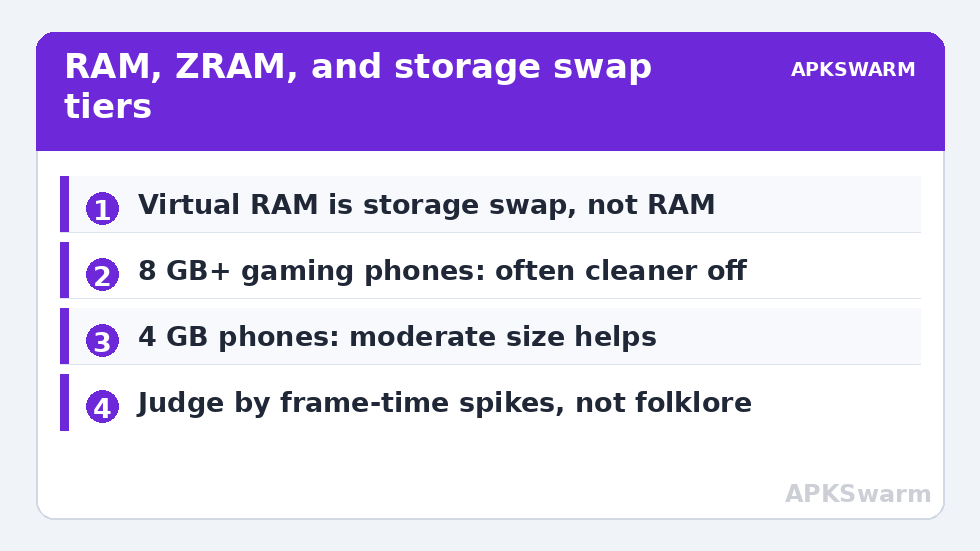
Optimize Android Swap Memory Virtual RAM Gaming Settings by Situation
Where the Toggles Live
- Samsung (RAM Plus): Settings > Battery and device care > Memory > RAM Plus — choose 2/4/6/8 GB or off; a reboot applies it.
- Xiaomi/Redmi/Poco (Memory extension): Settings > Additional settings > Memory extension — fixed steps (often 3–6 GB) or off.
- Oppo/OnePlus/Realme (RAM expansion): Settings > About device > RAM > RAM expansion — slider plus a restart.
- vivo/iQOO (Extended RAM): Settings > RAM & storage space > RAM — toggle and size where offered.
Decision Guide
| Your phone | Recommendation | Reasoning |
|---|---|---|
| 4 GB RAM, light games | Leave ON at a moderate size | Prevents constant app eviction; games here are small enough not to page-thrash |
| 6 GB RAM, mixed use | Test both; default ON is defensible | Borderline zone — measure frame-time spikes with your heaviest title |
| 8 GB+ RAM, heavy games/emulation | OFF is often cleaner for gaming | Physical RAM covers the game; swap mostly adds fault-in hitches and storage wear |
| Any phone, heavy multitasker between matches | ON | Your pain is apps restarting, not in-game paging — swap targets exactly that |
Whichever you choose, pair it with the pre-session discipline in reducing background RAM consumption: fewer competitors for physical RAM means the swap tier is rarely touched during play at all, which is the best of both configurations.
More memory-adjacent diagnostics are indexed at Performance Fixes.
All figures are estimates based on typical titles and stock settings; individual games vary widely.
Costs Nobody Mentions: Storage Wear and Space
Swap writes to flash constantly under pressure, and flash wears by writes. On a phone you keep for years with virtual RAM maxed and heavy multitasking, that wear is real but usually still not the thing that kills the phone first — the battery gets there sooner. The more immediate cost is mundane: the swap reservation consumes storage equal to its size, on devices where storage headroom itself affects performance (see storage bottleneck troubleshooting for the internal-storage version of that logic). If you are chronically short of space and RAM-rich, reclaiming an 8 GB swap reservation is rational. Also dismiss the myth that virtual RAM makes a budget phone equivalent to its “8+8” sum in benchmarks: synthetic memory tests and real frame times both rank a true 12 GB phone clearly ahead of a 6+6 arrangement.
Confirming Your Setting Choice
Benchmark your heaviest title for three minutes per configuration, same scene, logging frame-time spikes and any momentary freezes when opening menus or switching areas (the classic fault-in moments). Then live with the winner for a few days of normal use and check the second half of the equation — how often your background apps survive. The right setting is the one that wins the metric you actually feel: in-game smoothness, or multitasking continuity. If neither changes, your phone was never memory-bound and you can stop optimising this dial entirely; the complete troubleshooting guide will point you at the bottleneck you actually have.
Interaction Effects: Game Mode, Battery Savers, and Swap
Swap does not operate in a vacuum, and two neighbouring systems change how it behaves during play. Game modes on several brands quietly alter memory policy for the foregrounded game — protecting its pages from eviction and sometimes suspending the apps competing with it — which reduces swap traffic exactly when faults would hurt most; this is a genuine, undocumented-feeling benefit of enabling the OEM game mode for your main titles, configured in the Game Mode guide. Battery savers pull the opposite direction: aggressive saver profiles restrict background processes, which sounds helpful, but the resulting kill-and-relaunch churn can generate more memory pressure events per hour than normal operation. If you game on battery saver (some players do, for heat), expect swap behaviour to be noisier and judge the configuration by logged frame times rather than by theory. The unifying rule: change memory settings in the context of the whole profile you actually play under — saver on or off, game mode engaged or not — because these systems negotiate with each other, and tuning one in isolation is how contradictory advice is born.
Do not trust the settings screen alone — verify that swap is actually being exercised after your change. A terminal app such as Termux, or the memory section of a system monitor, can show swap used versus swap total; if usage sits at zero through a heavy session, the device is not paging at all and the toggle is decorative on your firmware build. Check again after a reboot and after one demanding game, because several OEM builds only begin paging under genuine pressure, which is precisely the behaviour you are trying to measure.
Frequently Asked Questions
Does virtual RAM make games faster?
Not directly. It does not raise frame rates, because storage-speed memory cannot feed a game the way RAM does. Its gaming benefit is indirect — fewer background evictions disturbing your session. On RAM-rich phones it can slightly hurt via page-fault hitches, which is why heavy gamers on 8 GB+ devices often disable it.
Is virtual RAM the same as ZRAM?
No. ZRAM is compressed swap inside physical RAM — fast, standard on Android for years, and generally left alone. The marketed “virtual RAM / RAM Plus” features add a second swap tier on flash storage, which is far slower. The toggles in settings control the flash tier.
Will turning virtual RAM off break anything?
No. The phone returns to managing memory with physical RAM and ZRAM, which is how Android worked for a decade. Background apps may be evicted sooner on low-RAM devices, so on a 4 GB phone expect more app reloads — a usability trade, not a malfunction.
Does virtual RAM wear out my storage?
It adds write cycles proportional to how much swapping your usage causes. For typical users the effect on lifespan is modest and the battery usually ages out first. Heavy multitaskers on maxed settings write the most; if you keep phones for many years, a moderate size is the prudent compromise.
How much virtual RAM should I set?
Use the decision table above: moderate on low-RAM phones, tested-or-off on 8 GB+ gaming phones, on for multitaskers. There is no benefit to maxing it “just in case” — beyond absorbing your background load, extra swap is unused reservation plus extra potential page traffic.