A force close during loading is the least informative error in Android gaming — the app simply vanishes, usually at the exact moment it tries to allocate the most memory or decode the largest assets. Work the stages below to fix force close error loading high res game android titles keep hitting. When you set out to fix force close errors when loading high-resolution games on Android, the loading screen is your diagnostic map: the game loads in stages (engine, shaders, textures, world data), and the stage where it dies tells you which resource ran out or which file failed. This article works the stages in order, distinguishing the four real causes — memory ceiling, corrupt or incomplete assets, resolution/rendering overload, and storage or permission faults — because each has a different fix and the shotgun approach of “clear everything and reinstall” wastes an hour and your save data.
Stage Diagnosis: Where Exactly Does It Die?
- Dies at the first logo / before any loading bar: launch-level fault — permissions, scoped storage, or a broken install. Start with scoped storage crash fixes.
- Dies partway through the loading bar, same point every time: a specific asset is failing — corrupt download, incomplete update, or a texture the GPU pipeline rejects.
- Dies at the end of loading, as the 3D world appears: memory or rendering overload — the moment peak textures and geometry allocate.
- Loads fine sometimes, dies other times: resource contention — what else is resident decides whether the allocation succeeds. See background RAM reduction.
Before changing anything, grab evidence: reproduce the crash, then immediately check Settings > Apps > [game] for its state, and if you use a monitoring overlay, note free RAM at the moment of death — the tooling primer is monitoring FPS, CPU temp, and RAM. Android’s own crash dialog (“app keeps stopping”) and any in-game error code are worth a screenshot; “error” text beats vibes.
Fix Force Close Error Loading High Res Game Android Titles Hit: Causes and Fixes
1. Memory Ceiling at Peak Allocation
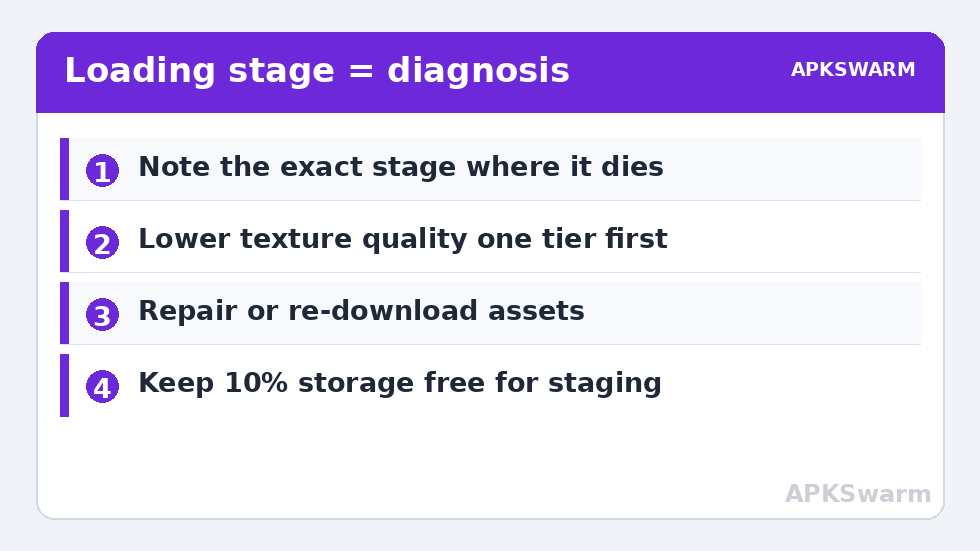
High-resolution texture sets are loaded aggressively at world entry. On 6 GB devices especially, a game set to its highest texture tier can request more than the system will grant with normal background residents present. Apply the pre-launch routine from the background RAM guide, and inside the game lower Texture Quality by one tier first — this is the setting most directly tied to loading-stage allocation, more than shadows or effects. If the game then loads reliably, you have your diagnosis and your trade-off.
2. Corrupt or Incomplete Assets
Interrupted updates and migrated installs leave partial asset bundles that only fail when the loader reaches them — the same-point-every-time signature. Use the game’s built-in repair/verify option if it has one (many large titles do, in their settings or login screen). Otherwise clear the game’s cache (not data) via Settings > Apps > Storage & cache, and let it re-download the affected bundles on a stable Wi-Fi connection. Full reinstall is the last resort within this cause, done only after saves are confirmed cloud-backed or exported.
3. Resolution and Rendering Overload
A game rendering at native panel resolution with every effect maxed can crash its own GPU process on weaker hardware at the first heavy scene. Lower the render resolution one step and disable the most expensive post-processing (motion blur, depth of field, real-time reflections) before re-testing. If the crash is accompanied by graphical artefacts in other titles, suspect heat or a driver-level issue after an update rather than this game alone — see the complete troubleshooting guide for the cross-title test.
4. Storage Pressure and Slow Media
Games stage decompressed assets in storage during loading; a nearly-full device (under ~5% free) can fail writes mid-load, and titles installed to a slow SD card can time out or corrupt under load. Keep meaningful free space, and if the game lives on a card, run the checks in microSD bottleneck troubleshooting — moving the title to internal storage is a legitimate diagnostic even if you move it back later.
The category hub for all of these is Performance Fixes.
All figures are estimates based on typical titles and stock settings; individual games vary widely.
The Order to Work In (and What to Avoid)
- Note the death stage; screenshot any error.
- Close background heavies; retry once.
- Lower texture quality one tier; retry.
- Verify/repair assets or clear cache; retry.
- Check free storage space; move off SD if applicable; retry.
- Reinstall only with saves secured, and change nothing else the same day, so the result means something.
Avoid: force-stopping and clearing data as a first move (it deletes local saves and settings for many games), installing “RAM booster” or repacked APK variants of the game, and sideloading older versions to dodge the crash — you inherit worse bugs and lose support.
Confirming Stability
Load the game cold (after a reboot) three times in a row, play past the previous death point into a heavy area, and let it sit in-world for ten minutes. Three clean cold loads with your final settings is a reasonable definition of fixed. Record which step cured it — if it was texture tier, you also now know your device’s honest ceiling for this title, which will save you repeating this article after the next big content update.
Two Overlooked Variants: Architecture Mismatch and the Too-New Update
32-bit versus 64-bit builds. Some titles ship different builds, and devices that migrated installs across phones (via backup restore or OEM transfer tools) occasionally end up with a build that mismatches the hardware’s expectations, or with an emulator-style compatibility layer in the path. The symptom is a force close at engine initialisation with everything else healthy. A clean Play Store install on the device itself — rather than a transferred install — resolves this entire variant, which is one reason “reinstall” advice sometimes works for reasons the adviser never knew. The day-one update. A major content update raises asset sizes overnight; a device that was marginal becomes insufficient, and crashes begin the same week for thousands of players simultaneously. Before dismantling your setup, check the title’s official channels and recent store reviews sorted by newest: if the update broke it, the developer’s hotfix is the cure, and your correct action is the texture-tier workaround plus patience. Distinguishing your fault from their fault is a core troubleshooting skill, and the timestamps make it easy: a crash that begins for everyone on update day is theirs.
Frequently Asked Questions
Why does the game only crash when loading certain levels?
Because levels differ in asset weight. The crashing level likely carries the largest texture set or a specific asset the others lack, so the fault — memory at peak allocation or one corrupt bundle — only triggers there. The fix path is the same: note the stage, try one texture tier lower, then verify/repair assets.
Will clearing the game’s cache delete my progress?
Clearing cache does not delete saves or account data. Clearing storage/data does for games that keep progress locally. Many large titles are server- or cloud-backed, but verify before touching the data button — the cache button is the safe first move.
The game worked before an update and now force closes. Is it my phone?
Probably the update changed asset bundles or raised default settings. This pattern points to cause 2 or 3: run the game’s repair option, and check whether the update quietly raised your texture or resolution settings. A title-side regression is also possible — if every step fails, check the game’s official channels for a known issue before blaming hardware.
Does more free storage really matter for crashes?
Yes, at the extremes. Games decompress and stage gigabytes during loading and patching; a device with a few hundred megabytes free can fail those operations mid-load. Keeping roughly 10% of storage free is cheap insurance for large titles.
Should I lower resolution or texture quality first?
Texture quality, for loading-stage crashes specifically. Loading deaths are usually allocation failures, and texture sets are the largest allocation at world entry. Resolution matters more for crashes that happen during heavy gameplay after loading succeeds.