The image keeps going soft mid-fight, then sharpens when the action calms down. This guide shows how to disable dynamic resolution scaling android games hide under half a dozen names. That breathing sharpness has a name: dynamic resolution scaling, a technique where the game lowers its internal rendering resolution whenever the GPU falls behind, then raises it again when load eases. Learning how to disable dynamic resolution scaling for sharper visuals on Android games is partly a settings hunt — the toggle hides under different names in different engines — and partly an honesty exercise, because the feature exists to protect your frame rate, and removing it trades softness for something else: lower frames, dropped frames, or heat. This article covers where the controls live, how to verify the feature is actually off afterwards, and when you should leave it alone.
Recognise DRS Before You Fight It
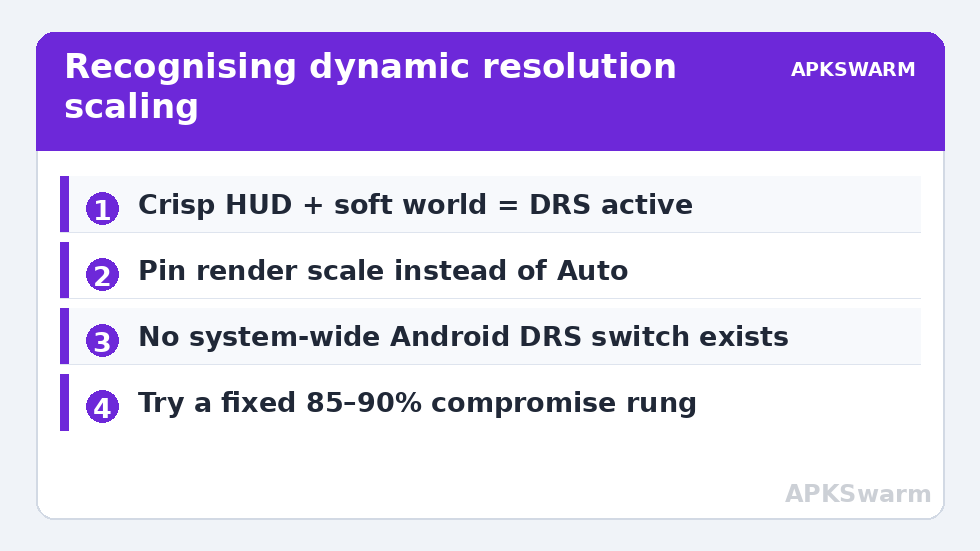
Dynamic resolution has tells that separate it from texture streaming problems and video compression: distant detail and fine edges (fences, foliage, text) soften specifically during heavy scenes and recover in quiet ones; UI elements stay perfectly crisp throughout, because the HUD renders at native resolution regardless. That second tell is decisive — if your health bar is razor sharp while the world behind it blurs, the world is being rendered lower and upscaled. Confirm with the frame-time and FPS tooling from monitoring FPS, CPU temp, and RAM: DRS activity coincides with GPU load pinned near 100%.
Disable Dynamic Resolution Scaling Android Games Hide: Where the Controls Live
In-Game Settings (First and Best Place)
Labels vary by engine and publisher. Look for: “Dynamic Resolution” (on/off or a range), “Adaptive Resolution,” “Resolution Scale” as a slider (pin it at 100%), “Auto” resolution quality tiers (switch from Auto to a fixed High/Medium), and “FPS priority / Quality priority” modes (quality priority usually fixes or raises the floor). Some titles expose a minimum-resolution floor under DRS rather than an off switch; raising the floor to 85–100% achieves nearly the same image with a small safety net. Common hiding places: Settings > Graphics > Advanced, or the “…” submenu beside the quality preset.
Emulators: The Equivalent Settings
Emulators do not usually run DRS on your phone — they render at a fixed internal resolution multiplier you choose, which is the whole point. But two cousins exist: PPSSPP’s “Auto Max Quality” rendering-resolution behaviour and per-core resolution options can shift with performance in some configurations, and some cores apply dynamic frameskip that mimics softness via dropped detail. The disciplined approach: set a fixed internal resolution multiplier your device can hold, and keep frameskip off while judging image quality. Upscaling artefacts are a separate family, separated out in the V-Sync and tearing guide‘s discussion of presentation.
What Does Not Exist (Despite Forum Claims)
There is no system-wide Android switch that disables dynamic resolution in all games; it is implemented per game engine. Developer Options contains no such toggle, and “Disable HW overlays” or forcing MSAA does not touch it. Third-party graphics-tool apps that claim to unlock hidden resolution controls work by modifying game config files on some titles, with ban risk in online games and breakage risk everywhere — not a route this site recommends.
Browse the sibling guides at Performance Fixes for the frame-rate side of the trade you are about to make.
All figures are estimates based on typical titles and stock settings; individual games vary widely.
The Trade You Are Making, Stated Plainly
With DRS disabled at a fixed 100% scale, heavy scenes render at full cost. On a phone that was dipping to 70% scale to hold 60 fps, expect those scenes to land somewhere lower — the exact cost depends on how far the scaler was dropping, which is information the DRS was hiding from you. Heat follows load: sustained full-resolution rendering reaches the thermal ceiling sooner, and the resulting clock cuts can make the sustained frame rate worse than the DRS build’s — the mechanism is worked through in the thermal throttling guide and often appears as the pattern in frame drops after 15 minutes. A middle path suits many players: fixed scale at 85–90%, which looks dramatically sharper than aggressive DRS dips while keeping some thermal and frame-rate headroom.
Verify the Change Took
Return to the heavy scene that triggered the softness and watch fine detail during the action peak: edges should stay constant now — and watch your frame-time graph at the same time. If the image is stable but frame times spike, you have honestly measured the price; decide with both numbers in front of you. If the image still breathes, the game is applying DRS from a second control (some titles couple it to the “Auto” frame-rate mode — set a fixed FPS cap too) or the softness is texture streaming from slow storage, triaged in microSD bottleneck troubleshooting.
Engine Field Notes: Unreal, Unity, and Render Scale vs DRS
Two technical distinctions sharpen your hunting. First, render scale is not DRS: render scale is a fixed proportion of native resolution (set it once, it never moves), while DRS is render scale with a feedback loop attached. A game offering only a “Resolution: 80%” style option is giving you the fixed version — setting it deliberately beats leaving an “Auto” preset in charge, even if the number you pick is the same as the average the auto mode chose, because stability of resolution reads as stability of image. Second, engines differ: Unreal-based mobile titles commonly expose scalability through quality presets with resolution buried in an advanced submenu or tied to the “Graphics Quality: Auto” toggle; Unity-based titles more often ship a resolution-scale slider in third-party settings screens, or scale via the engine’s adaptive performance package that reacts to temperature as well as load — a Unity title going soft after twenty minutes may be thermally scaling, which routes you back to cooling before settings. Proprietary engines (large publishers’ in-house tech) hide the deepest, often exposing only “Smooth / Balanced / HD” style presets where the top preset fixes the resolution highest. When a game gives you nothing at all, the preset ladder is your control surface: step up one preset, accept its other effects, and measure.
A Practical Compromise Ladder
If full native resolution costs more frame rate than you will pay, descend deliberately rather than surrendering to Auto: fixed 90% scale first, then 85%, judging each step in the same heavy scene for both sharpness and frame time. Most players find a rung where the softness becomes invisible on a phone-sized screen while the frame-rate cost stays modest — and a fixed rung, once found, ends the breathing effect entirely, which is half the annoyance gone regardless of the number chosen.
Frequently Asked Questions
Why does my game look blurry only during fights?
That is dynamic resolution doing its job: load peaks during fights, the scaler drops internal resolution to protect frame rate, and fine detail softens until the scene calms. HUD elements stay sharp because they render at native resolution — the surest way to recognise the feature.
Is there an Android system setting to turn off dynamic resolution everywhere?
No. DRS is implemented inside each game engine, so control exists only per title, under names like Dynamic Resolution, Adaptive Resolution, or a Resolution Scale slider. Any app claiming a system-wide switch is modifying game files, with the risks that implies.
Will disabling DRS lower my FPS?
In the scenes where the scaler was active, yes — that is the entire trade. How much depends on how deeply it was scaling. Many players prefer a fixed 85–90% scale: visually close to native, with a smaller frame-rate and heat cost than full 100%.
My game has no DRS setting but still goes soft. What else could it be?
Texture streaming (slow storage or aggressive texture quality auto-adjust), thermal-driven quality reduction in some engines, or simple video-memory pressure dropping texture resolution. The HUD test separates them: if the HUD also softens, it is not DRS — look at display resolution settings instead.
Does disabling DRS affect online-game fairness or bans?
Using the game’s own in-game settings never does. Modifying game files or using injector tools to force settings the game does not expose can violate terms of service in online titles. Stay inside the menus the developer shipped and you are safe.