You are three corners into a race, hands on a connected controller, when the picture quietly fades to half brightness and stays there. If your screen keeps dimming while gaming android sessions, you are not imagining it and your panel is not failing. Phones dim for at least four separate reasons — an idle timeout that cannot see your controller inputs, adaptive brightness reacting to the room, a thermal brightness cap as the phone heats up, and battery rules that treat a bright screen as a cost to cut. Each cause has a different fix, and applying the wrong one leaves you stabbing at the screen mid-game to wake it up. Work through the causes in order, with the games you dumped from your own discs and cartridges as your test cases.
Cause One: The Phone Thinks You Have Walked Away
This is the controller player’s classic fault, and the most common one for this site’s readers. Android’s screen timeout counts touch input as activity. A gamepad — Bluetooth or USB — does not reliably reset that timer on many phones, so from the system’s point of view you have set the phone down and stopped looking at it. At the timeout, typically thirty seconds to two minutes depending on your setting, the screen dims as the first stage of switching off. The signature is unmistakable: dimming at a regular interval, instantly cured by touching the screen, and worse in games where you might not touch the display for long stretches.
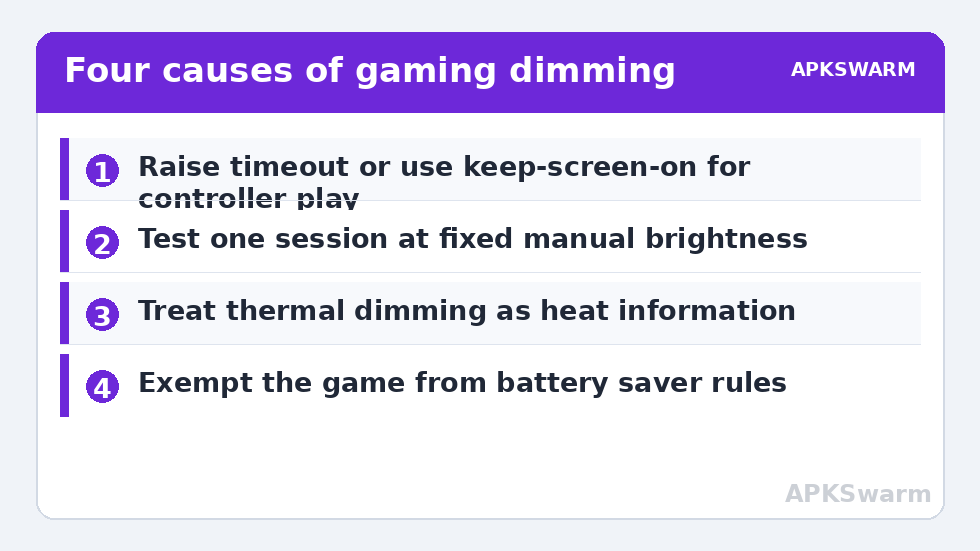
The fixes are straightforward once recognised. Raise the screen timeout in Settings, then Display, to ten minutes or the maximum your phone allows while you are in a gaming phase of life. Better still, look in the same menu or in your OEM’s game space for a keep-screen-on or screen-lock-during-games option that applies only while a game runs. Some game modes include exactly this toggle, which is one of the quietly useful features described in the guide to enabling Game Mode and performance boosters. On phones that support it, the Developer Options setting to stay awake while charging achieves the same during plugged-in sessions — a legitimate system setting, useful at a desk or bedside setup.
Cause Two: Adaptive Brightness Chasing the Room
Adaptive brightness watches the ambient light sensor and continuously re-decides how bright the screen should be. In a dim room with a bright game scene, the sensor and the content fight: a dark cutscene can convince the system the room got darker, a hand drifting over the sensor near the top bezel casts a shadow it reads as evening, and a handheld console-style grip makes both worse. The signature is wandering brightness — up and down irregularly, often after scene changes or grip shifts — rather than a single step down at a fixed interval.
| Dimming pattern | Likely cause | Test |
|---|---|---|
| Steps down at a fixed interval, touch restores it | Screen timeout with controller input | Play touch-only and compare timing |
| Wanders up and down with scenes and grip | Adaptive brightness / covered sensor | Fix brightness manually for one session |
| Steps down when warm and will not return | Thermal brightness cap | Cool the phone, then watch brightness return |
| Dims near a battery percentage threshold | Battery saver rules | Test above 50% charge or while charging |
The test is the fix preview: set brightness manually for one full session. If the picture stays put, adaptive brightness was your culprit. You then choose your compromise — many players disable adaptive brightness only during gaming via their game mode’s display options, or simply adopt a manual level for evening play. Also keep the sensor uncovered: check your grip and any case lip near the top of the screen before blaming software.
Cause Three: The Thermal Brightness Cap
The display is one of the hottest, most power-hungry parts of a gaming phone, so when the device heats up, brightness is one of the first budgets the thermal policy cuts — sometimes below the level you set, and it will refuse your attempts to raise it until things cool down. The signature separates it from the other causes: dimming that arrives fifteen or twenty minutes into a heavy session, tracks how hard the game is pushing, and only releases after a pause. This is the same heat story told fully in the guide to fixing thermal throttling and overheating, with brightness as its visible messenger.
Treat this cap as information, not an enemy to defeat. It is a protection, and the honest fixes reduce heat rather than override protection: remove the case for long sessions, lower in-game resolution or frame rate, play out of direct sunlight, and accept a slightly lower manual brightness that the phone can sustain instead of a high one it keeps confiscating. Our wider guides indexed from the APKSwarm homepage return to this trade-off often because it decides so many long-session complaints. A brightness level the phone holds for an hour beats a brighter one it takes away after fifteen minutes. To plan sessions around it, run your game’s frame rate and your refresh rate through the frame calculator below — an unnecessarily high frame rate is pure heat, and heat is what triggers this cap.
All figures are estimates based on typical titles and stock settings; individual games vary widely.
Cause Four: Battery Saver and OEM Power Rules
Battery savers dim displays by design, and several OEM power managers apply milder versions of the same idea well above the level where Android’s own saver engages. If dimming reliably begins at a similar charge percentage, or after a system update reset your preferences — updates are repeat offenders here — check three places: Android’s Battery Saver schedule, your OEM battery app’s per-app rules for the game or emulator, and any adaptive-battery or brightness-limit toggle that appeared in display settings. Set the game to be exempt from the aggressive rules while leaving the rest of the phone managed normally; a blanket disabling of every power feature to fix one game is a poor trade you will feel in standby drain.
- Check Battery Saver’s schedule and turn-off threshold first.
- Look for an OEM “brightness limit” or outdoor-visibility toggle that resets itself.
- Exempt the specific game, not the whole phone.
- Retest from above 50% charge before concluding a setting failed.
While you are working through power behaviour, note that brightness and pacing interact: a screen stepping between rates and levels can make an otherwise even 30 FPS game feel uneven, which is why the guide to fixing frame pacing judder in 30 FPS games treats a stable display setup as part of the pacing fix, not a separate topic.
Setting Up a Dimming-Free Session, Deliberately
Bundle the confirmed fixes into a small pre-session routine so the result is repeatable. Timeout raised or keep-awake enabled for the session, brightness set manually to a level your phone sustains, battery rules checked for the title you are about to play, and — if heat has been your cause — the case off and the heavier settings trimmed. None of this requires any app beyond the system and your game mode, and none of it disables a safety protection: you are choosing within the settings the manufacturer provided, and leaving thermal protections themselves fully intact.
- Plug in or confirm comfortable charge, so battery rules stay out of the test.
- Set brightness manually to a sustainable level; disable adaptive for the session if it wandered.
- Raise the screen timeout or enable your game mode’s keep-on option.
- Play one full session and log any dimming with its time and the phone’s warmth.
If a single dimming event survives the routine, its timestamp tells you where to look: interval-regular means timeout, warmth-correlated means thermal, charge-correlated means battery rules. There is a fourth companion case worth knowing — a phone that charges so slowly during play that battery rules keep engaging — and it has its own walkthrough in the guide to slow charging while gaming and bypass charging. Between the two guides, the whole power-and-display loop of long-session play is covered.
A Word on Screen Health and Habits
Two honest cautions close the guide. First, OLED screens and static HUD elements are not friends over very long sessions: parking brightness at maximum with a fixed heads-up display for hours, night after night, can contribute to uneven wear over a screen’s life. Varying content, using any built-in pixel-shift or HUD-fade options, and not maxing brightness beyond need are cheap insurance. Second, avoid the folk remedy of third-party “keep screen on forever” apps with broad permissions: the system settings and game modes above do the job without handing a stranger your accessibility service. Your goal is a stable, comfortable picture for the session — not a phone that never sleeps again.
Frequently Asked Questions
Why does my screen dim after a minute when I use a controller?
Because Android’s screen timeout counts touches as activity, and gamepad input often does not reset that timer. The phone believes it has been set down. Raise the screen timeout, or enable the keep-screen-on option in your game mode or the stay-awake-while-charging developer setting for plugged-in play.
Why won’t my brightness go back up after dimming mid-game?
That is usually the thermal brightness cap. When the phone heats up, it limits maximum brightness as a protection and ignores your slider until temperatures fall. Cool the device, reduce game load, and set a sustainable brightness level rather than fighting the cap.
Does turning off adaptive brightness fix gaming dimming?
Only the adaptive kind — brightness that wanders with scenes, room light, or a covered sensor. Test with a fixed manual brightness for one session. If dimming still arrives at a fixed interval or with heat, your cause is the timeout or the thermal cap, not adaptation.
Is it safe to keep the screen on for long gaming sessions?
Within reason, yes, using the manufacturer’s own settings. Be sensible with OLED screens: avoid parking maximum brightness on static HUD elements for hours every night, since that can contribute to uneven wear over time. Use the lowest brightness that looks good in your room.
Why did dimming start after a system update?
Updates commonly reset display and battery preferences: timeouts shorten, adaptive brightness re-enables, and battery rules revert to defaults. Re-check those three menus after any major update before assuming a new fault — the fix is usually restoring the settings you already had.