Setting up two controllers local multiplayer android sessions is easy to start and surprisingly easy to get subtly wrong: both pads pair, both pads test fine, and then player two’s character is steered by player one’s pad, or the second pad works in the menu and vanishes in the match. Android itself handles multiple gamepads well — it is games and emulators, each with their own idea of what “player one” means, that create the friction. This guide gives you a repeatable routine: pair in a deliberate order, prove each pad separately, assign players inside each app, and choose games and emulators that genuinely support local play with titles you own. Do it once properly and a retro game night stops starting with twenty minutes of settings archaeology.
What Android actually supports — and where the limits live
Android’s input system distinguishes controllers by device, so two, three, or four pads can be connected at once over a mix of Bluetooth and USB. The limits you will actually hit are rarely Android’s:
- The game: many Android games with “controller support” mean one controller. Local multiplayer on one screen is a feature a game must explicitly build.
- The emulator: emulators are the reliable home of local multiplayer — most let you assign a separate device per player port — but each emulator buries the setting in a different menu.
- The radio: two Bluetooth pads plus Bluetooth earbuds plus a busy 2.4 GHz room is a real load. Expect slightly worse latency variance than single-pad play, and prefer wired or 2.4 GHz dongle pads for players three and four.
- The screen: two players on a phone screen is cramped for anything except puzzle, racing, and retro titles. A tablet, or a phone driving a TV, transforms the same setup.
Households that already play on a TV may prefer to move the whole session there; our guide to connecting a wireless controller to an Android TV box covers the dongle-based route that makes two-pad living-room play on a box noticeably steadier than Bluetooth alone.
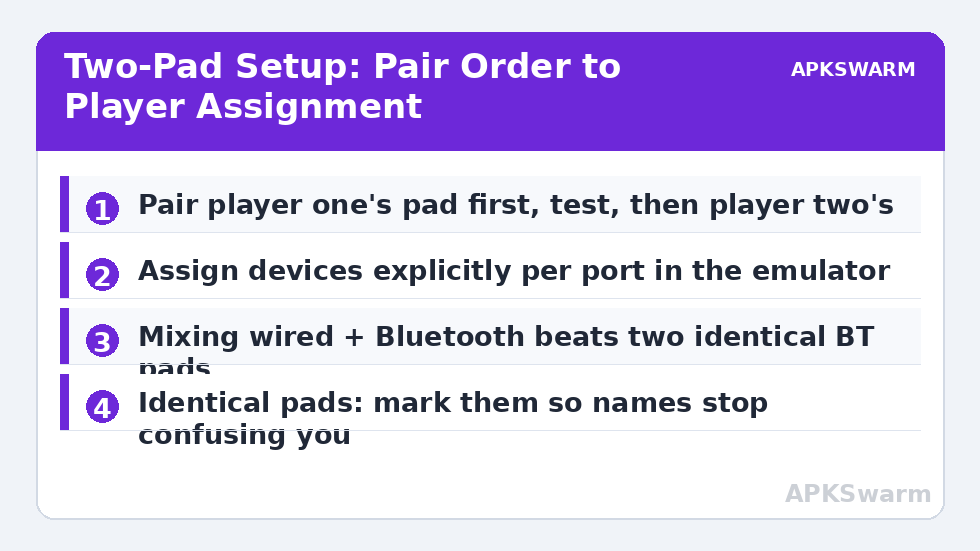
The pairing routine that prevents player-swap chaos
- Turn off or unplug every controller, then power down any console the pads know (a PlayStation or Switch in range will steal its pad back).
- Pair or plug in player one’s pad first. Open a gamepad tester, label it mentally — “the black pad is player one” — and confirm all inputs.
- Pair player two’s pad second. In the tester, confirm that its inputs register as a separate device and do not move player one’s readout.
- Launch the game or emulator and find its player-assignment or port settings before starting a match. Assign devices explicitly where the app allows it; do not rely on “first pad to press a button wins” unless the app offers nothing else.
- Start a low-stakes test round. Have each player press one distinctive button in turn and confirm the right character responds.
- Note the order that worked. Connection order is the hidden variable in most assignment systems, so recreating the same order next session recreates the same result.
| Setup | How players are assigned | Watch out for |
|---|---|---|
| RetroArch | Settings → Input → Port 1, Port 2 device index | Autoconfig may swap identical pads; set device index per port |
| PPSSPP | Primarily a one-player emulator for its own library | Do not expect two-pad PSP play except in specific multiplayer modes you own |
| Dolphin | Per-port controller configuration | Each emulated controller must be configured and enabled separately |
| Native Android games with local mode | Usually join-in: player two presses a button at the menu | Some titles only enable local mode on tablets or TV devices |
| Cloud/streaming apps | Per the app; often one pad per streamed session | True local co-op depends on the streamed game itself |
Choosing pads: mixing brands is fine, mixing connections is smart
There is no requirement that both pads match. Android identifies each device separately, and emulators happily take a wired telescopic pad for player one and a Bluetooth console pad for player two. In fact, mixing connection types is the smart default: one wired pad removes half the radio load and gives at least one player a rock-steady link, while identical Bluetooth pads from the same production run are the combination most likely to confuse an emulator’s autoconfig, because they report the same device name.
If both pads are identical, make them distinguishable in the physical world — a coloured grip, a sticker, different stick caps — because every assignment screen will call them by the same name, and “the second Wireless Controller in the list” is not a mental model that survives a drinks break. Rename them in Bluetooth settings where your phone allows it; the new name is also what several emulators will display, which helps everywhere downstream.
For games without native controller support at all, two-player touch mapping is possible via overlay apps for titles you own, but it doubles the complexity of an already fiddly technique. Our guide to mapping touch screen controls to physical buttons explains the one-player version honestly, including its competitive-play warnings; attempt the two-player version only for offline, single-device fun where a mis-fire costs nothing.
Latency and fairness when two pads share one phone
Two Bluetooth pads do not double latency, but they do share one radio, so each pad’s delay becomes a little more variable — the jitter, not the average, is what players feel as unfairness in a fighting game or a football title. Typical single-pad Bluetooth totals on a 120 Hz phone sit in a community-reported range of roughly 25–45 ms; with two pads and a clean 2.4 GHz environment, expect the same neighbourhood with wider swings, and move the phone’s Wi-Fi to 5 GHz before a serious session.
If you want to verify your own room rather than trust ranges, film both players’ hands and the screen in one slow-motion clip and estimate each pad’s delay with the frame and latency calculator on this site; a pad that is consistently far behind its partner usually turns out to be the older Bluetooth model, a nearly flat battery, or the one sitting behind a player’s body from the phone’s point of view. Swapping seating positions is a legitimate diagnostic, not a superstition.
All figures are estimates based on typical titles and stock settings; individual games vary widely.
For genuinely competitive local play in games you own, the fairest cheap setup is embarrassingly simple: both pads wired through a USB hub, or one wired and one Bluetooth pad assigned to the player who cares less about a few milliseconds. Perfection is not required — symmetry is. Two equally average connections feel fair; one crisp and one mushy connection does not.
When player two’s pad stops working: a short triage
Pad two works in the tester but not the game: the game probably supports one pad, or assigns pads by order and grabbed the wrong one. Check the app’s player settings, and relaunch the game with only the intended order of pads connected. Both pads steer player one: the emulator’s ports are both mapped to the same device index; open the port settings and assign distinct devices. Pad two disconnects mid-match: battery first, then radio congestion, then Android battery optimisation putting a background input service to sleep. Everything worked yesterday: something re-paired in a different order — a pad that visited a console overnight is the usual story — so repeat the deliberate pairing routine rather than changing settings at random.
One related failure deserves its own pointer because it wastes so many evenings: a pad that Android sees perfectly but an emulator refuses to list at all. That is not a multiplayer problem and re-pairing rarely fixes it; it has a dedicated diagnosis in our guide to fixing a controller not detected in Android emulators. Likewise, once your two pads work, the natural next upgrade is not more hardware but better organisation — saving each player’s bindings as their own configuration, which is exactly what our guide to per-game controller profiles on Android builds on top of this setup. The rest of the controller library lives on the APKSwarm homepage.
Frequently Asked Questions
Can Android really use two controllers at the same time?
Yes. Android distinguishes controllers by device and supports several at once over mixed Bluetooth and USB connections. Whether two pads work in a specific title depends on that game or emulator offering a local multiplayer mode and per-player assignment.
Do both controllers need to be the same model?
No. Mixing brands and connection types works well and can help, because identical pads report identical names that confuse some emulators’ autoconfig. One wired and one Bluetooth pad is a particularly reliable combination.
Why do both controllers move player one?
Because the emulator or game has both player ports assigned to the same device. Open its input or port settings and assign a distinct controller device to player two’s port, then restart the match.
Does using two Bluetooth controllers increase input lag?
Slightly in variance rather than average. Both pads share one radio, so delay jitters more, especially in congested 2.4 GHz rooms. Moving the phone to 5 GHz Wi-Fi and keeping pads close keeps typical totals in the usual 25–45 ms range at 120 Hz.
What are the best kinds of games for two controllers on one phone?
Retro emulator titles you own, racing games, sports games, and puzzle or party games designed for shared-screen play. Story-driven single-player games rarely offer a local mode, regardless of how many pads are connected.