The technique to map touch screen controls physical buttons android games refuse to support is called touch emulation: an accessibility- or overlay-driven layer watches your gamepad and injects synthetic taps and swipes at fixed screen coordinates. Mantis Gamepad Pro is the most capable Android implementation of the idea that works without root on most phones, and this guide walks its real workflow — including the activation quirk that confuses every first-time user.
What Mantis actually does when you map touch screen controls physical buttons android-wide
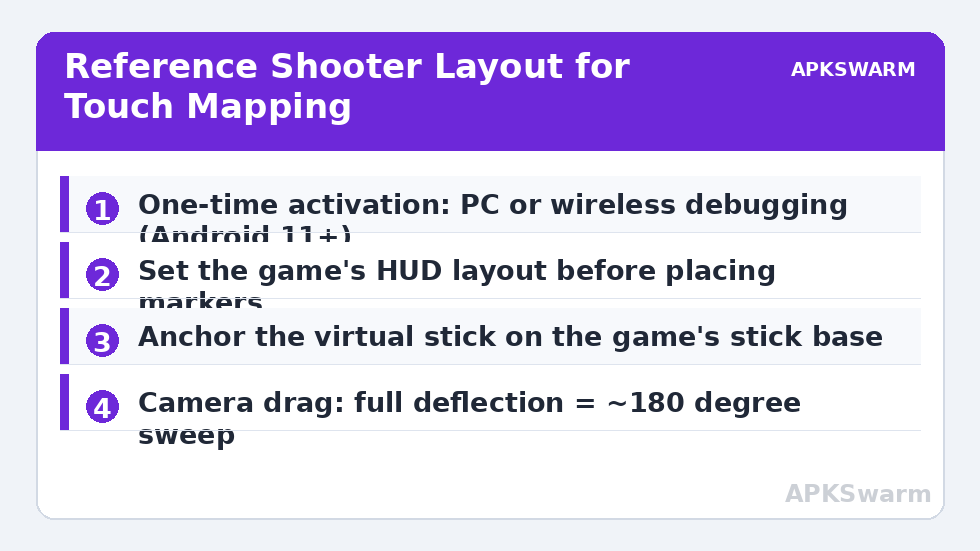
Mantis draws an invisible map over the game. Each physical button is assigned a screen position; pressing the button generates a touch at that position, sticks generate drags from an anchor point, and triggers can be set as tap, hold, or swipe triggers. The catch is activation: Android restricts background touch injection, so Mantis historically required a one-time activation from a PC (or a second phone) over ADB/Wi-Fi debugging to grant its overlay the necessary permissions. Recent versions support on-device activation via wireless debugging pairing on Android 11+, but the exact flow changes between releases — follow the in-app wizard for your installed version rather than a screenshot from a year-old video. No root is needed in any flow, and activation survives reboots on most builds until the app updates.
Setup workflow, start to finish
- Install Mantis Gamepad Pro from the Play Store and your controller of choice — any standard pad works, including telescopic models like those in gamesir x2 pro android setup guide.
- Complete the activation wizard (PC over USB, or wireless debugging pairing on Android 11+). Grant overlay (“display over other apps”) and accessibility permissions when prompted — both are structurally required.
- Launch the target game first, position its on-screen buttons where you want them in the game’s own layout editor, and set button sizes to the largest comfortable option: bigger targets forgive overlay inaccuracy.
- Open Mantis from its floating widget, choose Add Game / edit the auto-detected profile, and enter mapping mode.
- Press a physical button, then drag its marker onto the matching on-screen control. Repeat for sticks: anchor the virtual stick marker exactly over the game’s stick base.
- Set per-key behaviour: tap for one-shot actions, hold-to-repeat off for menus, swipe direction/distance for camera flicks.
- Save the profile per game. Mantis stores layouts per app, so a battle-royale profile never pollutes your racing profile.
A reference layout: shooter default that actually works
| Physical input | Mantis mapping | Screen target | Mode |
|---|---|---|---|
| Left stick | Virtual joystick | Left thumb-stick zone | Drag, anchored |
| Right stick | Camera drag | Right half of screen | Swipe, continuous |
| RT | Key tap | Fire button | Hold = repeat tap |
| LT | Key tap | Aim/ADS button | Hold |
| A (bottom face) | Key tap | Jump | Tap |
| B (right face) | Key tap | Crouch/prone | Tap |
| X (left face) | Key tap | Reload | Tap |
| Y (top face) | Key tap | Weapon switch | Tap |
| D-pad | Four key taps | Consumables / lean | Tap |
| R3 (stick click) | Key tap | Melee | Tap |
Expect two or three adjustment matches before the camera drag sensitivity feels right; Mantis exposes separate X/Y sensitivity for the right-stick drag, and FPS games usually want Y slightly lower than X. For titles whose buttons move between screens (lobby vs match), build the profile in the match HUD only.
All figures are estimates based on typical titles and stock settings; individual games vary widely.
The competitive-play warning you should not skip
Touch-mapping a controller into a game designed for touch players can violate that game’s terms of service, and several major publishers actively detect overlay/mapping tools and ban accounts — enforcement has historically hit ranked battle-royale and MOBA titles hardest. Detection methods and banned-game lists change without notice. The defensible use cases are single-player games, offline titles, and games whose developers explicitly tolerate mapping apps. Treat any “undetectable” claim from a mapping tool as marketing, decide per game, and never map on an account you cannot afford to lose. This caution applies equally to the overlay techniques in configure key overlay controller app android.
When mapping fails: drift, offset, and resolution changes
The classic failure is markers sitting a few millimetres off the visible buttons after a phone switches resolution or the game updates its HUD — recalibrate by re-dragging two or three markers, which is faster than rebuilding. If inputs randomly stop mid-session, Android has usually killed Mantis’s service: exempt it from battery optimisation and re-enable the accessibility service in Settings → Accessibility → Installed apps. If the floating widget vanishes after an OS update, the overlay permission was reset by the update; grant it again. These are maintenance realities of every overlay mapper, not Mantis defects — the same service-kill behaviour causes the issues in fix unresponsive dpad button binds android when profiles are loaded through accessibility layers.
All current mapping profiles and pad-specific notes are indexed in Controller Setup.
Fine-tuning the feel: sensitivity, curves, and the 90% problem
A mapped profile that “works” and one that feels native differ in three adjustments most users never make. First, the right-stick camera drag: its speed should let a full stick deflection sweep roughly 180° of camera in the target game — measure it in training mode, adjusting Mantis’s swipe sensitivity in small steps, because too-fast cameras are the top reason new users declare mapping “unplayable.” Second, stick dead zones inside the mapper: physical sticks rest imperfectly (see the tester method in calibrate analog sticks fix stick drift android), and a mapper faithfully converts a 4% resting offset into a character who walks slowly forever; a 5–7% dead zone in the stick binding cures phantom movement without touching the game’s own settings. Third, trigger behaviour: set fire to “rapid tap while held” only in games whose weapons are semi-automatic by design; full-auto titles want a simple held touch, and confusing the two makes damage output feel randomly weak.
The “90% problem” is social, not technical: profiles shared online are built for one phone’s resolution, one game’s HUD scale, and one player’s hand positions. Import them as scaffolding — stick anchors and button assignments are reusable thinking — then re-drag every marker against your own HUD and re-tune camera speed for your screen size. A profile tuned on a 6.1″ phone pasted onto a 6.9″ phone misplaces every marker by millimetres that matter. Twenty minutes of personal calibration beats any downloaded “pro config,” every time.
Alternatives worth knowing before you commit
Mantis is the reference tool, not the only one. ShootingPlus V3 serves its own controller ecosystem with a similar overlay approach; Octopus is the older name in the category, with a history of intrusive ads in some builds and detection flags in several games, which is why it is rarely the recommendation now; Panda Gamepad Pro follows the same activation model as Mantis. The selection criteria do not change: Play Store presence, a maintained update history, a one-time-activation model you can complete on your device class, and per-game profiles with export. Whatever you choose, the discipline from this guide — game HUD first, markers second, camera tuning third, terms-of-service judgement always — transfers unchanged, because the category shares one architecture and one set of failure modes.
Frequently Asked Questions
Does Mantis Gamepad need root?
No. It needs a one-time activation — via PC over USB or wireless debugging pairing on Android 11+ — plus overlay and accessibility permissions. The exact activation flow varies by app version.
Can I get banned for using a touch-mapping app?
In some competitive games, yes. Several publishers treat controller-via-overlay play in touch lobbies as a terms violation and have issued bans. Single-player and offline games are the safe use case.
Why are my mapped buttons offset from the on-screen buttons?
Usually a resolution change or a game HUD update moved the targets. Re-drag the affected markers in Mantis’s mapping mode rather than rebuilding the whole profile.
Does Mantis work with any controller?
It works with standard HID gamepads Android recognises, wired or Bluetooth, including telescopic controllers. If Android itself cannot see the pad, Mantis cannot either.
Why do my mapped inputs stop working mid-game?
Android’s battery management commonly kills the mapping service. Exempt Mantis from battery optimisation and re-enable its accessibility service to restore input.