When a controller not detected in emulator android setups works perfectly in the phone’s menus and in native games, the pad is almost never broken — one layer between Android and the emulator is refusing to pass it along. That is good news: layers can be checked in order, each test takes a minute, and the fix is usually a setting, a mode switch, or a stale profile rather than a purchase. This guide works the layers from the outside in, for emulators running games you own: prove Android sees the pad, prove the emulator sees any pad, then fix the specific reason yours is invisible. Keep a gamepad tester installed for the whole process; guessing without one turns a fifteen-minute diagnosis into an evening of random re-pairing.
Step one: prove what Android itself sees
Before opening any emulator, open a gamepad tester and press everything. Three outcomes, three different roads:
- Tester shows nothing: Android does not have a working connection. This is not an emulator problem yet. Re-pair the pad, check its mode switch, charge it, and for wired pads check the cable, the OTG adapter, and the phone’s OTG toggle.
- Tester shows inputs, in the wrong places: the pad is connected in a mode your apps do not expect — a Switch-mode pad reporting rotated axes, or a D-pad arriving as a stick hat. Change the pad’s mode first, then re-test.
- Tester shows everything correctly: Android’s layer is healthy. The problem lives inside the emulator or its profile, and re-pairing will not help. Move to step two and stop touching Bluetooth settings.
That third outcome is the one players resist, because re-pairing feels like action. Resist it anyway: every unnecessary re-pair risks changing the device name or connection order that your other, working emulators depend on. Diagnosis order is the whole skill here, and it is the same order we teach for dead buttons in our guide to fixing unresponsive D-pad and button binds on Android — hardware, system, app, in that sequence, with a test at each boundary.
Step two: the emulator-side causes, in the order they actually occur
| Cause | How it presents | Fix |
|---|---|---|
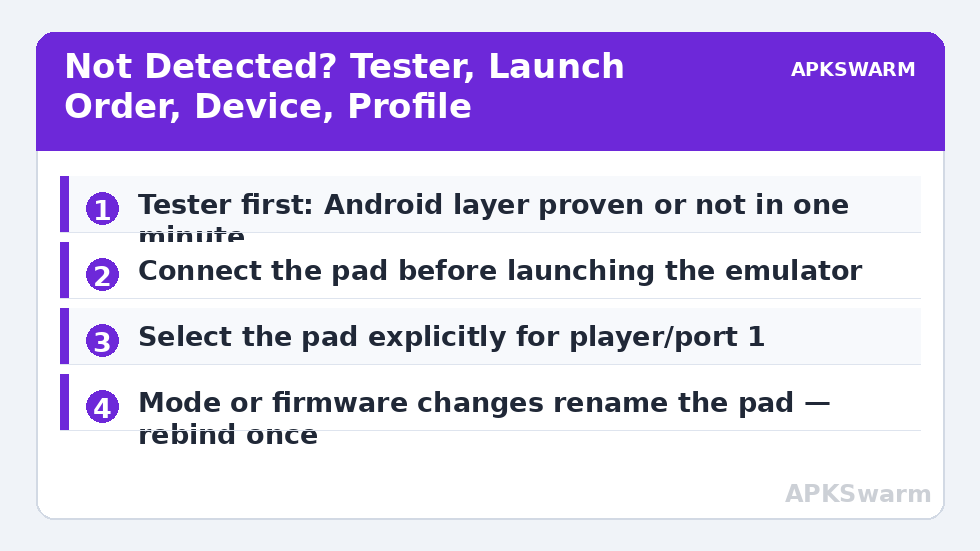
| Pad connected after the emulator launched | Emulator lists no pad, or lists it but ignores it | Connect the pad first, then launch; or use the emulator’s rescan/refresh input option |
| Wrong input device selected | Emulator input settings show a touchscreen or a different pad | Select your pad explicitly as the device for player/port 1 |
| Stale autoconfig/profile after a mode or firmware change | Pad name changed; old binds present but silent | Clear the profile for that device and rebind once, in one mode |
| Second controller claimed player one | Your pad works — as player two, or not at all in menus | Disconnect other pads, or assign ports explicitly |
| Emulator needs its own permission or foreground state | Pad works until a notification or app switch, then never returns | Exempt the emulator from battery optimisation; relaunch it in the foreground |
| Bluetooth pad in the wrong mode for that emulator | Tester fine in one mode, emulator blind in the same mode | Try X-input mode for widest compatibility, A/D-input for RetroArch-style setups |
The launch-order row deserves emphasis because it is both the commonest cause and the cheapest fix. Many Android emulators enumerate input devices once, at startup. A pad paired thirty seconds after the emulator opened may be fully visible to Android and permanently invisible to that emulator session. Make “pad on and tested before emulator” a household rule, and a large fraction of “not detected” reports simply stop happening.
RetroArch, PPSSPP, and Dolphin: where each one hides the setting
RetroArch matches controllers to saved autoconfig profiles by device name and vendor/product IDs. When a pad is not detected, open Settings, then Input, then Port 1 controls, and check the device index actually names your pad. If the pad updated its firmware or changed mode, its reported name may have changed, and the fix is to select the new entry and save a fresh autoconfig. Our RetroArch Android beginner setup guide covers the surrounding input settings if this is your first time in those menus.
PPSSPP is simpler and stubborner: it generally uses whichever standard pad Android presents, and its control mapping screen is the place to verify. Open the mapping screen and press a button; if the binding captures your input, the pad was detected all along and the problem is an in-game setting. If nothing captures, PPSSPP truly cannot see the device, and the cause is almost always launch order or a second pad claiming priority.
Dolphin requires each emulated controller to be configured and enabled per port. A pad can be detected by Dolphin and still do nothing in-game because the GameCube port or Wii remote slot it feeds was never enabled. Open the controller configuration for the port, choose your device from the list, and confirm the port is active before re-testing.
Wired pads, hubs, and the OTG traps
Wired detection fails differently. A telescopic pad that lights up but never registers is usually a seating or port problem. An external pad through a USB OTG hub adds two more failure points: an unpowered hub that browns out when the pad’s rumble fires, and a hub or adapter that passes charging but not data. Test the pad plugged directly into the phone before blaming the emulator, and if your setup genuinely needs a hub for multiplayer or storage, use a powered one.
If wired diagnosis is becoming a project of its own, set this emulator problem aside for ten minutes and get the connection itself proven — the techniques in our sibling guide to using a wired controller through a USB OTG hub on Android cover cables, power, and hub quirks in the depth they deserve. Once a tester sees the wired pad reliably, return here; the emulator layers above apply unchanged.
When detection flickers: latency tools as a diagnostic
Intermittent detection — pad works, vanishes, returns — is usually a power or radio story wearing a detection costume. Android battery optimisation can suspend the Bluetooth link or the emulator process; a tired pad battery sags under rumble load; a congested 2.4 GHz room drops the link at the exact moment a download starts. Exempt the emulator from battery optimisation, charge the pad fully, and test at close range with the phone on 5 GHz Wi-Fi.
You can also use responsiveness itself as a clue: a link that is about to drop often gets erratic first. Film a short slow-motion test and run it through the frame and latency calculator on this site; a healthy Bluetooth setup in games you own typically totals roughly 25–45 ms at 120 Hz in community-reported ranges, while a struggling link shows wild variation between presses. Variation, in other words, is the measurement that matters here — not the average.
All figures are estimates based on typical titles and stock settings; individual games vary widely.
If flickering survives those steps, try the pad wired for one session. A pad that is rock-solid wired and chaotic on Bluetooth has told you the fault lives in the radio path — its firmware, the phone’s stack in your current Android build, or your room — and no emulator setting will cure it.
Building the setup that stops breaking
Once detection works, spend five minutes making it stay working. Pick one controller mode for emulation and never casually switch it, because mode changes rename the device and orphan profiles. Save your bindings, then export or back up the emulator’s configuration if the app allows it. Keep the pad’s firmware current using the maker’s official route, and after any firmware or Android update, expect to spend two minutes re-selecting the device in each emulator rather than being surprised by it.
The organisational upgrade that pays off most, especially if you play several systems, is to stop treating bindings as one global blob. Saving a distinct configuration per game or per system means a change for one title can never silently break another — that workflow is the subject of our guide to per-game controller profiles on Android, and it builds directly on the stable, detected setup you have just achieved. For the rest of the library, return to the APKSwarm homepage and browse Controller Setup and Emulation Configs.
Frequently Asked Questions
Why does my controller work in Android menus but not in my emulator?
Because the emulator enumerates input devices at launch or uses its own profile system. Connect the pad before launching the emulator, then check the emulator’s input settings that your pad is selected as the device for player or port 1.
Does re-pairing my controller fix emulator detection problems?
Rarely. If a gamepad tester shows your inputs correctly, Android’s connection is healthy and re-pairing changes nothing except device order and names. Fix the emulator layer instead: launch order, device selection, or a stale profile.
Why did my controller stop being detected after I changed its mode?
Each mode presents a different device name and sometimes different input IDs, and emulators match saved profiles by that identity. Your old profile belongs to the old mode. Pick one mode for emulation and rebind once.
My wired controller lights up but the emulator sees nothing. Why?
Power is reaching the pad but data may not be: suspect a charge-only cable, an unpowered hub, a sleeping OTG toggle, or lint in the port. Test the pad directly connected and visible in a gamepad tester before opening the emulator.
Can two connected controllers stop my emulator detecting the right one?
Yes. Many games and some emulators default to the first controller Android lists. Disconnect the second pad, or open the emulator’s port settings and assign your intended pad explicitly to player one.