Plug a cable in, get a picture — that is the promise. The reality on retro handhelds is three different video-out technologies wearing one USB-C-shaped trench coat, and whether yours works at all depends on which one your device actually has. This guide explains how to setup hdmi displayport video out retro handheld owners can rely on: identifying your device’s method (DisplayPort Alt Mode, dedicated mini/micro HDMI, or nothing but streaming), cables and docks that work versus the ones that silently cannot, and the scaling, latency, and charging settings for a proper couch setup.
The taxonomy, because everything follows from it:
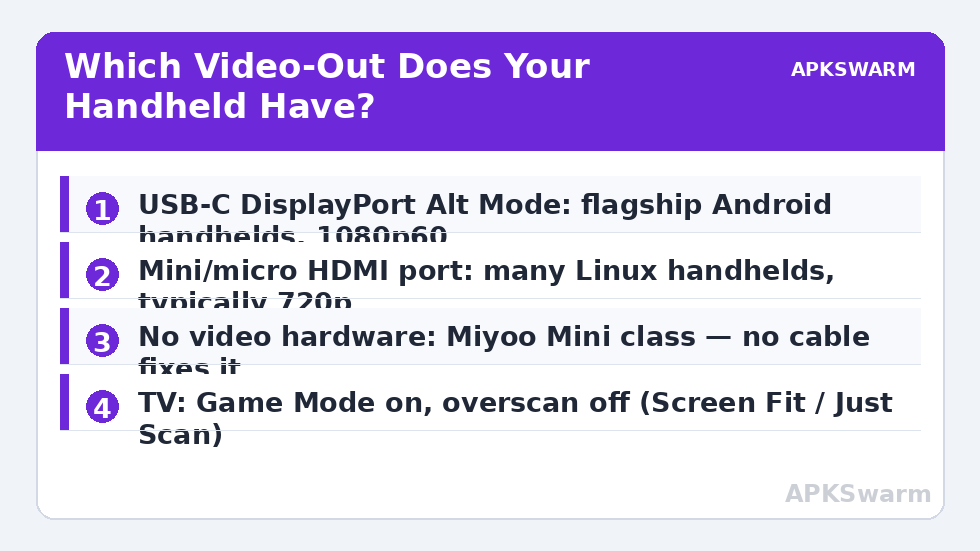
- USB-C with DisplayPort Alt Mode: flagship Android handhelds — Ayn Odin/Odin 2, Retroid Pocket 4/4 Pro and Pocket 5, Anbernic RG556 — carry DP Alt Mode on the USB-C port. A USB-C-to-HDMI cable or a dock converts it. This is the good path: 1080p (and often higher) at 60 Hz with low latency.
- Dedicated HDMI port: many Linux handhelds — Anbernic RG35XX family (mini HDMI), RG353 series, Powkiddy devices — include a mini or micro HDMI socket outputting typically 720p. Simple, direct, no alt-mode questions; you just need the right mini/micro-to-full HDMI cable.
- No wired video out at all: the Miyoo Mini Plus and similar ultra-budget devices have no video-out hardware. The USB-C port is power/data only. No cable exists that fixes this — the honest options are a different device for TV play, or casting workarounds on Wi-Fi-capable models with all their latency caveats.
Cables, Docks, and the Passive/Active Trap
For DP Alt Mode devices you need a cable that actually carries DisplayPort alt signalling: a USB-C-to-HDMI cable rated for video (not a charge cable with the right shapes), or a USB-C dock/hub with HDMI out. Nintendo Switch docks and random laptop docks usually work electrically with these handhelds since the standard is the standard, but two traps recur. First, cheap unbranded USB-C-to-HDMI cables are the number one cause of “my handheld does not output video” reports — they omit or botch the alt-mode wiring. Buy one reputable cable before you blame the device. Second, some docks pass video but fail at simultaneous charging, or charge so slowly the battery drains while docked; for long TV sessions you want a dock with USB-C PD pass-through rated comfortably above the handheld’s draw.
For mini/micro HDMI devices, the cable is the dock: mini-HDMI-to-HDMI for Anbernic’s RG35XX line, micro-HDMI on models that use it. These cables are fragile at the small end — buy two, coil them gently, and do not play with the cable under tension, because the port on the device is the part you cannot replace cheaply.
Resolution, Scaling, and Making Retro Games Look Right on a TV
Your handheld will typically output 1080p (DP devices) or 720p (mini HDMI devices), and the emulator then renders into that frame. Set emulator output to match the signal rather than fight it: integer scaling still applies and still matters — a 240p game integer-scaled to 720p or 1080p looks correct, while “fit to screen” stretching smears it. On 4:3 content you will have pillarbox bars on a 16:9 TV; that is correct presentation, and the maths behind it is the same as on-device in our aspect ratio buyer’s guide. Some front ends and RetroArch itself offer bezel/overlay art to dress the bars; on TVs that can look genuinely good.
TV settings matter as much as handheld settings: enable the TV’s Game Mode on that HDMI input (it disables the processing that adds tens of milliseconds of lag), set the TV’s overscan to off/”just scan”/”screen fit” so edges are not cropped, and if the picture still looks soft, check whether the TV is upscaling a 720p signal with its worst scaler — feeding 1080p from a DP device usually looks cleaner than 720p from mini HDMI on a 4K panel for exactly this reason.
Latency: What to Expect and What to Fix
A good wired path — handheld, decent cable/dock, TV in Game Mode — adds only a few milliseconds beyond the TV’s own panel response, comparable to a console. The latency killers are TV processing (fixed by Game Mode), Bluetooth controllers at distance (use your wired or 2.4 GHz options for precision games, or sit closer), and emulator-side settings you already control: run-ahead on light RetroArch cores can claw back a frame or two exactly as it does on the handheld screen. If TV play feels floaty while handheld play feels tight, the TV input settings are guilty until proven innocent.
Charging and Heat During Docked Play
Docked sessions are the longest sessions, and they combine three heat sources: SoC at sustained load, charging current, and a dock that may insulate the device’s back. The disciplines from the Odin 2 battery and thermal guide apply to any DP handheld: use Smart or Sport fan profiles while docked, keep vents unobstructed (a dock that cradles the back panel tightly is a thermal blanket), and prefer PD pass-through that keeps the battery near full rather than cycling it — devices that support charge-limiting while docked deserve to have it enabled. For Linux handhelds on mini HDMI, charging while playing over a separate USB-C cable is normal and safe; just route cables so neither port is under strain.
Confirm the titles you plan to play on the big screen are in the device’s comfortable performance class before the friends arrive:
All figures are estimates based on typical titles and stock settings; individual games vary widely.
More couch-and-cable thinking lives in the wider Handheld Tweaks collection.
Controllers and Audio at Couch Distance
A docked handheld quietly becomes a console, and two console questions follow it. Controllers: the handheld’s own controls work while docked only as far as the cable and your arms allow, so most TV setups pair a Bluetooth controller (an 8BitDo or a console pad) or plug wired pads into the dock’s USB ports. Pair the couch controller to the handheld, not the TV, and test for the input-mismapping-after-sleep quirk some Android builds show — re-pair once and it typically settles. Set the couch controller’s home button expectations too: on many builds it will wake the handheld, which is a feature when the handheld lives by the TV. Audio: HDMI carries sound to the TV by default, which is what you want; the exception is late-night play, where Bluetooth earbuds paired to the handheld keep the room quiet — accept their small latency cost for turn-based and retro titles, and switch back to TV audio or wired for rhythm and fighting games. Sort both once and the docked setup stops feeling like a workaround and starts feeling like the second console it actually is.
Frequently Asked Questions
Why does my USB-C cable charge the handheld but show no picture?
Because most USB-C cables are charge/data cables without DisplayPort Alt Mode wiring. Your device also needs to support DP Alt Mode on its port. Use a cable or dock explicitly rated for USB-C video output.
Can the Miyoo Mini Plus output to a TV?
No — it has no video-out hardware, wired or otherwise. Its USB-C port handles charging and data only. TV play from that class of device means choosing a different handheld for the TV or accepting streaming workarounds with their latency.
What resolution will my handheld send to the TV?
Typically 1080p60 from DisplayPort Alt Mode Android handhelds, and 720p from mini/micro HDMI Linux handhelds. Set integer scaling inside the emulator relative to that output for the cleanest retro image.
The picture is cropped at the edges on my TV. How do I fix it?
That is TV overscan. Find the picture-size setting for that HDMI input and choose “Screen Fit,” “Just Scan,” or “1:1” (naming varies by brand), and enable Game Mode on the same input while you are there.
Is a dock better than a straight cable?
For long sessions, yes: a dock with USB-C PD pass-through charges while you play and gives you USB ports for wired controllers. For occasional play, one good USB-C-to-HDMI cable is simpler, cheaper, and one less thing to fail.