The cleanest way to connect ps5 dualsense controller android hardware is wired, and the most flexible way is Bluetooth — and the DualSense behaves slightly differently in each mode on Android, which is where most setup guides go quiet. Below are exact pairing steps per Android version, what the touchpad and adaptive triggers actually do on this platform (less than you hope), and the fixes for the two failures everyone hits: the pad pairing to a PS5 instead of the phone, and inputs landing one beat late.
Bluetooth pairing: connect ps5 dualsense controller android step by step
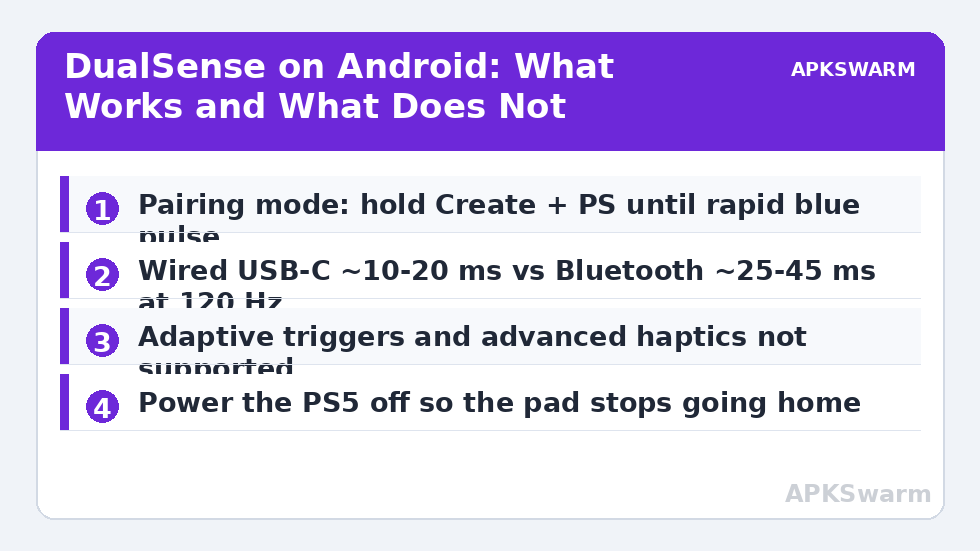
First, put the DualSense into pairing mode correctly. With the controller off, hold the Create button (left of the touchpad, formerly Share) and the PS button together until the light bar pulses blue rapidly — roughly three to five seconds. A slow breathing glow means it is trying to reconnect to a known device, not pairing; keep holding. This is the same sequence on every DualSense firmware.
- Android 12, 13, 14, 15: open Settings → Connected devices → Pair new device. Select “Wireless Controller” when it appears. The light bar settles to a player colour when done.
- Android 10/11: Settings → Connections (Samsung) or Connected devices → Bluetooth → Pair new device; the menu names differ by brand but the target is identical: “Wireless Controller.”
- Samsung One UI: if the pad appears but won’t pair, toggle Bluetooth off for ten seconds; One UI’s stack occasionally caches a stale attempt from a TV or console.
- After pairing, open a gamepad tester and check the sticks before launching a game — see why under troubleshooting.
The DualSense keeps two kinds of memory: its last Bluetooth host and its USB pairing. It will happily reconnect to your PS5 if the console is in range and wakes — unplug or fully power down the console during Android sessions if the pad keeps wandering home.
Wired USB-C mode: the low-latency route
Any USB-C to USB-C cable (the DualSense has a USB-C port; a charge-only cable will fail, so use a data-capable one) turns the pad into a wired HID device the instant it is plugged in. Android shows no prompt. Wired mode typically trims the total input delay into the ~10–20 ms band at 120 Hz versus the ~25–45 ms commonly seen over Bluetooth on Android, because you remove both the radio interval and Android’s Bluetooth input queue. The methodology behind those ranges is the same one in usb c vs bluetooth controller latency android. Wired is also the fix when a venue is saturated with 2.4 GHz noise — tournaments, dorms, trade shows.
What works on Android — and what honestly does not
| DualSense feature | On Android | Notes |
|---|---|---|
| Sticks, face buttons, D-pad, bumpers | Full support | Standard mapping in supported games/emulators |
| Analog triggers (L2/R2) | Analog values sent | Games decide whether to use the range |
| Adaptive trigger resistance | Not supported | Requires PS5/PC game integration; triggers still function normally |
| Haptic feedback | Basic rumble only, app-dependent | Advanced haptics are PS5-only; see rumble notes below |
| Touchpad | Acts as a button / mouse in some apps | Emulators can bind the click; surface tracking varies |
| Built-in microphone & speaker | Generally not routed | Android treats the pad as input-only in most builds |
| Motion (gyro) | Sent, rarely used | Some emulators can bind it; native games almost never |
| 3.5 mm headset jack | Not functional over Android Bluetooth | Route audio through phone instead |
Rumble deserves one more line because expectations are so often wrong: Android’s vibration path for gamepads exists, but support is per-game, and many titles that rumble on an Xbox pad stay silent on a DualSense. The fuller picture is in enable rumble haptic feedback android gamepad.
All figures are estimates based on typical titles and stock settings; individual games vary widely.
Button order and the swapped-layout trap
Android maps the DualSense with the PlayStation glyphs translated to Android’s key codes, and most engines then display Xbox prompts (A/B/X/Y) that do not match the pad in your hands. Position-wise everything lines up — the bottom face button confirms in most Android games even though it wears a Cross — but a few emulators default to a Nintendo-style swapped interpretation. If confirm and cancel feel reversed, fix the interpretation rather than relearning your hands; the exact remedy is walked through in fix controller button mapping swapped ab xy layout.
Fixes for the failures people actually report
Pad pairs but no game sees it: some games poll only the first controller Android lists; disconnect other Bluetooth pads and any paired watch/keyboard with gamepad profiles, then relaunch. Stick drifts in menus: the DualSense sticks are potentiometers; confirm with a tester, then apply a small dead zone in the emulator, per calibrate analog sticks fix stick drift android. Bluetooth audio goes crackly while playing: the radio is sharing bandwidth with your earbuds; switch buds to a low-latency mode or use phone speakers for that session. Pad turns the PS5 on: it reconnected to its console — power the console fully off or move out of range.
More pairing guides for other brands are collected in Controller Setup.
Using the DualSense across Android apps: a realistic tour
Expectations calibrate fastest with examples. In cloud streaming apps the DualSense is a first-class citizen — Game Pass and GeForce NOW-style clients recognise it and map it completely, PlayStation glyphs and all in the friendliest cases. In native Android games with controller support it works fully, but on-screen prompts usually show Xbox letters, so you will translate positions for the first hour (bottom button = the one marked with a Cross). In emulators it is arguably at its best: RetroArch’s autoconfig binds it instantly, Dolphin accepts its analog triggers properly over USB, and PPSSPP treats it as a reference pad. Shooters built for touch with optional pad support are the uneven middle — some read the triggers as buttons, some ignore the touchpad click you wanted for a map key, and a few rotate the right stick axes, fixable only in the pad layer of apps that offer axis inversion. Media apps largely ignore it except for D-pad navigation. None of this is a DualSense flaw; it is the shape of Android’s controller ecosystem, where the pad is deliberately standard and the software around it varies. If your library is mostly emulators and streaming, this is one of the safest controllers you can own on Android; if your library is one specific native shooter, test that title’s pad support before assuming.
One more practical note: the DualSense’s battery is internal and modest (1,560 mAh). Over Bluetooth with rumble-happy games, expect a long day rather than a week between charges — USB-C charging from any phone charger works, and playing wired while charging is the zero-anxiety configuration for marathon sessions.
Firmware updates without a PS5
Sony distributes DualSense firmware through PS5 consoles and, more recently, a Windows updater tool — not through Android. An unupdated pad still pairs and plays fine on Android in the overwhelming majority of cases; firmware matters here mainly if you hit a documented pairing quirk with a specific phone. Borrow a console or a Windows PC for fifteen minutes if you ever need it, and lose no sleep over it otherwise.
Frequently Asked Questions
How do I put the DualSense in pairing mode?
With the controller off, hold the Create button and the PS button together until the light bar pulses blue quickly. Then select “Wireless Controller” in your phone’s Bluetooth pairing menu.
Do adaptive triggers work on Android?
No. The triggers send normal analog values, but the variable resistance feature only works in PS5 games and a few PC titles that implement it. Nothing on Android currently drives it.
Is wired or Bluetooth better for the DualSense on Android?
Wired is measurably quicker — typically around 10–20 ms total at 120 Hz versus roughly 25–45 ms over Bluetooth — and immune to radio interference. Bluetooth wins on convenience and couch distance.
Why does my DualSense keep reconnecting to my PS5?
The controller prefers its known console host when it wakes. Power the PS5 fully off (not rest mode with Bluetooth wake) or pair again from the phone after the console is off.
Does the DualSense touchpad work on Android?
Partially. The touchpad click registers as a button in many apps and emulators, and some utilities treat the surface as a mouse, but support is inconsistent compared with the PS5.