The fastest way to setup backbone one android controller hardware is to skip the app entirely for the first five minutes. The Backbone One is a pass-through USB-C gamepad: it draws a tiny amount of power from your phone, presents itself to Android as a standard HID game controller, and needs no pairing, no Bluetooth menu, and no driver. If Android recognises it, every game with native gamepad support recognises it too. The steps below cover the 2nd-generation USB-C model sold for Android and iPhone 15/16, because the 1st-generation Lightning model physically cannot connect to an Android phone at all — a distinction that still catches buyers out.
Before You setup backbone one android controller hardware: check the generation
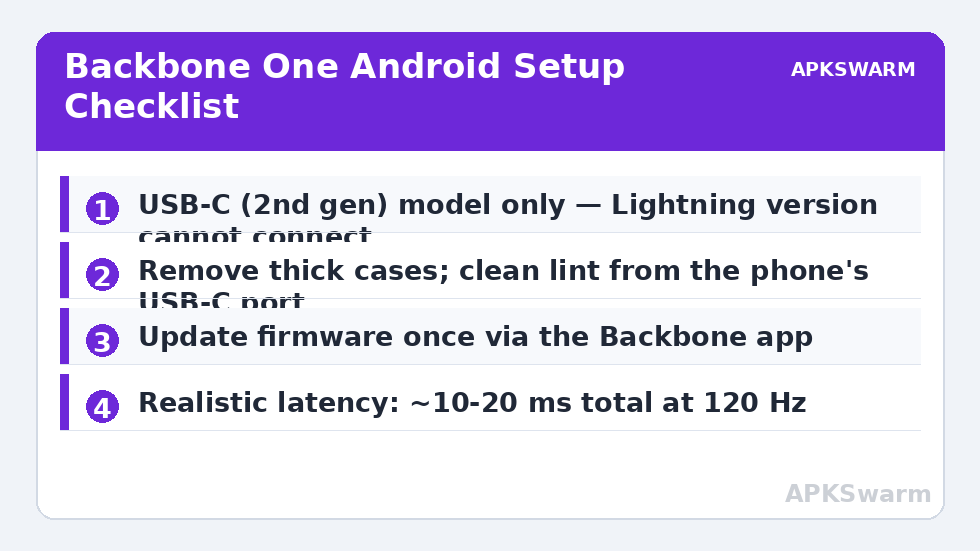
Backbone has shipped two connector types. The Lightning version was built for iPhone 14 and older. The USB-C version — labelled “Backbone One (USB-C)” and later revised as the 2nd generation with a refined D-pad and magnetic adapters in the box — is the one that works with Android. If your controller has a Lightning plug, no adapter will save you; Lightning-to-USB-C dongles do not pass gamepad data. Also confirm your Android phone actually has a USB-C port that supports USB host peripherals. Virtually every phone from the last six years does, but a handful of ultra-budget models with USB 2.0-only controllers occasionally fail to enumerate gamepads. The practical test is simple: if a USB-C flash drive works in the phone, the Backbone will too.
- Case check: the telescopic bridge extends to fit phones roughly 94–175 mm wide; thick rugged cases usually must come off, slim cases under ~1.5 mm lip depth often stay on.
- Phone check: Android 10 or later is recommended; Android 8/9 devices may register the pad but several streaming apps refuse older OS versions.
- Port check: clean pocket lint out of the USB-C port with a wooden toothpick — a lint-packed port is the single most common cause of “controller not detected” reports.
Step-by-step connection in under two minutes
- Extend the bridge by pulling the right grip outward and seat the phone’s right edge first, aligning the USB-C plug with the port.
- Release the bridge gently so the spring tension pushes the plug home. You should feel the same seated click as a charging cable.
- Wake the phone. Within one to three seconds Android posts no notification, but the Backbone button LED settles to solid — that is your confirmation.
- Open any gamepad-supported title (a native test is the free “Gamepad Tester” utility) and press a face button. Inputs should register instantly with no pairing prompt.
- If nothing registers, reseat the phone once, then try a second app before assuming hardware failure; some launchers swallow the first input.
That is the entire connection process. There is no Bluetooth stack involved, which is precisely why wired telescopic pads feel a step ahead of wireless ones — a point explored in the usb c vs bluetooth controller latency android breakdown.
The Backbone app: what it adds and what you can skip
The Backbone app acts as a launcher, firmware updater, and capture organiser. On Android it is optional for play but valuable twice a year: firmware updates occasionally fix phone-specific detection bugs (the Pixel foldables received one such fix), and the app is where the Backbone+ subscription upsell lives, which you can safely decline. Install it once, let it update the controller firmware over USB-C, map the Backbone button behaviour if you dislike the default screenshot action, then ignore it. The controller itself never phones home and works identically on a phone with no Backbone account at all. If the app prompts for a trial during setup, closing the prompt does not limit the hardware in any way.
All figures are estimates based on typical titles and stock settings; individual games vary widely.
Why “zero latency” is a marketing phrase, not a spec
No controller has zero latency. What the Backbone One removes is the wireless hop. A realistic input chain on a wired USB-C pad looks like this: the pad polls its own switches in under a millisecond, USB HID reports typically leave the device every 4–8 ms depending on the phone’s USB polling interval, Android’s input pipeline adds roughly a frame of processing, and the display adds the rest. In typical 120 Hz phone testing with high-speed camera methods, wired telescopic pads land in the ~10–20 ms total button-to-photon range, while Bluetooth pads commonly add 10–25 ms on top of that. Your phone’s refresh rate matters more than the controller: at 60 Hz the display alone can contribute up to 16.7 ms of frame quantisation. Treat “zero latency” as “no avoidable latency,” and set your expectations by your screen, not the box copy. Our full comparison in razer kishi v2 vs backbone one android puts both wired rivals in context.
Button layout and the 3.5 mm advantage
The Backbone One follows the Xbox ABXY arrangement and includes a 3.5 mm headphone jack with microphone pass-through plus USB-C charging pass-through up to 15 W on the USB-C generation (wattage support varies by production run, so check your unit’s manual). Wired audio through the jack avoids the Bluetooth audio delay entirely, which matters in rhythm games and shooters. The capture button takes screenshots with a short press and clips with a long press inside the Backbone app; in third-party games it may do nothing, and that is normal Android behaviour rather than a fault.
| Control | Default behaviour on Android | Notes |
|---|---|---|
| Backbone (•••) button | Opens Backbone app / screenshot | Behaviour adjustable inside the app |
| Capture button | Screenshot (short), clip (long, in-app) | Games rarely intercept it |
| Menu / Options | Start / pause in most engines | Mapped as standard Android START |
| LT / RT | Analog triggers | Full-range; see trigger tuning in emulators |
| USB-C port | Pass-through charging | Pad itself has no battery to charge |
Troubleshooting the three failures that actually happen
Phone charges but pad is dead: lint in the port or a case lifting the phone 1 mm off the plug. Remove the case, clean the port, reseat. Pad works in menus, not in one game: that game lacks gamepad support; you need a touch-mapping layer such as the method in map touch screen controls physical buttons android, which is a different pipeline entirely. Random disconnects mid-session: almost always a worn phone port or a case flexing the bridge; test with the case off for one session before blaming the controller. Genuine hardware DOA units exist but are the least common explanation.
More controller guides, compatibility notes, and emulator-specific profiles live in the Controller Setup section, including fixes for swapped button layouts and stick drift that apply to this pad as much as any other.
A note on firmware updates and Android versions
Firmware updates for the controller arrive through the Backbone app over the USB-C connection and take under a minute; they have historically fixed detection quirks on new phone launches and adjusted trigger behaviour. Android itself needs no special setting — there is no “OTG toggle” on most modern phones, though a few manufacturers (notably some OnePlus and Xiaomi builds) bury a USB peripherals or OTG switch in settings that auto-disables after inactivity. If your pad works in the morning and vanishes after the phone sleeps, look for that toggle before suspecting the hardware.
Frequently Asked Questions
Does the Backbone One work on Android without the app?
Yes. Android detects it as a standard USB gamepad the moment it is plugged in. The app is only needed for firmware updates, the launcher interface, and capture management.
Which Backbone One model works with Android phones?
Only the USB-C model. The Lightning model fits older iPhones and cannot connect to Android, even with an adapter, because the adapter does not pass controller data.
Does the Backbone One have a battery?
No. It draws a small amount of power from the phone and offers pass-through charging through its own USB-C port, so you can charge the phone while playing.
Why is my Backbone One not detected by my phone?
The usual causes are a case preventing the plug from seating fully, lint packed into the USB-C port, or a phone whose port does not support USB peripherals. Test case-free with a cleaned port first.
Can I use the Backbone One for emulators on Android?
Yes. Emulators such as PPSSPP, RetroArch, and Dolphin detect it as a normal controller, and you can bind its analog triggers and sticks inside each emulator’s input settings.