A working yuzu sudachi android turnip drivers setup on a Snapdragon phone comes down to three matches: the right fork build for your Android version, a Mesa Turnip driver that matches your Adreno GPU generation, and thermal settings that stop the phone throttling ten minutes into a session. Get any one wrong and the symptoms look identical — crashes to the home screen, black textures, or frame rates that collapse as the phone warms up.
Legal requirement, stated plainly: Switch emulation is only for games you own. You must use your own legally dumped copies of your own games, and your own console keys dumped from a Switch you own. This guide does not explain how to obtain keys, firmware or games from the internet, and no setting below needs anything downloaded except the emulator and GPU drivers themselves.
Yuzu / Sudachi Android Turnip Drivers Setup: Which Fork, Which Phone
Yuzu’s Android build and community forks such as Sudachi share the same core settings layout, so the configuration below applies to both. What differs is maintenance and Android version support — use a current, reputable build of the fork and avoid random re-uploads bundled with files you did not ask for, especially any package claiming to include keys or firmware. That inclusion is itself the warning sign.
Realistic expectations by chip class, for typical ranges rather than guarantees:
- Snapdragon 8 Gen 2 / Gen 3 (Adreno 740 / 750): The sweet spot. Many 3D titles you own are playable at 0.75x–1x resolution with the right Turnip driver.
- Snapdragon 8 Gen 1 / 888 (Adreno 730 / 660): Playable for lighter and 2D titles; heavier 3D games will thermal-throttle on all but the best-cooled phones.
- Snapdragon 7 series (Adreno 6xx / 7xx): 2D and light 3D only, at reduced resolution. Manage expectations accordingly.
- Non-Snapdragon devices (Mali, Exynos, Tensor): Turnip does not apply — Turnip is an Adreno-only Vulkan driver. You are limited to the stock system driver, and Switch emulation performance is substantially weaker.
Installing a Turnip Driver Inside the Emulator
Turnip drivers for these forks are installed per-emulator, not system-wide, which is what makes experimenting safe. The general flow in Yuzu Android and Sudachi is the same:
- Download a Turnip driver release in .zip form from its official release channel — do not unzip it.
- Open the emulator and go to Settings > Advanced Settings > Install GPU Driver (in some builds: Settings > GPU Driver Manager).
- Select the driver .zip. The emulator lists it by name alongside Default, which is the stock system driver.
- Select the installed Turnip driver to make it active, then fully restart the emulator before judging results.
Matching the driver to your GPU is the step people skip. Turnip releases are built around Adreno families: drivers targeting the Adreno 600 series suit Snapdragon 845–888 era GPUs, while Adreno 700 series builds suit the 8 Gen 1 and newer. A driver built for the wrong family typically fails with a black screen or an instant crash on game launch — annoying, but harmless, because reverting is one tap: return to the GPU Driver Manager, select Default, and restart. Our full explainer on how to choose a Mesa Turnip custom driver for Snapdragon covers version naming, including the difference between standard and A7xx-specific builds.
All figures are estimates based on typical titles and stock settings; individual games vary widely.
Graphics Settings That Matter Most
Under Settings > Advanced Settings > Graphics (labels vary slightly by fork):
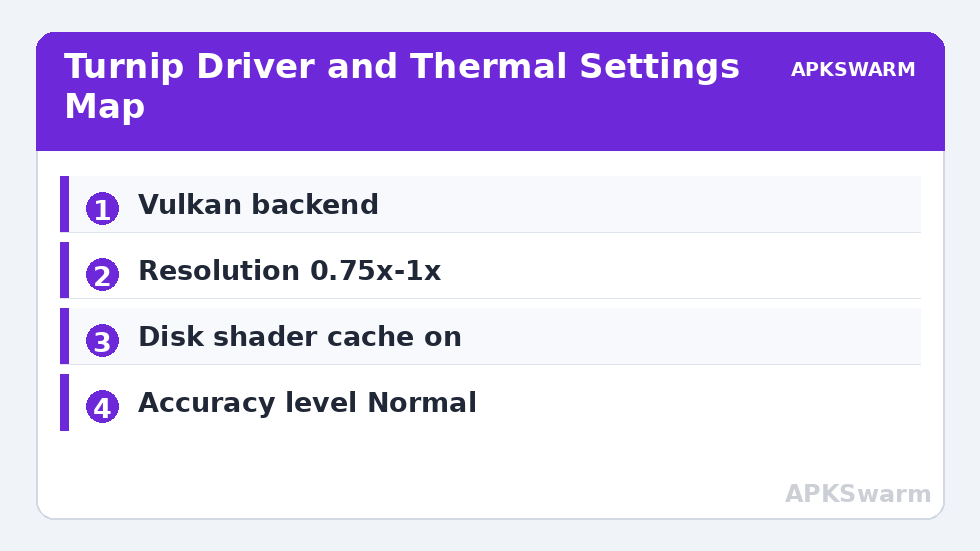
- API / Backend: Vulkan, always, for Turnip. OpenGL is not the path these drivers serve.
- Resolution scale: Start at 0.75x on 8 Gen 1 and below, 1x on 8 Gen 2 and above. Resolution is your largest performance lever, as in every emulator in our Emulation Configs collection.
- Disk shader cache: Leave on. The first run of a new area compiles shaders and stutters; the cache is what makes the second run smooth. Deleting it to “fix” stutter usually makes things worse.
- Asynchronous shader compilation / async presentation: Where offered, enabling async shaders trades brief visual pop-in for fewer hard stalls — usually the right trade on mobile.
- Accuracy level: Keep Normal for general play. High accuracy fixes specific glitches in specific games at real performance cost; it is a per-game tool, not a global default.
- VSync: On for docked-style smoothness on most titles; some forks expose it as a per-game property. If a game runs at half its intended rate, check whether an FPS unlock or VSync mode is the cause before blaming the driver.
Per-game properties are your friend here: long-press a game in the library (in most builds) to open its individual settings, and keep experimental values there rather than globally. A driver or accuracy change that helps one title can break another — per-game variance is a fact of Switch emulation, not a sign you did something wrong. The debugging mindset matches our guide to fixing graphical glitches and missing textures.
Thermal Throttling: The Real Boss Fight
Switch emulation pushes a phone harder than almost any native game. A Snapdragon 888 or 8 Gen 1 phone can post impressive numbers for five minutes and lose a third of them by minute fifteen as skin temperature limits bite. Practical countermeasures, in order of impact:
- Remove the case and play in a cool room or with a clip-on fan. Active cooling is the single biggest sustained-performance upgrade for this use case.
- Lower resolution to 0.5x–0.75x for long sessions. The GPU is usually the heat source that triggers throttling first.
- Use the phone’s performance mode cautiously. A gaming mode that pins higher clocks can reach the thermal wall sooner. Some phones sustain better on their balanced profile — test both over a full 20 minutes, not a benchmark burst.
- Do not charge while playing if you can avoid it; charging adds heat on top of SoC heat. If you must, use a slow charger and a fan.
- Set a frame limit where the fork allows it. Capping a 2D game that wants to run at hundreds of internal frames to its native rate saves heat for free.
When a Driver Makes Things Worse: Rollback Discipline
Keep notes. Driver experiments without notes produce the classic forum post — “it used to work” — with no way back. Record: emulator build, driver name and version, game, and result, for each combination you try. Change one variable at a time. If a new driver crashes a game that previously ran, revert to Default (system driver) first to confirm the game itself still works, then try the previous Turnip version. Never delete your shader cache and change driver in the same step, or you will not know which change fixed or broke anything. Note also that clearing the emulator’s data wipes installed drivers and per-game settings, so export or note them before any reinstall.
For renderer fundamentals behind these choices, our guide to enabling the Vulkan renderer in mobile emulators explains why Vulkan plus a community driver can outperform the stock stack on Adreno hardware.
Frequently Asked Questions
Do I need my own Switch keys and games to use Yuzu or Sudachi on Android?
Yes. You must use games you own, legally dumped from your own copies, and your own console keys dumped from a Switch you own. This guide does not cover obtaining keys, firmware or games from the internet, and you should avoid any download that bundles them.
Which Turnip driver should I pick for a Snapdragon 8 Gen 2 phone?
Choose a current Turnip release built for the Adreno 700 series, because the 8 Gen 2 uses an Adreno 740 GPU. Install it through the emulator’s GPU Driver Manager, restart the emulator, and test. If a game crashes on launch, revert to Default and try a different Turnip version.
Why does performance drop after ten or fifteen minutes?
That pattern is thermal throttling: the phone reduces CPU and GPU clocks as it heats up. Remove the case, add airflow or a clip-on fan, lower the resolution scale to 0.75x or 0.5x, and avoid charging during play. Judge any fix over a full session, not the first minutes.
Can I use Turnip drivers on a phone with a Mali GPU?
No. Mesa Turnip is a Vulkan driver for Qualcomm Adreno GPUs only. Phones with Mali, PowerVR or other GPUs must use their stock system driver, and Switch emulation performance on those devices is generally much weaker.
How do I undo a bad GPU driver change?
Open the emulator’s GPU Driver Manager in Settings, select Default to return to the stock system driver, and restart the emulator. Installing a Turnip driver this way never modifies your phone’s system driver, so reverting is safe and complete.