The setup people mean by gamepad companion analog stick mouse cursor android is a utility class that turns a paired controller into an air-mouse for the whole Android interface: left stick steers the pointer, a face button clicks, a trigger right-clicks, and the second stick scrolls. It is the missing piece for couch setups, TV boxes, DeX desktops, and handhelds docked to a monitor — anywhere a pad is in your hands but half the apps were designed for a mouse or a fingertip.
What “gamepad companion” actually refers to in gamepad companion analog stick mouse cursor android setups
There is no single official product by that exact name; it is a category. Representatives include Gamepad Companion-style utilities on desktop platforms, Android apps in the “gamepad mouse” family (several on the Play Store and F-Droid with near-identical feature lists), the mouse mode built into some frontends and handheld firmwares, and Steam Input’s desktop configuration if you stream a PC desktop. They share an architecture: an accessibility service or input-method shim watches the pad, moves a drawn cursor, and injects taps. Expect the category’s shared trade-offs — an always-on service, a cursor that vanishes in apps with their own pointer handling, and performance that depends on sane acceleration settings (tuned below). Pick a maintained app with recent updates and no absurd permission list; the category’s abandonware is thick, and an unmaintained accessibility app is both a security smell and a future Android-version casualty. On TV boxes, prefer any solution that ships with the pad’s dongle ecosystem or the box’s firmware (see connect wireless controller android tv box) before sideloading strangers.
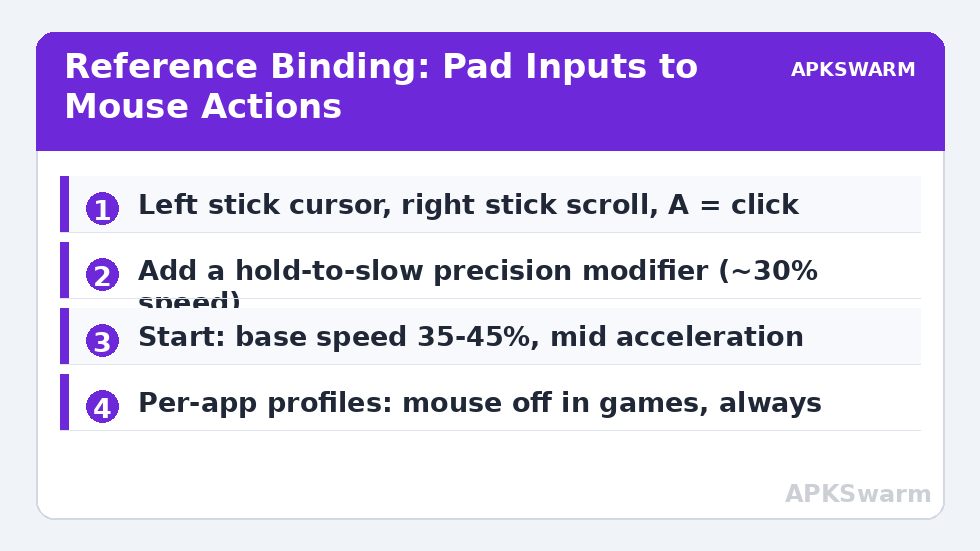
The reference binding: one layout for the whole interface
| Pad input | Mouse action | Notes |
|---|---|---|
| Left stick | Cursor movement | Acceleration curve on — see tuning |
| A (bottom face) | Left click | Press-and-hold = drag after 300 ms |
| B (right face) | Back / right click in some apps | Set to Android Back globally |
| Right stick Y | Scroll wheel | X axis = horizontal scroll where supported |
| RT | Right click / long-press | Choose one; long-press is more Android-native |
| LT | Hold to slow cursor (precision modifier) | The single most useful binding in this list |
| Y (top face) | Show keyboard | For search boxes in leanback apps |
| Menu/Start | Home | Escape hatch when an app traps the cursor |
| View/Select + Start | Toggle mouse mode on/off | Critical: you must be able to hand the pad back to games |
The toggle combo is not optional garnish. A mouse-mode service left active while a game runs will fight the game for the sticks and produce exactly the “my controller is possessed” reports that fill forums; every companion utility has a suspend gesture or per-app disable list — find yours during setup, not during a boss fight. Per-app profiles are the polished solution: mouse mode auto-on for browsers and file managers, auto-off for games and emulators, mirroring the profile discipline in configure key overlay controller app android.
Cursor tuning: acceleration is the whole product
A raw 1:1 stick-to-cursor mapping is unusable — too slow crossing the screen, too twitchy landing on a 12-pixel settings gear. What you want is a mild acceleration curve: small deflections move the pointer at a few hundred pixels per second for precision, full deflection crosses a 1080p screen in about a second. In numbers, most companion apps expose this as base speed + acceleration or a curve slider; start with base speed ~35–45% and acceleration mid-scale, then calibrate with two drills: (1) cross the screen diagonally and stop on the Settings icon — overshoot means acceleration is too hot; (2) move one icon-width in a file list — if you cannot land repeatedly, base speed is too high or your stick dead zone is too small (borrow the measurement habit from calibrate analog sticks fix stick drift android; a drifting stick makes the cursor wander off overnight and clicks nothing, mercifully). The LT precision modifier at ~30% speed covers the remaining fine work — text caret placement, small checkboxes — better than any second profile.
All figures are estimates based on typical titles and stock settings; individual games vary widely.
Where it shines, where it faceplants
Shines: Android TV boxes with sideloaded phone apps that ignore D-pad navigation (a cursor rescues them completely); Samsung DeX and Motorola Ready For desktops, where the pad becomes a presentation remote and couch keyboard-sidekick; handheld PCs-in-spirit — docked Android handhelds driving a hotel TV. Faceplants: games (suspend it), apps that capture the pad themselves with their own pointer logic (some streaming clients), and secure screens — banking apps and lock screens ignore injected input by design, the same boundary Key Mapper respects in keymapper app non root button mapping android. Typing remains the weak act: pair the setup with a voice-typing habit or a mini Bluetooth keyboard for search-heavy apps, and let the pad do what it’s good at — pointing.
Accessibility-driver etiquette and battery reality
Two practicalities separate a companion setup you keep from one you uninstall in a week. First, the service model: like every tool in this category, a gamepad companion lives as an accessibility or overlay service, and Android’s battery management treats background services as guilty until proven innocent. Exempt the app from optimisation on day one and re-check after OS updates, or the cursor will start dying mid-evening exactly when the phone decides to be efficient. On Samsung builds, add it to the “never sleeping” list as well; One UI’s app sleep has ended more couch sessions than any bug in the apps themselves. Second, honesty about pointer precision ceilings: a stick-driven cursor with good acceleration lands on TV-sized targets effortlessly and on phone-sized settings checkboxes adequately, but it will never match a fingertip for dense phone UIs held at reading distance — which is fine, because that is not its job. Its job is the ten-foot interface: the box across the room, the docked handheld, the DeX monitor. Judge it there and it is superb; judge it as a touchscreen replacement in your hand and you will uninstall a tool for failing an exam it never enrolled in. Keep the phone’s own input methods for phone-distance work and let the pad-cursor own the couch.
Pairing it with a keyboard: the complete couch rig
The cursor solves pointing; text entry is the remaining friction, and the mature setup pairs the pad with the phone’s voice typing (long-press the mic key on the on-screen keyboard summoned by your Y-button binding) for search boxes, reserving a compact Bluetooth keyboard for the weekly heavy lifting — password managers, long messages, terminal work in DeX. This division of labour is why the companion approach survives contact with real households: nobody is asked to type an email with a thumbstick, and nobody has to cross the room to click a dialog either. If you are building this rig on a TV box, the same pad-plus-dongle foundation from the TV guide in this Controller Setup series carries it, and the keyboard can share the box’s second USB port or its Bluetooth without disturbing the pad’s dongle link.
Frequently Asked Questions
What is a gamepad companion app on Android?
It is a utility category — not one official product — that maps a controller’s sticks and buttons to a mouse cursor, clicks, and scrolling system-wide, usually via an accessibility service. Names and quality vary, so choose a maintained app with a reasonable permission list.
How do I stop the mouse mode fighting my games?
Use the app’s toggle combo or per-app disable list so mouse mode suspends automatically when a game or emulator is in the foreground. Set this up before you need it; an active cursor layer will hijack stick input in games.
What cursor speed settings should I start with?
Base speed around 35–45% with mid-level acceleration, plus a hold-to-slow precision button at roughly 30% speed. Calibrate by crossing the screen to a target icon (overshoot = too much acceleration) and nudging one icon width (failure = base too high).
Does stick-as-mouse work on Android TV boxes?
Yes, and it is one of its best uses: it rescues sideloaded phone apps that ignore remote/D-pad navigation. Firmware- or dongle-bundled mouse modes are preferable to random sideloaded utilities on boxes.
Why does my cursor drift on its own?
Your stick does. A resting offset that games hide with dead zones shows up as cursor creep in mouse mode. Raise the companion app’s dead zone slightly or address the stick wear itself.