Used well, the keymapper app non root button mapping android community relies on — “Key Mapper” by sds100, open-source — does something no game setting offers: it remaps your phone’s physical buttons and supported gamepad inputs at the system level, no root, by standing in the accessibility pipeline. Used carelessly it nags you with fingerprint prompts and remaps your volume keys into uselessness. This guide sets it up properly and draws the honest line between what it can and cannot touch.
How Key Mapper works when you use keymapper app non root button mapping android tricks
Key Mapper watches input events through an accessibility service, and when it sees a trigger you defined — a button press, long-press, double-press, or a sequence — it swallows that event and fires your chosen action instead: another key, a tap at fixed coordinates, an intent, a shortcut, text, or system controls like flashlight and rotation. Because the interception happens in the accessibility layer rather than the kernel or keylayout files, it needs no root — but it inherits every accessibility-layer limitation: a slight processing step in the chain, dependence on the service staying alive, and a hard rule that it cannot remap everything (power button behaviour and some secure-screen inputs are beyond it — fingerprint prompts, for instance, pause remapping by design so you cannot lock yourself out of your own phone). The app is free and open-source with an optional paid tier for advanced triggers; the core remapping described here is in the free feature set, though exact tier boundaries have shifted between versions.
Setup, permissions, and first mapping
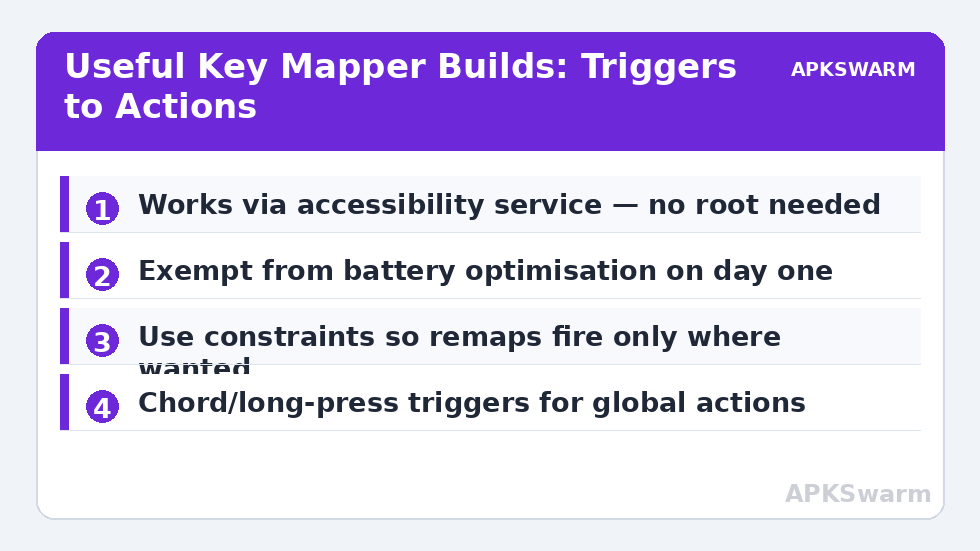
- Install Key Mapper from the Play Store or F-Droid (same project; builds can differ slightly in version timing).
- On first run, grant the accessibility service: Settings → Accessibility → Installed apps → Key Mapper → On. Android will warn about the power of accessibility access — accurate warning; this app genuinely sees your button presses, which is why its open-source status matters.
- Exempt Key Mapper from battery optimisation immediately, or Android will kill the service and your mappings will “randomly” stop — the same plague as in configure key overlay controller app android.
- In the app: Create → record a trigger by pressing the physical button (a volume key is the classic first test), then choose an action. Start with something visible and harmless — flashlight — to verify the pipeline end to end.
- Add a constraint so the mapping only fires where you want it: Key Mapper’s constraints (app in foreground, screen state, etc.) are what separate a power tool from a prank you play on yourself. A volume-remap that fires during calls is a lesson everyone learns once.
Gamepad-relevant mappings worth building
| Trigger | Action | Use case |
|---|---|---|
| Volume Up long-press | Simulated tap at screenshot-button coordinates in a specific game | Capture without claw grip |
| Volume Down double-press | Toggle flashlight / screen brightness intent | Phone-as-toolbox moments |
| Gamepad button combo (where device supported) | Launch emulator frontend (intent) | One-press jump into RetroArch from anywhere |
| Bixby/assistant key (device-dependent) | Media play/pause keycode | Reclaiming a single-purpose button |
| Volume Up + Down sequence | Key code: screenshot | Devices whose stock combo is awkward with a pad attached |
Notice what is not promised: Key Mapper is not a touch-emulation engine for turning a gamepad into a full fake finger across a game’s HUD — that is the overlay-mapper category (map touch screen controls physical buttons android), and it can fire single taps at coordinates, which covers spot actions, not twin-stick play. Likewise, macros and rapid-fire sequences brush against the same game-terms cautions as any automation; system-level conveniences are its home turf, competitive automation is not.
All figures are estimates based on typical titles and stock settings; individual games vary widely.
Keeping it alive and keeping it safe
The failure modes are boring and fixable: service killed by battery management (exempt it, and on Samsung add it to “Never sleeping apps”), accessibility toggled off by an OS update (re-enable), and trigger conflicts where two mappings share a trigger and the first match wins (Key Mapper evaluates in order — put specific, constrained mappings above general ones). On safety: an accessibility service is powerful; stick to the official open-source builds from the Play Store/F-Droid rather than random APK mirrors, and review the permission list after major updates. Root is not required for anything in this article, and any variant demanding root for these features is a different, riskier tool wearing the same name’s clothes.
When Key Mapper is the wrong tool
If you need in-emulator bindings, bind in the emulator (its tables are faster and per-game). If you need gamepad-to-touch for a whole game, use an overlay mapper. If you need your pad’s buttons redefined for every app identically, a pad with onboard profiles (8BitDo/GameSir class, see 8bitdo pro 2 setup android guide) does it in hardware with zero phone-side services. Key Mapper’s kingdom is the phone’s own buttons and system-level tricks — inside that kingdom it is unmatched at its price of free. The wider toolkit is catalogued in Controller Setup.
Three complete starter mappings, explained
Abstract capability lists convince nobody; here are three builds readers actually keep. The screenshot rescue: trigger = Volume Down long-press (500 ms), constraint = your screenshot-hostile game in foreground, action = system screenshot keycode. Many games swallow the system Power+Volume combo or make it unreachable with a telescopic pad mounted; a long-press remaps it onto a finger that’s free. The reading light: trigger = Volume Up + Volume Down chord, no app constraint, action = flashlight toggle — boring, life-changing at 2 a.m., and safe because the chord never fires accidentally in normal use. The emulator doorbell: trigger = double-press of the assistant/Bixby key where the device exposes one, action = launch app (your frontend). Pair it with the frontend’s own “resume last game” behaviour and the phone becomes a two-press console. Each build teaches a design rule: long-press and chord triggers beat single-press remaps for anything global (they cannot fire by accident), constraints are what make single-press remaps survivable, and every mapping should be reversible — keep a note of what you changed, because in six months you will press something, watch something unexpected happen, and have no memory of authoring it. Key Mapper’s own backup/export exists for exactly this archaeology; use it after each build session.
Version differences and the F-Droid question
Readers comparing screenshots will meet two Key Mappers: the Play Store build and the F-Droid build of the same open-source project, released on slightly different cadences, plus a long tail of old versions in forum posts whose menus predate the current trigger/constraint interface. Feature names drift between major versions (“actions,” “constraints,” and “flags” have all been reorganised at least once), so navigate your installed build by concept rather than by a screenshot’s exact wording: find where triggers are recorded, where actions attach, where constraints live. If a capability in an old tutorial seems missing, it has usually moved rather than vanished — the project’s changelog, linked from its store pages, is the authoritative map between versions.
Frequently Asked Questions
Does Key Mapper really work without root?
Yes. It intercepts and replaces button actions through an accessibility service, which Android allows without root. The trade-offs are that the service must stay alive and some secure contexts (like fingerprint prompts) bypass it deliberately.
Is Key Mapper safe to use?
The official Key Mapper by sds100 is open-source, so its behaviour is auditable; install it from the Play Store or F-Droid only. Any accessibility app can see your key presses, so avoid unofficial APK mirrors of it.
Why do my Key Mapper remaps stop working randomly?
Almost always battery optimisation killing the service, or an OS update resetting the accessibility toggle. Exempt the app from battery optimisation (and “Never sleeping apps” on Samsung) and re-enable the service after updates.
Can Key Mapper turn my gamepad into touch controls for games?
Only in a limited way — it can fire individual taps at fixed screen coordinates, which suits spot actions, not full twin-stick touch emulation. For whole games without controller support, use a dedicated overlay mapping app.
Can Key Mapper remap the power button or work on the lock screen?
Power-button behaviour is restricted by Android and secure screens intentionally bypass remapping. Expect volume keys and many gamepad/assistant buttons to be remappable, not the power key.