Setting up ppsspp ad hoc local wifi multiplayer android play takes about five minutes once you know where PPSSPP hides its networking options, and the payoff is real local co-op without an internet server in the middle. One phone becomes the host, the others join over the same Wi-Fi network or a mobile hotspot, and games that supported ad-hoc play on original hardware can connect exactly as they were designed to. This guide covers hosting, joining, and fixing the disconnects that make most first attempts fail. It assumes you are playing copies of games you own.
Before you change anything, open Emulation Configs thinking in terms of roles. Ad-hoc needs one clear host. If two devices both try to initialise networking with conflicting settings, neither will see the other. Pick the faster phone as host every time, ideally the one with the stronger Wi-Fi radio and more thermal headroom.
Getting Started With ppsspp ad hoc local wifi multiplayer android
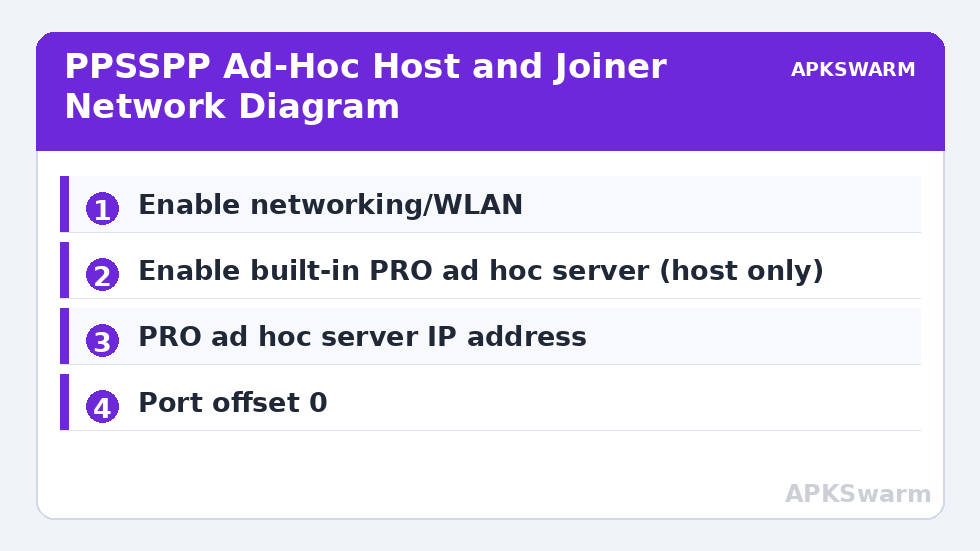
On every device, open PPSSPP and go to Settings > Networking. Tick Enable networking/WLAN (beta, may break games). Leave Enable built-in PRO ad hoc server enabled on the host phone only. On joining phones, leave that same option off. This single distinction prevents the most common error, where two built-in servers compete and lobbies never appear.
Next, set PRO ad hoc server IP address. On the host, this can stay as localhost behaviour handled by the built-in server. On each joining device, enter the host phone’s local IP address, for example 192.168.1.24 or, if you are using the host’s hotspot, typically 192.168.43.1 on many Android builds. Find the host IP under Android Settings > About phone > Status or in the hotspot details screen. All devices must use the identical address, with no extra spaces.
Still in Networking, set Port offset (0 = PSP compatibility) to 0 for best compatibility unless your network blocks low ports, and keep Minimum timeout at its default for your first test. Change one variable at a time. If you tweak timeout, offset, and server address together, you will not know which change fixed or broke the session.
What You Need Before Hosting a Session
- Same network: All phones on the same SSID, or all connected to the host phone’s hotspot. Guest networks with client isolation will block discovery.
- Same game version: Matching region and version on every device. A US copy and an EU copy often cannot see each other’s lobbies.
- Same PPSSPP settings baseline: Match Settings > System > Fast memory and Settings > System > I/O on thread for your test, then optimise later.
- Unique nicknames and MAC addresses: In Networking, confirm each device has a different Nickname and a different MAC address shown on the networking screen. Duplicated MAC addresses cause instant drops.
- Battery and thermals: Ad-hoc keeps Wi-Fi and CPU active together. Start above 30 percent battery and remove thick cases if your phone throttles quickly.
If you have not yet tuned single-player performance, do that first. Our guide to PPSSPP graphics settings for budget Snapdragon phones gives a stable baseline, because multiplayer amplifies any existing stutter. A lobby that runs at an unstable 22 fps in single player will desync far sooner than one locked near its target frame rate.
Step-by-Step: Hosting and Joining on the Same Network
- Connect the host phone to your home Wi-Fi, or turn on its mobile hotspot if no router is available.
- On the host, enable the built-in PRO ad hoc server, launch the game you own, and enter its multiplayer or guild hall mode first. Wait until you are fully inside the lobby.
- On each joining phone, set the PRO ad hoc server IP address to the host IP, launch the same game, and enter the same multiplayer mode.
- Wait 10 to 20 seconds for discovery. Do not repeatedly exit and re-enter the lobby, which restarts the handshake.
- Once players appear, let the host start the quest or match. Joiners should not change graphics settings mid-session.
Router choice matters more than raw internet speed because traffic never leaves your local network. A congested 2.4 GHz network shared with streaming TVs will add jitter even with full signal bars. If your router offers a 5 GHz SSID, put every phone on 5 GHz and stay in the same room for the first test. If discovery works at close range, you can then test range limits honestly instead of guessing whether the problem is settings or signal.
Hotspot hosting is often more reliable for meetups. When the host phone creates the hotspot, there is no router client isolation, no captive portal, and fewer unknown devices competing for airtime. The trade-off is heat and battery drain on the host, plus mobile data should be disabled if you want to guarantee all traffic stays local. Turn on aeroplane mode, then manually re-enable Wi-Fi and hotspot where your Android version allows it, for a clean test.
All figures are estimates based on typical titles and stock settings; individual games vary widely.
Settings That Affect Stability More Than Speed
Graphics settings change how much headroom remains for networking. In Settings > Graphics, prefer Backend: Vulkan where your device supports it well, and keep rendering resolution at 2x on mid-range chips or 1x on entry-level chips during multiplayer. Our deeper explainer on how to enable the Vulkan renderer in mobile emulators covers the fallback cases when Vulkan causes artefacts on a specific title. A slightly softer image that holds frame pacing will feel far better in co-op than a sharp image that hitches every few seconds.
Disable Settings > Graphics > Frame skipping for your first multiplayer test, or set it to Off entirely. Frame skipping can mask slowdowns in single player, but in ad-hoc sessions uneven frame delivery complicates synchronisation. Once a session is proven stable, you can experiment carefully. The principles in our guide to enabling frame skipping without screen tearing apply here too, especially the need to test one increment at a time.
In Settings > System, leave Change emulated PSP’s CPU clock at its default (0 = auto) unless a specific game you own is known to need a fixed clock and every player uses the identical value. Mismatched CPU clocks are a subtle cause of quests that start together and then quietly drift apart. Consistency across devices beats chasing the highest possible setting on one phone.
Per-Chip Expectations and Troubleshooting Disconnects
On flagship Snapdragon 8-series and recent Dimensity 9000-class phones, expect stable ad-hoc at 2x to 3x rendering resolution in most titles, provided Wi-Fi conditions are decent. On mid-range Snapdragon 7-series and Dimensity 8000-class hardware, 2x is the sensible ceiling for multiplayer, even if single player can push higher. On entry-level Snapdragon 6-series, Helio G-series, and older devices, use 1x resolution, Backend set to whichever of Vulkan or OpenGL is smoother for that game, and stay on 5 GHz or hotspot hosting to give the network the best chance.
If lobbies never appear, work through this order: confirm same SSID or hotspot, confirm host-only built-in server, retype the host IP address, confirm unique MAC addresses, then restart PPSSPP on all devices. If players appear but disconnect after starting, suspect mismatched game versions, mismatched CPU clock settings, or thermal throttling on the host. Move the host phone to a cooler spot, lower its rendering resolution by one step, and retest the same quest. Change one thing, test again, and write down what worked so your group can reuse the exact profile next time.
Finally, respect save safety. Ad-hoc sessions write progress on each device separately. After a long session, let every player save in-game and return to single player before closing PPSSPP. Closing the app mid-save risks corrupting the very progress you played together to earn, and no networking setting can recover a save that was interrupted at the wrong moment.
Frequently Asked Questions
Do all players need to be on the same Wi-Fi network for PPSSPP ad-hoc?
Yes. All devices must be on the same local network, either the same router SSID or connected to the host phone’s hotspot. The PRO ad hoc server IP address on joining devices must point to the host’s local IP.
Why can my friends not see my PPSSPP lobby?
The usual causes are the built-in PRO ad hoc server being enabled on more than one device, a wrong host IP address, duplicated MAC addresses, or mismatched game versions. Enable the built-in server on the host only and check each item in order.
Is hotspot hosting better than using a home router?
Often yes for small groups, because it avoids router client isolation and reduces competing traffic. The trade-off is faster battery drain and more heat on the host phone, so lower the host’s rendering resolution by one step for longer sessions.
Does PPSSPP ad-hoc multiplayer need an internet connection?
No. Ad-hoc play is local. Traffic stays on your Wi-Fi network or hotspot. You can test it with mobile data disabled, which also helps confirm that discovery problems are local settings issues rather than internet issues.
Why do we disconnect a few minutes into a quest?
Late disconnects usually point to thermal throttling, mismatched CPU clock settings, or unstable frame rates on one device. Make CPU clock settings identical on all phones, lower resolution on the slowest device, and retest the same content.