Learning how to transfer save states memory card pc android files correctly saves hours of replay, but only if you respect one distinction most guides blur: save states are emulator snapshots tied to a specific emulator version, while memory card saves are the game’s own saves and travel far more reliably. Move memory card files first, treat save states as a bonus, and back up everything before you overwrite anything. This guide uses only your own save files from games you own.
Start by locating your saves on both sides instead of copying whole folders blindly. Emulator folders look similar on PC and Android, but Android 11 and later restricts folder access, and a misplaced file will simply be ignored. Knowing the exact paths below, from our wider Emulation Configs collection, prevents the classic problem where the transfer looks successful and the game shows an empty card.
How to transfer save states memory card pc android Files Safely
The safe order never changes. First, close the emulator fully on both PC and Android so no save is held in memory. Second, make a dated backup folder, for example SaveBackup-2026-10-17, and copy your current Android saves into it before replacing anything. Third, copy from PC to a staging folder on the phone, verify file sizes, and only then move files into the live emulator directory. If something goes wrong, you still have both originals untouched.
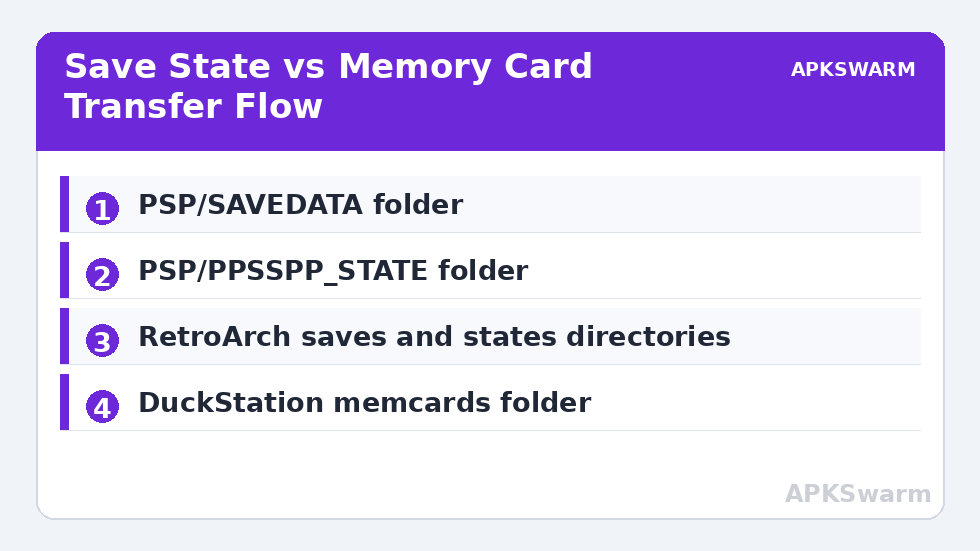
For PPSSPP, memory stick data on Android lives under PSP/SAVEDATA for in-game saves and PSP/PPSSPP_STATE for save states, inside your chosen PSP folder, commonly Android/data/org.ppsspp.ppsspp/files/PSP or a user-selected memstick folder. On PC, the same PSP/SAVEDATA and PSP/PPSSPP_STATE structure sits inside your PPSSPP memstick directory. Copy the per-game subfolders, not just loose files, because each save folder name encodes the game ID the emulator expects.
For PlayStation emulation with DuckStation, memory cards are typically .mcd, .mcr, or .mc files in the emulator’s memcards folder, while save states use the emulator’s own extension in its savestates folder. Our step-by-step DuckStation setup guide for Android shows where those folders are created on first launch. Copy the whole memcards folder contents for migration, keep the filenames identical, and re-select the card in DuckStation settings if the game shows no data.
Save States Versus Memory Cards: What Actually Transfers
A memory card save is written by the game itself in the format the original hardware used. It is small, durable, and usually compatible across emulator versions and even across different emulators that support the same system. A save state is a freeze-frame of the entire emulated machine, including RAM and timing state. It is large, convenient, and fragile. A state made in an older PPSSPP or RetroArch core version may refuse to load, load with audio glitches, or load and then corrupt the next in-game save.
Use this rule: if you plan to continue playing long-term on the other device, rely on an in-game save at a proper save point, transfer the memory card or SAVEDATA folder, and recreate fresh states on the new device. Use transferred states only for short hops, such as moving from PC to phone for a commute, and even then keep the memory card save as your fallback. Never delete the source until the destination has loaded the save and saved again successfully.
File naming matters. Do not rename save state files or SAVEDATA folders to something friendlier. Emulators match states and saves to a game by its ID and filename pattern. Renaming breaks that match silently. If you need labels, put copies in a clearly named backup folder outside the live directory and leave the live copies exactly as the emulator created them.
Step-by-Step Transfer Using USB and Cloud Staging
- On PC, fully exit the emulator. Navigate to its memstick, memcards, or saves folder and copy the relevant SAVEDATA, memcards, or savestates folders to a staging folder on your desktop.
- Connect the Android phone by USB and choose File Transfer. Copy the staging folder to Download/EmuTransfer on the phone first, not directly into the emulator directory.
- On Android, open your file manager, confirm every file arrived with a non-zero size, then copy the contents into the matching live emulator folder, choosing Replace only after your backup is made.
- Launch the emulator, grant folder access again if Android prompts for it, load the game you own, and check the in-game load screen before testing any save state.
- Save in-game once on the new device to confirm writes work, then close the game normally.
Cloud storage works as staging in exactly the same way and is useful when USB cables are unreliable, but avoid letting a cloud app be the only copy. Sync conflicts can truncate large save state files without an obvious error. Download the file fully, check its size against the PC original, and only then move it into place. For large RetroArch state libraries, USB is still the more predictable option.
All figures are estimates based on typical titles and stock settings; individual games vary widely.
RetroArch, NetherSX2, and Dolphin Folder Notes
In RetroArch on Android, look under your RetroArch directory in saves for in-game saves, typically .srm files, and states for save states. The exact path depends on your Settings > Directory configuration. If you are new to RetroArch, our RetroArch Android beginner setup guide explains how to set and verify those directories before you copy anything, which avoids the common trap of copying to a default folder RetroArch is no longer using.
For NetherSX2 and AetherSX2, memory cards live in the emulator’s data folder under a memcards directory, and BIOS-adjacent configuration should never be copied as part of a save transfer. Only move the memcard files and, if needed, your per-game settings exports. For Dolphin, GameCube memory cards are typically a single MemoryCardA.USA.raw or region-equivalent file, while Wii saves live in the Wii NAND save structure. Copying Dolphin’s whole user folder is tempting but risky across versions, so prefer targeted folders and then re-check your controller and graphics settings afterwards. Our Dolphin best settings guide is a good reference for rebuilding those settings cleanly if a full reset becomes necessary.
When a Transferred Save Does Not Appear
Work through the causes in this order: wrong folder, wrong game region or ID, file permission not granted, and version mismatch on save states. Confirm the game ID shown on the save folder matches the copy of the game you are loading. Confirm Android has granted the emulator access to the exact folder you copied into, especially after an Android update resets permissions. Check that the file is not still inside an extra nested folder created by unzipping, such as SAVEDATA/SAVEDATA/…, which emulators will ignore.
If a memory card save loads but a save state does not, do not keep retrying the state. Load from the memory card, play to the next save point, and create a new state on that device. Chasing a broken state wastes more time than replaying a short section, and repeatedly loading a mismatched state can leave the emulator in an unstable condition for that session. Your long-term progress should always rest on the memory card save, with states as convenience only.
Frequently Asked Questions
Can I transfer save states between different emulator versions?
Sometimes, but it is not guaranteed. Save states capture the full emulated machine and often break across versions or cores. Transfer memory card or SAVEDATA saves for long-term moves and recreate save states on the new device and version.
Where are PPSSPP saves stored on Android?
In-game saves are in PSP/SAVEDATA and save states are in PSP/PPSSPP_STATE, inside your PPSSPP memstick folder. That may be under Android/data/org.ppsspp.ppsspp/files/PSP or a memstick folder you selected manually.
Why does my transferred memory card show as empty in the game?
The most common causes are copying to the wrong folder, a nested extra folder after unzipping, a mismatched game region, or the emulator not having folder access. Verify the path, the game ID on the folder, and Android permissions.
Is it safe to use cloud storage to transfer save files?
Yes as a staging method for your own save files, provided you download fully and verify file sizes before moving files into the live emulator folder. Keep a local backup as well, because sync conflicts can truncate large save state files.
Should I copy the entire emulator folder from PC to Android?
No. Copy only saves, memory cards, and save states into the matching folders. Whole-folder copies can overwrite Android-specific settings, paths, and permissions and create problems that are harder to diagnose than a clean targeted transfer.