A good duckstation ps1 emulator android 4k setup is less about pushing resolution to its maximum and more about ordering the steps correctly: BIOS first, renderer second, resolution third, and enhancements last. DuckStation is forgiving on modern phones, and even mid-range Snapdragon hardware can upscale PlayStation games far beyond the original 240p output. Follow this order and configure only games you own, dumped from your own discs, so the result looks sharp without introducing the wobble, seams, and input lag that random enhancement stacking causes.
BIOS, Games, and First Launch Settings
DuckStation technically requires a PlayStation BIOS to run games accurately, and that BIOS must be dumped from your own console. There is no legal shortcut here and this guide does not provide one. Place your dumped BIOS file in the folder DuckStation shows under Settings > BIOS, select it for each region you own discs for, and enable Fast Boot only if you want to skip the original boot animation. Fast Boot does not change compatibility in current versions, so the choice is purely cosmetic.
Your games should be disc images you created from your own PlayStation CDs, ideally in BIN/CUE or CHD format. CHD is recommended on phones because it compresses well and keeps multi-track audio intact in a single file. Under Settings > Game List, add your games folder and let DuckStation scan it. If a multi-disc game appears as separate entries, use Change Disc from the pause menu or create an .m3u playlist file listing the discs, so memory card saves carry across discs correctly.
Set the basics before graphics. Under Settings > Console, set Region to Auto-Detect, CPU Execution Mode to New Dynamic Recompiler, and disable CPU Overclocking for now. Under Settings > Controller, map a Bluetooth gamepad and set Analog Mode so DualShock titles detect the controller correctly. These defaults apply whether you later run at native resolution or 4K upscaling.
DuckStation PS1 Emulator Android 4K Setup Step by Step
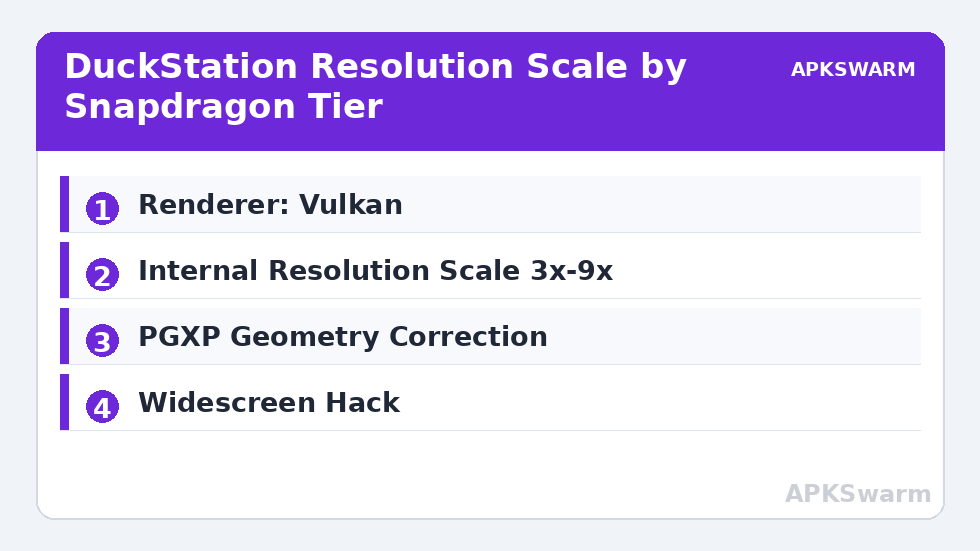
Open Settings > Graphics. Set Renderer to Vulkan on Snapdragon and most modern Mali devices. Vulkan gives DuckStation the headroom it needs for high internal resolution and PGXP without the driver overhead of OpenGL. Use OpenGL only on older devices where Vulkan renders incorrectly. This mirrors the backend advice in our Vulkan renderer guide for mobile emulators, although DuckStation is far less demanding than GameCube or PS2 emulation.
Now set Internal Resolution Scale. This is the 4K control. The PlayStation renders around 240p, so 9x produces roughly 2160p-class output and 6x produces around 1440p. On Snapdragon 6xx chips, use 3x to 4x, which already looks dramatically sharper on a phone screen. On 7xx chips, 5x to 6x is the sweet spot. On 8xx flagships connected to a 4K TV or monitor, 9x is achievable in most titles, but on the phone display itself anything above 6x gives almost no visible benefit while still costing battery and heat. Set Texture Filtering to Bilinear or JINC2 depending on taste, and Aspect Ratio to match your display or 4:3 if you prefer the original presentation.
All figures are estimates based on typical titles and stock settings; individual games vary widely.
Enable PGXP Geometry Correction and PGXP Culling Correction. PGXP is what removes the famous PlayStation texture wobble and vertex jitter by retaining floating-point precision the original hardware lacked. Set PGXP Mode to Memory Only for maximum compatibility, or Memory + CPU Mode for the handful of games that need it and are listed as such in community compatibility notes. PGXP costs some CPU performance, which is why 6xx devices should pair it with a lower resolution scale rather than disabling it. Also enable Depth Buffer under PGXP only for games known to need it, since it can cause sorting errors elsewhere.
Widescreen Hacks Without Stretched Characters
Under Graphics, enable Widescreen Hack to render 3D scenes in 16:9 instead of stretching the 4:3 image. Characters and 3D objects will look correct, but expect two trade-offs. First, 2D backgrounds and pre-rendered scenes stay 4:3, so games like Final Fantasy VII to IX will show a mix of widescreen gameplay and pillarboxed backgrounds. Second, objects outside the original 4:3 view can pop in at the edges because the game never expected them to be visible. For 2D-heavy games, disable the hack and play in 4:3. A related enhancement is Chroma Smoothing for 24-bit Colour and Dithering set to Scaled, which clean up colour banding in FMV and dark scenes with almost no performance cost on any chip tier.
Performance, Latency, and Per-Game Profiles
Under Settings > Advanced, leave Multisample Antialiasing off at high resolution scales, because upscaling already smooths edges and MSAA at 6x or above is extremely expensive. Enable True Colour Rendering to remove the original 15-bit colour dithering artefacts, and set Texture Replacement off unless you deliberately installed a texture pack you made yourself. To cut input lag, enable Run-Ahead with 1 frame under Settings > Latency on 7xx and 8xx devices. Run-Ahead runs extra emulation frames internally and can remove one frame of delay, but it roughly doubles CPU load in the affected core path, so 6xx users should leave it off and instead use a wired or low-latency Bluetooth controller. Frame pacing matters more than raw resolution for how a PS1 platformer feels, a point also covered in our guide to enabling frame skipping without screen tearing.
DuckStation supports per-game settings, and you should use them. Open a game’s properties from the game list and override only what that title needs: PGXP CPU mode for stubborn geometry, widescreen off for 2D titles, or a lower resolution scale for games with heavy framebuffer effects like Silent Hill’s fog. Everything else inherits your global profile. Save management pairs well with this: set Memory Card Type to Separate Card Per Game under Settings > Memory Cards, so one corrupted card never takes your whole library with it. Our detailed walkthrough on setting up memory card folders and directories explains the folder layout if you move saves between phone and PC.
Typical expectations, framed honestly: Snapdragon 6xx devices usually hold full speed at 3x to 4x with PGXP on in the large majority of titles. Snapdragon 7xx devices usually hold full speed at 5x to 6x including widescreen hacks. Snapdragon 8xx devices usually hold full speed at 9x for TV output, with heat over long sessions being the practical limit. If a specific game slows down, lower Internal Resolution Scale one step, then check whether PGXP CPU Mode is enabled unnecessarily. Browse the rest of the profiles in the Emulation Configs archive for matching guides for other systems.
One final check before long sessions is the display path. Under Settings > Graphics > Display, set Display Alignment to match your screen and disable any forced stretching, because a stretched output makes the widescreen and resolution work above look wrong even when rendering is correct. Test your finished profile for ten minutes in a busy 3D scene, not in a menu, and confirm temperatures and battery drain are acceptable before committing to a full playthrough at that scale.
Frequently Asked Questions
Do I need a BIOS file for DuckStation on Android?
Yes. DuckStation needs a PlayStation BIOS for accurate emulation, and it must be dumped from a console you own. Place your dumped file in the BIOS folder shown in Settings, select it per region, and the emulator will use it for your own disc images.
What internal resolution scale equals 4K in DuckStation?
Around 9x. The PlayStation renders near 240p, so a 9x Internal Resolution Scale produces roughly 2160p-class output for a 4K display. On a phone screen, 5x to 6x looks nearly identical and uses far less battery.
What does PGXP do and should I enable it?
PGXP retains extra geometry precision to fix the wobbly textures and jittery polygons of original PlayStation hardware. Enable PGXP Geometry Correction in Memory Only mode for the best balance of visual improvement and compatibility on most phones.
Why do pre-rendered backgrounds stay 4:3 with the widescreen hack?
Pre-rendered backgrounds are fixed 4:3 images stored on the disc, so the widescreen hack cannot extend them. Only real-time 3D scenes expand to 16:9, which is why mixed games show pillarboxed backgrounds between widescreen gameplay sections.
How do I reduce input lag in DuckStation Android?
Enable Run-Ahead with 1 frame on Snapdragon 7xx and 8xx devices, use a wired or low-latency controller, and keep VSync on. On weaker chips, skip Run-Ahead because it increases CPU load, and lower the resolution scale instead.