Two card slots sound like a luxury until six months in, when your games live in three places, your saves live somewhere else, and swapping firmware means losing a weekend. This guide shows how to organize microsd card retro gaming handheld storage properly on dual-card devices — which content belongs on the system card, which belongs on the content card, the folder layout that every major firmware and front end can read, and the habits that keep a 256 GB library navigable instead of archaeological.
The devices in question: Anbernic’s H700 line (RG35XX series, RG40XX, CubeXX) with their TF1/TF2 slots, RG552-era dual-slot hardware, and any Android handheld where internal storage plus microSD creates the same two-volume split. The names differ; the logic does not. One volume is the brain (operating system, emulators, configs). The other is the library (games, artwork, saves you protect). Keep those roles separate and everything else in this article becomes easy.
Before you reorganise anything, back up first. Copy both cards fully to your PC — the whole cards, not just the folders you recognise. Reorganisation involves moving and renaming thousands of small files; a copy failure, an accidental overwrite, or a card dying mid-transfer (cheap cards do this) can orphan your save files. Your saves are the only irreplaceable data on the device. Everything else can be re-downloaded or rebuilt; a 40-hour RPG save cannot.
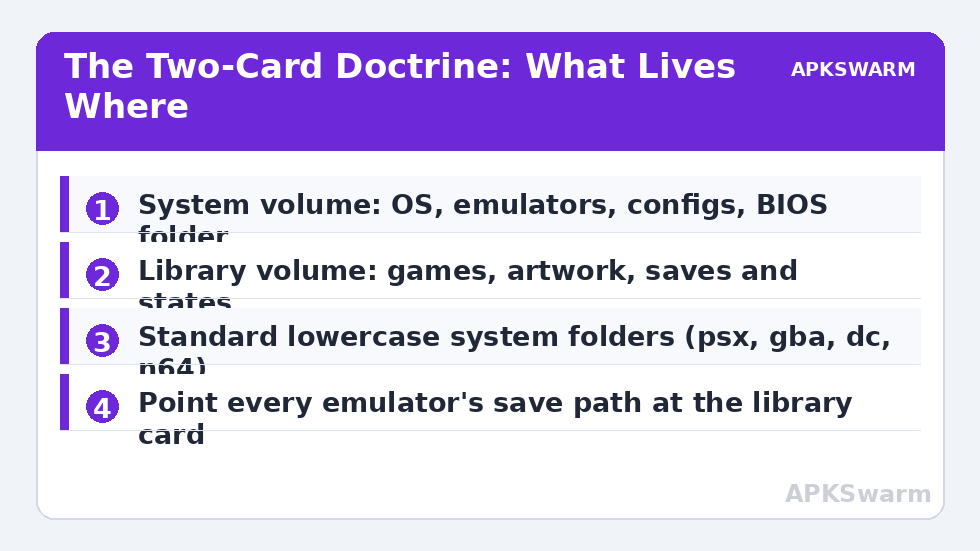
The Two-Card Doctrine: System vs Library
On Linux firmware devices (muOS, KNULLI, ArkOS-family builds), TF1 holds the OS image. It is usually small — a 16–32 GB card is more than enough — and it is the card you will reflash when you change or update firmware. TF2 holds games and media in a folder structure the firmware mounts at boot. This separation is the entire point: reflash the brain as often as you like; the library card never gets reformatted.
On Android handhelds the split is conceptual rather than physical. Internal storage holds Android, emulator apps, and Daijishō; the microSD holds the game library. Set emulators to read from and save to the card, and treat internal storage as the system volume. If the device is ever factory-reset, the card walks away with your library intact.
- System volume: OS/firmware, emulator apps and cores, configs, BIOS files (firmwares usually read these from a fixed folder on the system side), front-end databases.
- Library volume: game files, scraped artwork and metadata, save states and memory-card files (point your emulators here deliberately), screenshots.
BIOS placement is the exception that confuses people: on most Linux firmwares the bios folder lives on the system card or a defined folder on the content card, depending on the build. Check your firmware’s documentation once, put your own dumped BIOS files there, and never move them again.
The Folder Layout That Everything Can Read
Use short, lowercase, standard system folder names. Front ends and scraping tools are built around these conventions, and your future self — migrating to a new device — will thank you.
/roms
  /psx        (PlayStation)
  /psp
  /dc         (Dreamcast)
  /n64
  /gba
  /gbc
  /snes
  /genesis
  /arcade
/media        (scraped artwork, if your tool keeps it beside the roms)
/saves        (battery saves + memory card files)
/states       (save states)
/bios
Naming rules that prevent 90% of scraping and sorting pain: rename your legally dumped games to the standard No-Intro (cartridges) and Redump (discs) titles. Keep multi-disc games in one subfolder per game with an .m3u playlist at the roms level so front ends list a single entry. Never nest games inside per-letter folders — scrapers handle flat system folders best, and so does every migration tool you will ever use. The scraping half of this system is covered fully in our guide to scraping box art and logos automatically.
Card Choice, Formatting, and Honest Capacity Planning
Buy name-brand cards (SanDisk, Samsung, Lexar) from reputable sellers; counterfeit capacity is rampant in this hobby and a “512 GB” card that is really 32 GB corrupts data silently once it fills past its true size. Test any new card with H2testw or F3 before trusting it. For the library card, exFAT is the standard format on larger cards and the one every firmware here reads; the system card gets whatever format the firmware image writes — do not pre-format it, the flashing tool handles it.
Capacity planning, honestly: a curated PS1-and-below library fits comfortably in 64 GB. Adding PSP, Dreamcast, and a serious PS1 disc collection pushes you to 128–256 GB. Bigger libraries mostly collect games you never open; the organisation effort in this guide scales with what you keep, so curate first, buy second. When the day comes to move up a size, the clone and upgrade walkthrough covers the transfer without breaking paths.
Saves: Point Them at the Library Card, Then Sync Them
Out of the box, many emulators save to internal or system-side storage. Change the save and state directories to your /saves and /states folders on the library card in each emulator you use — RetroArch’s directory settings, DuckStation’s memory card path, PPSSPP’s PSP/SAVEDATA location. This one setting is what makes firmware swaps painless.
Then protect them properly. A card can still die, so copy /saves to your PC monthly, or automate it between devices with the setup in our Syncthing save-syncing guide. If two devices share a library card format (the H700 family makes this genuinely practical), the same card can tour between handhelds — keep firmware versions aligned so save-state formats match.
Curious which of your systems strain the device most while you plan storage for shader caches and texture packs? A quick estimate check helps you leave sensible headroom:
All figures are estimates based on typical titles and stock settings; individual games vary widely.
Keep browsing related storage and setup topics in the Handheld Tweaks category as your library grows.
The Maintenance Rhythm That Keeps It True
Organisation is not a one-time project; cards drift. Adopt three habits and the drift never becomes archaeology again. Process new games at the door: when you dump a new title, rename it to the standard name, file it in the right system folder, and scrape it in the same sitting — a five-minute discipline that replaces the annual “downloads folder” excavation. A monthly five-minute audit: check for duplicate files (same game in two folders), orphaned media (artwork whose game was deleted), and a saves-folder copy to the PC. Label everything physically: a paint-pen dot or a label on each card saying which device and role it belongs to (for example “RG35XX H — TF2 library”) prevents the worst dual-card accident of all — formatting or flashing the wrong card because two identical black rectangles sat next to each other on the desk. The doctrine in this article is cheap; it is only expensive to learn late.
Frequently Asked Questions
Which card slot does the firmware go in on Anbernic devices?
Slot TF1 (the system slot). The content card goes in TF2. On KNULLI and muOS the OS card is the one you flash with the firmware image; the TF2 card is only ever read, never reformatted by updates.
Should I format my library card as exFAT or FAT32?
exFAT for cards above 32 GB — it removes the 4 GB file limit that breaks large disc images and is read by every current firmware and Android handheld. FAT32 remains fine for small cards and older Linux handhelds.
Can I share one library card between two different handhelds?
Often yes within a firmware family (for example H700 devices running muOS), because the folder structure is self-describing. Save states may not transfer between different emulator builds, but battery saves (SRM/memory card files) usually do.
My front end shows duplicate games after reorganising. Why?
Almost always a leftover copy — an archive plus its extracted file, or the same game in old and new folders. Search the card for the title, delete the stray, and re-run the library sync.
How often should I back up my saves folder?
Monthly at minimum, and always before flashing firmware, changing cards, or a long trip. The folder is small; the loss is permanent. Automate it with Syncthing if manual copies keep slipping.