The RG556’s 5.48-inch AMOLED is the entire reason to buy the device — and the reason its colours can look wrong in a way owners struggle to describe. Everything is slightly too vivid, reds bloom, and retro games look like they were remastered by a candy company. This anbernic rg556 setup screen calibration guide explains why that happens on this panel, which display settings tame it without dulling it, and finishes with the controller mapping passes — stick behaviour, deadzones, and the GameCube-style controls — that make the hardware feel finished.
Hardware briefing: the RG556 runs a Unisoc T820 (one Cortex-A76 performance cluster plus A55 efficiency cores, Mali-G57 GPU), 8 GB of RAM, and Android 13. The display is a 1080×1920 AMOLED at effectively 16:9 in landscape use. Its native colour gamut is wide — well beyond sRGB — and Android on this device does not colour-manage most emulator apps, so content mastered in sRGB gets stretched across the panel’s full gamut. That stretch is the candy look. It is not a defective screen; it is an unmanaged one.
Why AMOLED Saturation Hits Retro Games Hardest
Modern phone content is increasingly mastered with wide gamut in mind, and Android’s flagship apps colour-manage properly. Retro games were authored for sRGB (or, earlier, for NTSC CRTs with their own character). When an emulator renders sRGB frame buffers and the system composites them without mapping to the panel, every colour is pushed outward — greens go neon, skin tones go orange, and carefully muted palettes go loud. PS1 and Dreamcast titles show it worst because their art leaned on mid-tones the stretch distorts most.
The fix is not to desaturate blindly until it looks like an LCD. It is to use the controls in layers: the system-level colour mode first, then per-emulator colour controls, then — only if needed — mild gamma or shader correction.
Step One: System Display Settings
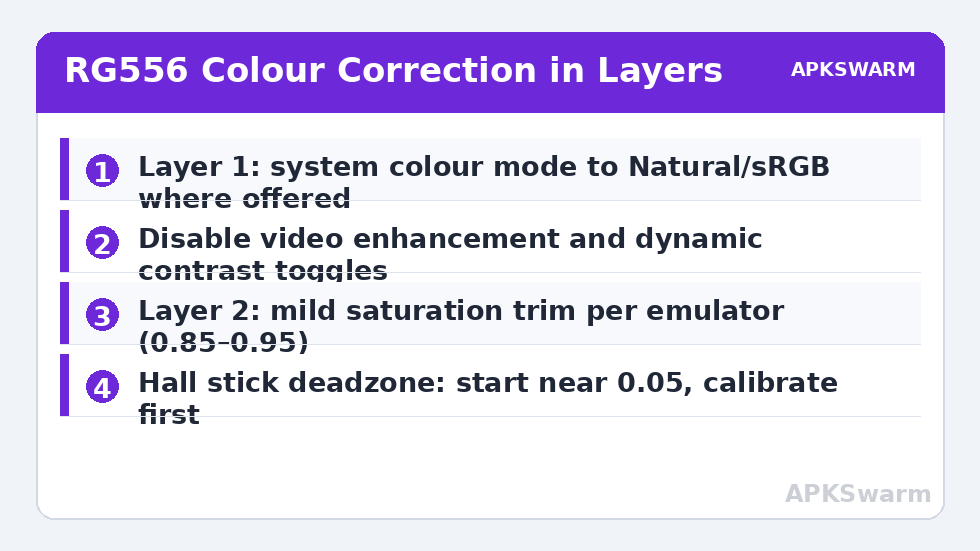
- Open Settings > Display and look for the colour mode / screen colour options on your firmware build. Where a “Natural” or sRGB-leaning mode exists alongside “Vivid,” choose Natural. This single change does most of the work on builds that expose it.
- Disable any “video enhancement” or dynamic contrast toggles. These raise perceived punch by crushing shadows — exactly what you do not want in dark PS1 environments.
- Set brightness manually rather than auto for play sessions. AMOLED auto-brightness swings change perceived colour temperature; a fixed level makes your calibration decisions stable.
- Night Light / eye comfort modes shift white point warm. Fine for reading, wrong for calibration — do your setup with it off.
Firmware revisions differ in which of these toggles Anbernic exposes, and some builds hide colour mode entirely. If yours does, do not panic: the emulator-level corrections below achieve most of the result, and community-maintained updated builds have historically expanded these options over the device’s life. One caution while you are in display settings: leave any “SRGB” or colour options you find inside individual emulator apps at their defaults until the system layer is settled — correcting in two places at once produces a washed-out double correction that owners then misdiagnose as a dull panel. Layers, in order, one at a time: that discipline is the difference between a calibrated RG556 and a merely adjusted one.
Step Two: Per-Emulator Colour Control
In RetroArch (used for most systems on the RG556), Settings > Video gives you the levers: the shader system supports colour grading presets, and a light preset that trims saturation slightly is the surgical tool here. Load a grading shader, reduce saturation modestly (small steps — around 0.85–0.95 of full), and judge on a game you know well, not on a test pattern. DuckStation has its own display settings including saturation/brightness/contrast sliders under its graphics options; PPSSPP exposes colour correction in its graphics settings as well. Set each emulator once, save per-core or per-app, and stop fiddling — constant re-adjustment per game is a sign the system-level mode was the real answer.
Judge your work on skin tones and greys, not on explosions. A grey ramp that stays neutral grey down the scale, plus faces that look like faces, means you are calibrated. If you mostly play 4:3 content, remember this panel pillarboxes heavily; the aspect ratio buyer’s guide explains the black-bar maths and why it is not wasted screen.
Step Three: Controller Mapping and Stick Behaviour
The RG556’s hall-effect sticks and analogue triggers are hardware it shares conceptually with pricier devices, and they deserve ten minutes of setup. Run the built-in joystick calibration (Settings, handheld/gamepad section on most builds) with slow, full circles — rushing calibration is the main cause of the “my stick doesn’t reach corners” complaint. The full theory and troubleshooting version of this routine is in the hall effect calibration guide.
Deadzones: RetroArch’s input settings let you set an analogue deadzone per device. Hall sticks need very little — start low (around 0.05) and raise only if you see menu drift. Android’s own stick test view in the gamepad settings shows raw behaviour before any emulator touches it; always diagnose there first so you know whether a problem is hardware, calibration, or core-specific.
Mapping specifics that matter on this device:
- RetroArch hotkeys: set Select as the hotkey enable button, then bind save state, load state, and fast-forward to face/shoulder combos you will not hit accidentally mid-game.
- Standalone emulators: DuckStation, PPSSPP, and Dolphin each keep their own mapping — Dolphin especially, where the RG556’s triggers should be mapped as analogue axes first, digital click second, for GameCube titles that read partial pulls.
- Per-game profiles: save them. A racing title and a platformer want different trigger and sensitivity treatment, and every major emulator here supports per-game configs.
Sanity-check your system expectations for this chipset before blaming mapping or settings for slowdown — the T820 sits in the capable-middle class:
All figures are estimates based on typical titles and stock settings; individual games vary widely.
More RG556-adjacent tuning — scraping, front ends, and card discipline — sits in the wider Handheld Tweaks library.
Verifying Your Calibration with Content You Know
Test patterns tell you about neutrality; familiar games tell you about truth. Verify with three scenes you know deeply. A game with human faces in cutscenes or portraits exposes skin-tone errors instantly — faces should read as skin, not sunburn or wax. A title with famous strong primaries — a certain plumber’s red and blue — should look saturated but not fluorescent; if the red glows like a neon sign, saturation is still too high. A dark horror or dungeon title checks the shadow end: you should distinguish dark grey detail from true black, and AMOLED’s perfect blacks make crushed shadows obvious as “holes” in the image. Work through the layers in order (system mode, then emulator sliders), changing one variable at a time and revisiting the same three scenes, and stop the moment all three look right. Perfectionism past that point is just drift — displays, eyes, and ambient light all vary, and a good calibration is one you forget exists.
Frequently Asked Questions
Why do colours look oversaturated on my RG556?
The AMOLED panel’s native gamut is much wider than sRGB, and most emulator apps are not colour-managed on this device, so sRGB content is stretched across the full gamut. Switching to the Natural/sRGB display mode, or trimming saturation inside the emulator, corrects it.
My firmware has no colour mode setting. What can I do?
Use emulator-level correction: RetroArch’s colour grading shaders, DuckStation’s display sliders, and PPSSPP’s colour correction settings. They achieve most of the system-level result per-emulator.
How much deadzone do hall effect sticks need?
Very little compared with potentiometer sticks — start around 0.05 in RetroArch and raise only if you observe drift. If drift is significant, recalibrate the sticks slowly in system settings before touching deadzones.
Should the RG556’s triggers be set as buttons or axes?
Axes, wherever the emulator allows it. GameCube emulation in Dolphin in particular reads analogue trigger depth; mapping the digital click as well gives you both behaviours.
Does screen calibration affect battery life?
Only marginally. Brightness dominates AMOLED power draw. Colour mode and mild shader correction cost negligible power compared with lowering brightness one notch.