It connects. It scrapes three games. It drops. On Anbernic’s Linux handhelds this cycle is so common it has become background noise in the community — and it is almost never a dead Wi-Fi chip. Learning to fix wifi connection drop anbernic handheld owners face is mostly a router-settings exercise wearing a handheld costume: the radios in these devices are modest, single-band in many models, and picky about modern router defaults. Work through this guide in order and you will find the setting that has been quietly disconnecting you.
First, identify your situation. The RG35XX family, RG40XX, and their H700/earlier siblings run Linux firmware (stock, muOS, KNULLI) and use budget Wi-Fi modules, typically 2.4 GHz-focused with a small internal antenna positioned near a grip. Android-based Anbernic models (RG556, RG Cube, RG406 series) have more capable radios but their own quirks. The fixes below are ordered for the Linux devices where complaints concentrate; Android-specific notes are flagged where they differ.
Diagnose Before You Change Things
Three observations that sort nearly every case:
- Drops only during scraping/downloads, fine when idle? Sustained transfer heat plus aggressive power saving is the usual story — see the power and channel sections below.
- Connects to one network but not another (or not to your phone hotspot)? Band and security-mode mismatch. Many of these modules dislike WPA3-only networks and some hotspot configurations.
- Works near the router, dies through one wall? That is antenna reality, not a fault — but channel congestion makes it far worse, and channel choice is free to fix.
Also update the firmware before deep troubleshooting. Wi-Fi driver and power-management fixes have shipped in stock updates and in muOS and KNULLI releases over these devices’ lives; diagnosing an already-fixed bug wastes an evening. The update path for custom firmware follows the same discipline as the install in guides like the RG35XX H firmware setup. One more free experiment while you are diagnosing: change where you sit. These antennas are small and directional in effect if not in design — the same device on the same network can be flawless at the kitchen table and hopeless on the bed, simply because of what is between it and the router (walls, a body, a metal bed frame). Map your dead spots honestly before buying anything; sometimes the fix is a cushion’s width of difference.
Router Settings That Actually Cause This
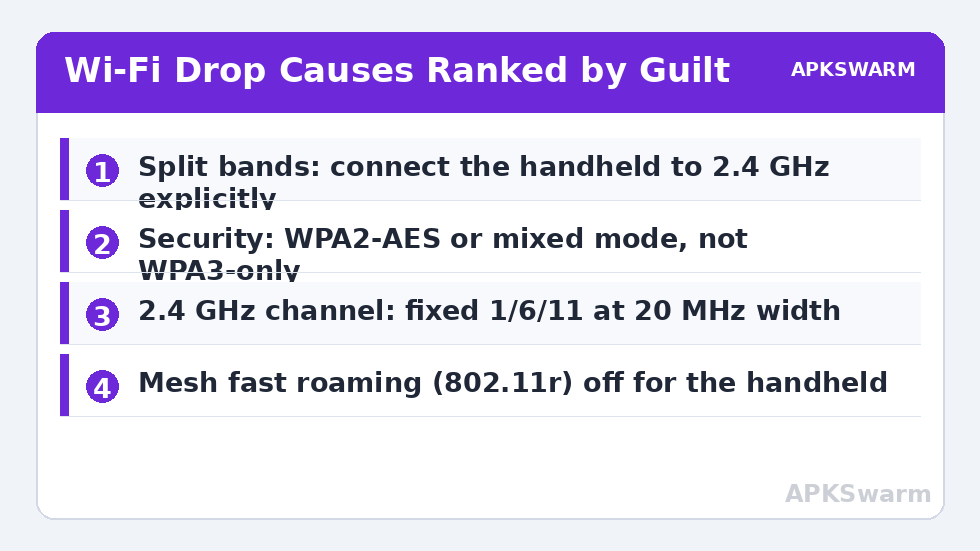
Log into your router and check these, in order of how often they are guilty:
- Band steering / “smart connect”: routers that merge 2.4 GHz and 5 GHz under one SSID actively push clients between bands. Budget modules handle this badly and drop during the push. Split the bands into separate SSIDs and connect the handheld to the 2.4 GHz one explicitly. This single change fixes a large share of cases.
- Security mode: set the 2.4 GHz network to WPA2-AES (or WPA2/WPA3 mixed) rather than WPA3-only. Several handheld Wi-Fi stacks fail or flap under pure WPA3/SAE.
- Channel width and channel: use 20 MHz width on 2.4 GHz (40 MHz mode invites interference in built-up areas) and a fixed channel — 1, 6, or 11 — chosen by which is emptiest in a phone Wi-Fi analyser, rather than “Auto” the router picks badly.
- 802.11ax (Wi-Fi 6) features on 2.4 GHz: some routers’ OFDMA/ax behaviours on the 2.4 GHz band unsettle legacy clients. If your router lets you set the 2.4 GHz band to a compatibility or n/g mode, testing it is worthwhile.
- Fast roaming (802.11r): on mesh systems, disable it for the handheld’s network if drops happen when moving between rooms — these clients roam poorly.
Handheld-Side Settings and Habits
On the device: forget and re-add the network after router changes so stale negotiation data clears. Keep the handheld’s date and time correct — scrapers and HTTPS connections fail oddly when the clock is wrong after a flat battery, and Wi-Fi gets blamed. In KNULLI/Batocera-lineage systems, check the Wi-Fi settings in the network menu and any available power-related toggles; in muOS, verify the network configuration saved correctly after first connect. During long scraping sessions, keep the device awake and plugged in: sleep states on these firmwares suspend the radio, and a scrape interrupted by sleep looks exactly like a drop — the workflow in our box art scraping guide assumes a stable connection for this reason.
Position matters more than pride admits. The antenna sits inside a plastic shell held in two hands — your hands. Testing with the device on a table near the router establishes your baseline; if it is rock-solid there and flaky on the sofa, you have a coverage problem, and a cheap 2.4 GHz-friendly access point placement change is the honest fix.
Android-Based Anbernic Models: The Differences
On Android models, add these checks: in Wi-Fi settings, open the network details and set the connection to stay on the band you chose (forget the 5 GHz twin if band steering merges them); disable “switch to mobile data / intelligent Wi-Fi” style options that drop weak connections aggressively (names vary by build); and check that no battery-saver profile is restricting background Wi-Fi during scrapes. The broader standby and radio discipline in the sleep mode optimisation guide also applies here — aggressive sleep policies and flaky Wi-Fi are two faces of the same power-saving coin.
Final sanity check — separate connection problems from load problems by timing a scrape or download against expectations:
All figures are estimates based on typical titles and stock settings; individual games vary widely.
Browse the rest of the Handheld Tweaks category for the firmware and setup guides these fixes pair with.
When It Really Is the Handheld
Sometimes, after the router is exonerated, the device is guilty. Signs: drops at the same distance on multiple known-good networks, Wi-Fi that vanishes entirely until a reboot, or a unit that never sees networks its sibling model sees on the same shelf. Before concluding hardware, run the last software gauntlet: a clean reflash of the firmware card (backing up saves first, per the discipline in the flashing guide) eliminates corrupted network configuration and old driver state in one move, and known-good community firmwares sometimes carry better Wi-Fi behaviour than an ageing stock build. If a fresh install on a known-good network still drops, you are looking at an antenna or module fault — on most of these devices that is a sealed-unit problem, so the honest paths are warranty, a USB Wi-Fi dongle where the firmware supports one (some Linux builds do, via OTG), or relegating the unit to offline play. Naming that endpoint plainly is part of the fix: it stops the router tweaks that were never going to work.
Frequently Asked Questions
Why does my Anbernic handheld keep disconnecting during scraping?
Scraping is a sustained transfer, which exposes power-saving and band-steering behaviour that idle connections hide. Split your router bands, connect on 2.4 GHz with WPA2, keep the device awake and plugged in during big scrapes, and most cases stop.
My handheld cannot see my 5 GHz network at all. Is it broken?
Probably not. Many budget Anbernic models have 2.4 GHz-focused radios that cannot see 5 GHz networks. Connect to the 2.4 GHz band — for scraping and RetroAchievements it is entirely sufficient.
Does a Wi-Fi repeater or mesh node help?
It can, if your problem is coverage. But disable fast roaming (802.11r) for the handheld if drops happen when moving between rooms, and make sure the node offers a clean 2.4 GHz SSID the device can stick to.
The connection drops only when the screen sleeps. What is that?
Power management suspending the radio. For long downloads or scrapes, keep the device awake in settings or plug it in and disable sleep for the session. It is expected behaviour on these firmwares, not a hardware fault.
I changed everything and it still drops. What is left?
Test on a completely different network (a friend’s router on a fixed 2.4 GHz channel). If it is stable there, your router remains the suspect; if it drops everywhere at the same distance, suspect the device — reseating is not user-serviceable on most models, so use your warranty.