Flashing custom firmware is the highest-leverage upgrade a budget handheld can get — and the procedure most likely to end with a black screen and a support thread if rushed. This guide covers how to flash arkos rocknix custom firmware microsd cards safely: the preparation that makes failure recoverable, the imaging step done correctly on Windows, macOS, and Linux, device notes for the Rockchip handhelds these systems serve, and the first-boot routine that separates a working install from a corrupt one.
Know your targets. ArkOS is a long-running Ubuntu-based firmware (with its derivative builds) serving Rockchip devices such as the RG351/RG353 families, RG503, and the RGB30-class hardware, among others — always confirm your exact model on the project’s device list, because images are device-specific. ROCKNIX is the community successor in the JELOS lineage, covering a wide range of Rockchip (and some Amlogic/Allwinner) handhelds with a unified build system. Both live entirely on the microSD card. Neither touches anything permanent inside the device — which is the fact that makes this whole procedure safe when done properly.
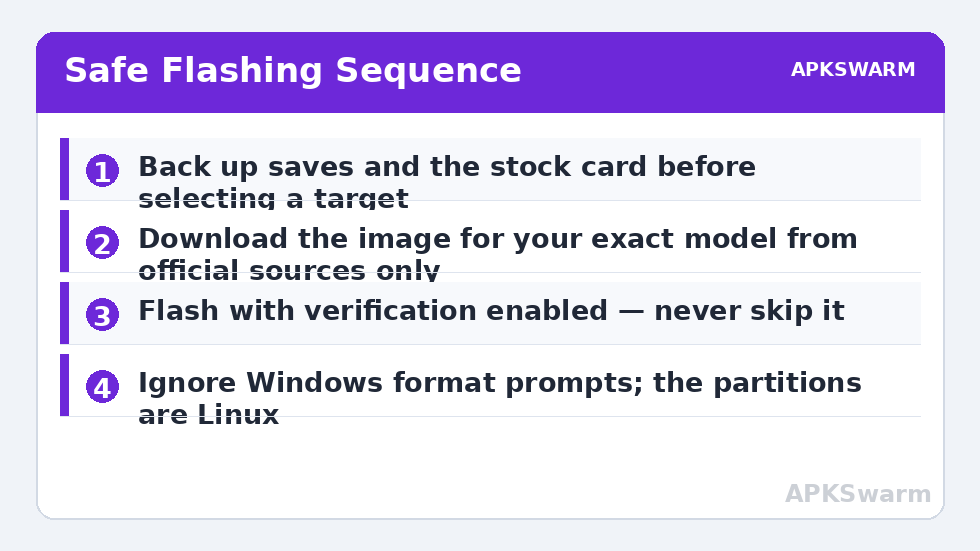
Non-negotiable backup warning, before any step below: flashing writes an image over the entire target card and erases everything on it. Back up your current card first — copy your games, and separately copy your save files and save states (RetroArch’s saves/states folders, plus standalone emulator save locations) to your PC. Also back up the card your device shipped with, and keep that stock card physically separate as your factory restore. People lose hundred-hour save files in this procedure every week, always at this exact step, always by skipping it. Do not be the example. Use a new or expendable name-brand card for the flash itself — never your only library card.
What You Need
- A name-brand microSD card (SanDisk/Samsung), 32 GB minimum for the system; many users run a second, larger card for games on dual-slot devices.
- A reliable card reader — flaky USB readers corrupt writes silently; the reader bundled with a good card or a known-brand reader is worth it.
- The correct firmware image for your exact device model, downloaded from the project’s official GitHub/site only, decompressed if it ships compressed (some images need extraction before flashing; check the release notes).
- Imaging software: balenaEtcher (all platforms, simplest), or Rufus / Win32 Disk Imager on Windows, or dd on Linux/macOS if you are careful and experienced.
- Optionally, verification: compare the downloaded file’s checksum against the release page where one is published. Corrupt downloads flash “successfully” and fail weirdly — this catches them.
The Flashing Procedure
- Insert the target card and confirm its drive letter/device name twice. Selecting the wrong drive is the one genuinely destructive mistake available in this process — you would overwrite a PC drive, not the card.
- In Etcher: select the image, select the card, flash, and let Etcher’s automatic verification pass complete. Do not skip verification to save three minutes; it exists because SD writes fail silently.
- When finished, Windows may complain the card “needs formatting” or show a tiny partition. Do not format it, and do not panic: the card now carries Linux partitions Windows cannot read. Safely eject.
- Insert the card into the powered-off handheld’s system slot (TF1 on dual-slot devices), then power on.
- First boot patience: the system expands its filesystem to fill the card and initialises itself. This takes several minutes — sometimes appearing frozen on a logo or black screen. Do not power off, do not remove the card. Interrupting first boot is the classic self-inflicted “brick” that is not a brick: reflash and wait properly next time.
- Once at the front end, shut down cleanly from the menu once, then power on again — a clean second boot confirms the filesystem settled.
ROCKNIX-specific note: its unified images handle many devices, and the first boot includes device detection on supported hardware; ArkOS builds are per-device images, so triple-check the filename against your model. Both projects publish per-device quirks (Wi-Fi chipset variants are the recurring one) — read your device’s notes on the project wiki before assuming a missing feature is your error. For the H700-side equivalent choices, our RG35XX H firmware guide covers KNULLI and muOS in the same spirit. Also respect the “release versus nightly” distinction both projects maintain: the stable release image is the one to flash for a device you rely on; development builds are for contributors and the curious with a spare card and a free evening.
After the Flash: Setup Order That Saves Time
Games go onto the card in the structure the firmware created at first boot — copy your legally dumped library into the roms folders (from your PC via the card reader is fastest), your own dumped BIOS files into the bios folder, and restore your backed-up saves into the matching emulator folders. Then: connect Wi-Fi and set the clock, run the firmware’s update channel once (both projects ship OTA updates), scrape artwork (the workflow in our scraping guide covers EmulationStation-style systems like these), and only then start per-game tuning.
Storage hygiene pays here: the folder discipline from the dual-card organisation guide maps directly onto these firmwares’ roms trees, and keeping saves in the firmware-expected locations means the next flash — an upgrade, a swap, a bigger card via the clone walkthrough — takes minutes instead of an evening.
Set per-system expectations against the hardware before configuring demanding titles:
All figures are estimates based on typical titles and stock settings; individual games vary widely.
More firmware journeys, including OnionOS for the Miyoo line, are filed under Handheld Tweaks.
Keeping the Install Healthy: Updates and Card Care
A flash is the beginning, not the end. Both projects improve steadily — cores update, Wi-Fi drivers get fixed, device quirks get patched — so use the built-in OTA updater monthly rather than reflashing full images for every release; OTA updates are designed to preserve your games, settings, and saves, while a full reflash resets you to the setup order above. Do keep one habit from installation day permanently: before any major update, copy the saves folders to your PC. It takes two minutes and converts even a catastrophic update into a minor inconvenience. Card care also extends the install’s life: shut the device down from the menu rather than pulling the battery or card mid-write, keep a little free space on the system card (filesystems misbehave when completely full), and retire cards that start producing read errors — clone to a fresh card with the process in the upgrade and clone guide before the old one takes your setup with it.
Frequently Asked Questions
My device shows a black screen after flashing. Is it bricked?
Almost certainly not. The firmware lives on the card, so a bad flash cannot brick the device. Most black screens are first boot still expanding the filesystem (wait longer), a wrong-device image, or a corrupt write. Reflash with verification enabled, confirm the image matches your exact model, and reinsert your stock card to prove the hardware is fine.
Windows says the flashed card needs to be formatted. Should I?
No. Windows cannot read the Linux partitions the firmware uses, so it offers to format them. Cancel the prompt and safely eject. Formatting would erase the firmware you just wrote.
Which is better for my device, ArkOS or ROCKNIX?
Check your model on both projects’ device lists first — support differs per unit. Where both exist, ROCKNIX offers the more current unified development and OTA channel; ArkOS has deep maturity on the devices it targets. Both run the same emulators, so day-to-day performance is comparable.
How big should the firmware card be?
32 GB is the practical minimum and plenty if games live on a second card or you keep a curated library on the same card. Single-card setups with large PS1 collections should start at 64–128 GB.
Will flashing erase the games and saves on my second card?
No — flashing writes only to the card you select in the imaging tool. But confirm the selection twice: choosing the wrong target drive is the one destructive error in this process, which is why backups come first regardless.