Knowing how to update controller firmware is the difference between a five-minute fix and a weekend of blaming Android for a bug the pad’s maker already patched. Firmware is the small program inside the controller itself: it governs pairing behaviour, reconnection timing, stick reporting, battery reporting, and how the pad presents itself to phones. Makers ship updates quietly through their apps and PC tools, most players never install them, and a large share of “my controller randomly disconnects” and “my pad will not pair since the phone update” reports trace straight back to that gap. This guide maps every major brand’s update route, explains when an update is actually worth doing, and gives you a safe routine that works whether the pad updates from your phone or needs a computer.
When a firmware update is the right fix — and when it is not
Firmware updates are not general medicine. They are the right first step for a specific family of symptoms, and a distraction for others. Update early if your problem matches the left-hand pattern; troubleshoot elsewhere first if it matches the right-hand one.
| Symptom that points to firmware | Symptom that points elsewhere |
|---|---|
| Pad disconnects randomly despite strong battery and short range | One button or stick is dead — that is hardware until proven otherwise |
| Pairing broke right after a phone OS update | Pad works in a tester but not in one game — that game or emulator is the layer to fix |
| Pad reconnects to the wrong host, or will not reconnect at all | Constant delay in every game including menus — measure the link and environment first |
| Maker’s release notes mention Android, Bluetooth, or connection stability | Sticks drift steadily in one direction — calibration, cleaning, or wear |
| Battery percentage reported wildly wrong to the phone | Pad never appears in Bluetooth scan at all — check pairing mode and charge first |
Release notes deserve thirty seconds of reading before any update. A note that says “improves connection stability on Android 14” is a flashing sign for the exact bug many owners are chasing. A note that only adds support for a new console feature tells you the update is safe but unlikely to change your Android life. Either way, updating a working pad purely because a new version exists is a reasonable habit once or twice a year — not a weekly ritual.
Which brands update from Android, and which need a PC or console
This is the table players actually need, because the routes are wildly inconsistent. Some brands treat the phone app as the update home; others ignore Android completely.
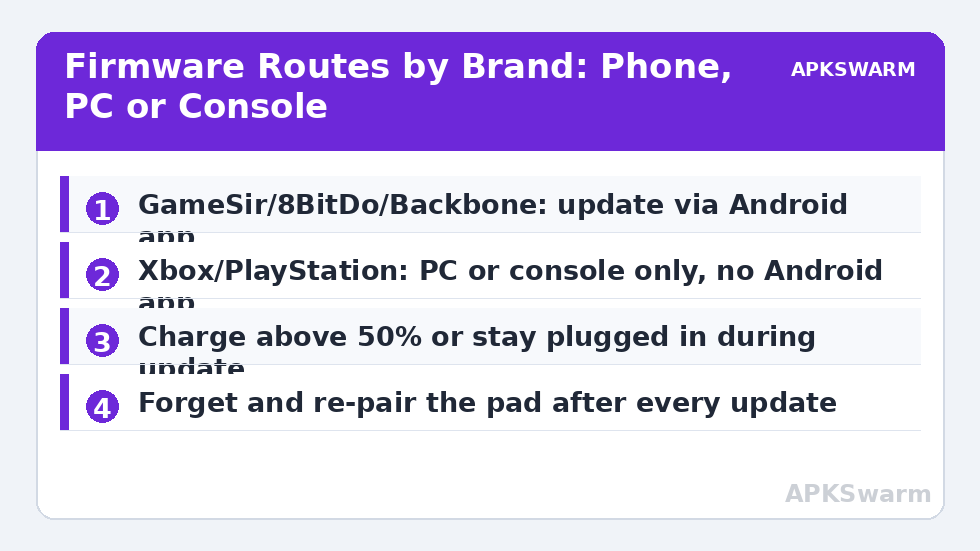
- GameSir: updates through the GameSir app on Android with the pad connected by USB-C. One of the smoothest phone routes.
- 8BitDo: updates through the 8BitDo Ultimate Software app on Android for supported models, and through a PC/Mac updater tool for everything. Model support varies — check your exact pad.
- Xbox controllers: no Android updater. Use the Xbox Accessories app on a Windows PC or an Xbox console, with the pad connected by USB.
- PlayStation DualSense and DualShock 4: no Android updater. Use a PlayStation console or Sony’s Windows firmware updater.
- Nintendo Pro Controller and Joy-Cons: updates only through a Switch console. There is no phone or PC route.
- Backbone and Razer telescopic pads: updates through their companion Android apps (Backbone app, Razer Nexus) with the phone seated in the pad.
Multi-mode pads add one wrinkle: the mode switch position can change which firmware personality the updater sees. If an 8BitDo pad is not recognised by the updater, try its wired connection and a different mode position before concluding the tool is broken. Our brand walkthrough for one such pad, the 8BitDo Pro 2 setup guide for Android, shows how mode choice affects everything else about that controller, updates included.
The safe update routine, whichever route you take
- Charge or plug in first. Aim for at least 50% battery on wireless pads, or keep the pad wired for the whole process. A pad dying mid-update is the one genuinely risky scenario.
- Update one pad at a time. Disconnect other controllers so the updater cannot target the wrong device.
- Use the maker’s own app or tool only, from the Play Store, the maker’s website, or the console store. Never install a firmware tool from an APK mirror or a forum attachment.
- Do not touch anything during the flash. No unplugging, no switching modes, no letting the phone sleep if the maker warns against it. Most updates take one to three minutes.
- Forget and re-pair afterwards. On the phone, forget the pad in Bluetooth settings and pair it fresh. Many “the update broke my controller” reports are actually a stale bond between old and new firmware.
- Re-test in a gamepad tester, then re-apply your dead zones and profiles. Updates sometimes reset pad-side settings to defaults.
That last step catches people out: profiles and calibrations stored on the pad itself may be reset by an update, while profiles stored in an emulator on the phone survive untouched. Knowing which of your settings live where — pad, phone app, or emulator — tells you exactly what to rebuild after an update and what to leave alone.
After the update: measuring whether it actually helped
An update that claims to improve connection stability should be judged by behaviour, not feelings. Note your symptoms before updating — disconnects per session, reconnection time, any stutter pattern — then compare the same games over the next two sessions. For delay specifically, you can put a number on it: film your thumb and screen in slow motion and use the frame and latency calculator on this site to estimate total input delay before and after the update, in the same game and the same room. If the calculator shows the same typical range afterwards — wired pads commonly total roughly 10–20 ms at 120 Hz, Bluetooth pads roughly 25–45 ms in community-reported ranges — but the disconnects have stopped, the update did its real job; firmware fixes stability far more often than it shaves milliseconds.
All figures are estimates based on typical titles and stock settings; individual games vary widely.
If an update changes nothing, that is information too: your problem was never firmware. Return to layered diagnosis — tester first, then the game or emulator, then the radio environment. Players chasing delay specifically should then work through our guide to fixing Bluetooth gamepad input lag on Android, which orders those layers from free fixes to hardware replacement. And players whose pad vanished from an emulator entirely should not keep re-flashing firmware; that symptom has its own checklist, covered later in this batch.
Profiles, pairs, and settings that updates can disturb
Two side effects deserve planning. First, multiplayer households: if two identical pads are bonded to one phone and you update and re-pair only one, Android may thereafter treat them inconsistently in games that assign controllers by connection order. The clean approach for a two-pad household is to update both pads in the same sitting, re-pair both, and test player assignment once — the workflow in our guide to two controllers for local multiplayer on Android assumes exactly that tidy starting point.
Second, emulator detection: some emulators match saved configurations to the controller’s reported name, and a firmware update can subtly change that name or the pad’s mode defaults. The result looks dramatic — a pad that “stopped working in RetroArch” — but the fix is mundane: check what name the pad now reports, and rebind or reselect the profile. It is not a broken pad and not a broken emulator. When the pad is invisible to every emulator while Android itself sees it, work through our fix guide for a controller not detected in Android emulators rather than updating firmware a second time in hope.
A final note on honesty in the other direction: very old pads eventually fall off their makers’ update lists entirely. A no-name or decade-old pad with no updater and worsening Bluetooth behaviour has reached the practical end of software fixes. At that point a modern replacement — even a modest wired one — is not a failure of troubleshooting; it is the correct conclusion of it. Browse the wider library from the APKSwarm homepage when you reach that decision.
Frequently Asked Questions
Can I update every controller’s firmware from an Android phone?
No. GameSir, 8BitDo (supported models), Backbone, and Razer offer Android app updates, but Xbox and PlayStation controllers require a Windows PC or their console, and Nintendo controllers require a Switch.
Is it safe to update controller firmware?
Yes, with two precautions: keep the controller charged or plugged in for the whole update, and use only the maker’s official app or tool. Interrupting power mid-update is the main real risk.
My controller got worse after a firmware update. What should I do?
Forget the controller in your phone’s Bluetooth settings and pair it completely fresh, then re-test in a gamepad tester. Most post-update problems are a stale bond between the phone and the new firmware, not a bad update.
Will a firmware update fix stick drift or a dead button?
Almost never. Drift and dead buttons are calibration, dirt, or hardware wear problems. Firmware updates fix pairing, reconnection, disconnects, and reporting bugs — connection behaviour, not physical inputs.
How often should I check for controller firmware updates?
Check when the pad is new, after a major Android version update, and whenever a connection problem appears. Otherwise once or twice a year is plenty; there is no benefit to checking weekly.