The Dimensity 1100 inside the Retroid Pocket 4 Pro is fast enough to embarrass most Android handhelds under $200, but out of the box it rarely shows that speed. This retroid pocket 4 pro setup guide walks through the settings that actually move the needle: the performance modes hidden in the pull-down menu, the fan profiles that keep clocks stable, and the emulator choices that decide whether GameCube and PS2 titles hold frame rate or fall apart after ten minutes. Follow it in order and you will have a machine that behaves consistently instead of one that feels fast on Monday and sluggish on Friday.
Quick orientation before we touch anything: the standard Pocket 4 uses a Dimensity 900, while the Pro steps up to the Dimensity 1100, adds a 5000 mAh battery, and ships with 8 GB of RAM and 128 GB of storage on most retail units. Both run Android 13 with Retroid’s own launcher layer, and both take a microSD card for your library. If you bought the base model, most of this guide still applies — just expect the high-performance ceiling to sit a little lower on PS2 and GameCube emulation.
First Boot: The Settings That Matter in the First Ten Minutes
Swipe down twice from the top of the screen and you will find the toggles that control this handheld’s personality. Retroid buries the good stuff here rather than in the Settings app, which is why so many owners never find it.
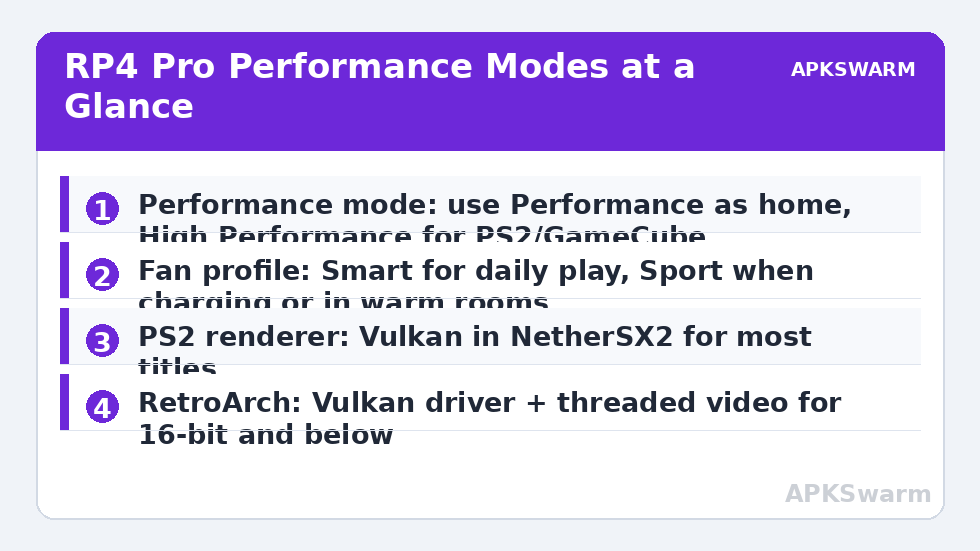
- Performance mode: a three-way selector between Standard, Performance, and High Performance. Standard clocks the Dimensity 1100 conservatively for battery life. Performance is the balanced profile most people should live in. High Performance pins higher CPU/GPU frequencies and is meant for PS2, GameCube, and demanding PSP titles.
- Fan mode: Quiet, Smart, and Sport. Quiet holds the fan back until thermals force its hand. Sport runs it aggressively. Smart ramps with temperature and is the right default for most rooms.
- Joystick and trigger style: lets you flip between Xbox and Switch-style face button reporting in some contexts — leave this alone unless a specific game reads your inputs backwards.
Set Performance mode and Smart fan now, then open Settings > About and run the system update check. Retroid shipped several OTA updates after launch that improved fan curves and fixed an early bug where the fan profile reset after sleep. Skipping the update means tuning a moving target.
Retroid Pocket 4 Pro Performance Settings, Explained Properly
The three performance modes are not marketing labels; they change how the governor treats the Dimensity 1100’s cluster layout (four Cortex-A78 performance cores and four A55 efficiency cores). In Standard mode the A78s top out early and the GPU — a Mali-G77 MC9 — boosts reluctantly. That is fine for everything up through Dreamcast, Nintendo 64, and most PSP games at 2x resolution. In Performance mode the A78s sustain noticeably higher clocks and the GPU boosts on demand, which is what GameCube needs when a level streams in new geometry.
High Performance mode matters in exactly one scenario: sustained heavy emulation where dips come from clock throttling rather than emulator inefficiency. AetherSX2/NetherSX2 builds running demanding PS2 titles and Dolphin’s heavier GameCube library are the realistic cases. The cost is real — battery drain typically rises into the 3.5–5 hour range for heavy 3D emulation, and the chassis gets warm around the right grip. Use it as a per-session switch, not a permanent home.
A practical rule: if a game runs at full speed in Performance mode, leave it there. Extra clocks you do not need become heat you do not want, and heat is what eventually drops your frame rate in a long session anyway.
Fan Profiles and Thermal Behaviour
The Pocket 4 Pro’s active cooling is its biggest structural advantage over passive handhelds in the same class. On Smart, the fan typically stays inaudible through PS1 and below, becomes noticeable during GameCube, and works hard during PS2 — which is the correct behaviour. Quiet mode is for late-night retro play in bed; do not use it with PS2 emulation, because the device will protect itself by shedding clocks mid-game, and a sudden slowdown during a boss fight feels far worse than fan noise.
Sport mode earns its place in two situations: playing in a warm room (above roughly 28–30°C ambient) and playing while charging. Charging adds heat on top of SoC load, and that combination is where throttling complaints come from. If your frame rate sags after 20–30 minutes of charging-and-playing, Sport plus a USB-C charger rated for the device’s supported fast charging — and simply letting the battery sit between 20% and 90% — resolves most of it.
Emulator Setup That Matches the Hardware
Standalone emulators still beat all-in-one builds on this device for the heavy systems. Use DuckStation for PS1 with PGXP enabled, PPSSPP at 2x–3x internal resolution for PSP, and a current NetherSX2 build for PS2 with the Vulkan renderer — Vulkan on the Mali-G77 is meaningfully better than OpenGL for most titles. For GameCube and Wii, Dolphin’s Vulkan backend with dual-core enabled and shader compilation set to Hybrid Ubershaders prevents the classic first-minute stutter on this GPU.
Before guessing whether a problem child title should run, sanity-check your expectations against the chipset class rather than a forum anecdote:
All figures are estimates based on typical titles and stock settings; individual games vary widely.
RetroArch handles everything 16-bit and below; set the video driver to Vulkan globally, enable threaded video, and leave run-ahead off for the heavy cores but on (1–2 frames) for light ones like Genesis and SNES where input latency is easy to win back. More setup patterns like these live across the Handheld Tweaks category.
Controls, Screen, and Battery Housekeeping
Calibrate the hall-effect sticks once after setup: Settings > Handheld Settings routes you to the calibration routine on most firmware builds. Hall sticks do not drift like potentiometer sticks, but their centre point is still set in software, and a bad centre gives you slow character creep in 3D games. While there, confirm both sticks register a full circular gate — a squashed circle usually means the calibration was rushed.
The 4.7-inch 750×1334 display is a 16:9-ish panel, so integer-scaled 4:3 content will pillarbox. That is normal and correct; do not stretch it. For battery, screen brightness is your single biggest lever after performance mode: dropping from maximum to around 60% typically buys a large chunk of extra play time on lighter systems. Finally, organise your card early — a clean folder structure now saves pain later, which is covered in our guide on how to organize microSD cards for dual-card handhelds.
Two related reads if you are tuning further: display choices are unpacked in the handheld screen aspect ratio buyer’s guide, and if the sticks ever feel off after a firmware update, the hall effect joystick calibration guide walks the full routine.
Frequently Asked Questions
Should I leave High Performance mode on all the time?
No. It raises heat and battery drain for zero benefit on lighter systems. Use Performance as your home mode and switch to High Performance only for demanding PS2 and GameCube sessions.
Why does my RP4 Pro slow down after 20 minutes of PS2 gaming?
That is thermal behaviour, not a fault. Switch the fan to Smart or Sport, play off the charger where possible, and make sure the rear vent is not blocked by your grip or a case.
Which renderer is best for PS2 on the Dimensity 1100?
Vulkan, in a current NetherSX2 build, for the majority of titles. A small number of games still behave better in OpenGL — if one specific title glitches, test it individually rather than changing the global setting.
Does the standard Pocket 4 follow the same setup?
Mostly yes — the menus and fan logic are identical. The Dimensity 900 simply tops out lower, so treat PS2 and GameCube as selective rather than guaranteed, and Resolution scales should sit one step lower.
How do I update the firmware safely?
Back up your save folders and emulator configs to the microSD card first, charge above 50%, then use the built-in OTA updater in Settings. Never interrupt an OTA install.