Crackling sound in 3DS games is rarely an audio bug in isolation — the citra android 3ds settings fix audio stuttering workflow starts by accepting that Citra’s audio is generated in lockstep with emulation speed, so any dip below full speed stretches and tears the sound first. That is actually useful diagnostic information. If music crackles in a busy town but menus sound clean, your graphics load is the problem. If audio stutters everywhere including the title screen, look at audio emulation mode, frame timing, and background apps instead. This guide works through both paths in order, for the official Citra Android app and its maintained forks, which share the same core settings names. Configure it only for games you own, backed up from your own cartridges.
citra android 3ds settings fix audio stuttering: check speed before sound
Enable the frame-rate overlay first: Settings > Graphics > Advanced options in some builds expose a performance display, and all builds show speed percentage when you enable debugging overlays in the layout settings. Play the exact scene that crackles and watch the speed counter. A steady 100% with crackling points to an audio setting. A counter oscillating between 88% and 98% means the emulator is time-stretching audio to cover missing frames — fix performance and the audio follows.
Set Graphics > Internal Resolution appropriately for your chip before touching anything else:
- Snapdragon 845 / 855 class: 2x Native (800 x 480) for most games, 1x for the heaviest 3D titles.
- Snapdragon 865 and newer 8-series: 2x as a baseline, 3x for lighter games and 2D-heavy titles.
- Snapdragon 7xx class: 1x to 2x depending on the game; demanding titles belong at 1x.
- Snapdragon 6xx class: 1x Native, and expect a curated subset of the library to run at full speed rather than everything.
Internal resolution is the heaviest single cost in Citra, heavier than texture filtering or shadows. Dropping one step typically recovers more speed — and therefore cleaner audio — than every other graphics toggle combined.
Audio settings: emulation mode, stretching, and output
Open Settings > Audio. The key control is Audio Emulation, with options typically labelled HLE, LLE (accurate), and LLE (multicore). HLE — high-level emulation — is dramatically cheaper and sounds correct in the large majority of games. LLE emulates the 3DS audio hardware at a low level, fixes a small number of games with missing instruments or broken sound effects, and costs enough CPU to cause stuttering on mid-range chips all by itself. If your build is set to LLE, switching to HLE is the single most common real fix for constant crackling.
Enable Enable Audio Stretching. Stretching slightly adjusts audio tempo instead of dropping or repeating samples when speed fluctuates by a few percent, turning harsh crackle into barely noticeable pitch wobble during brief dips. It is not a licence to run below full speed permanently — at 85% speed, stretched audio still sounds wrong — but it smooths the small dips every device experiences in busy scenes. Set Audio Output Engine to the default (cubeb or OpenSL depending on build) and only change it if you hear complete silence or severe distortion on one engine, which happens on some vendor Android builds. If you play with Bluetooth earbuds, test once with wired or speaker audio: Bluetooth adds its own latency and, on some phones, aggressive battery optimisation for the Bluetooth stack causes periodic dropouts that mimic emulator stutter.
All figures are estimates based on typical titles and stock settings; individual games vary widely.
Graphics and system settings that feed the audio thread
Under Settings > Graphics, set Graphics API to Vulkan where your build offers it — Vulkan builds of Citra moved shader and geometry work off the critical path on Adreno GPUs and reduced the frame-time spikes that audio exposes. On OpenGL builds, enable Hardware Shaders and Accurate Multiplication stays off unless a specific game shows broken geometry or lighting, because accurate multiplication costs performance in shader-heavy scenes. Enable Disk Shader Cache so shaders compiled once are reused; the first minutes in a new area may still hitch as shaders compile, which presents as a paired video-and-audio stutter that fades as the cache fills. That warm-up behaviour is normal and is not fixed by any audio toggle — revisit the same area and it should play cleanly.
Under Settings > System, check CPU Clock Speed if your fork exposes it. Raising the emulated clock above 100% makes games harder to run, not easier. Lowering it slightly can stabilise a borderline game, with the same caveat as underclocking anywhere: internal frame pacing may suffer. In Settings > Advanced or Debug sections, leave Enable CPU JIT enabled — disabling the just-in-time compiler for troubleshooting destroys performance. Also close the usual Android suspects: disable battery optimisation exemptions confusion by setting Citra to Unrestricted in your phone’s battery settings so the system does not throttle it mid-session, and do not run screen recording while diagnosing audio, since recording loads the same video encoder the phone uses for everything else.
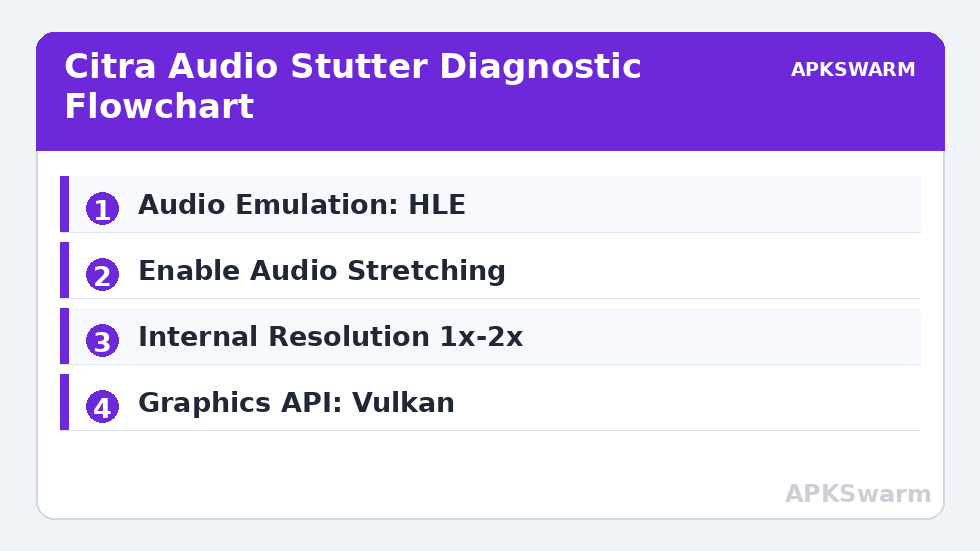
A diagnostic sequence for stubborn cases
- Pick one scene that reliably crackles. Note the speed counter there.
- Set Internal Resolution to 1x and Audio Emulation to HLE, restart the game, and retest the same scene.
- If it is clean, raise resolution one step at a time until stutter returns, then step back — that is your per-game ceiling.
- If it still crackles at 1x on HLE, test with wired audio, then test a different, lighter game to separate a device problem from a single heavy title.
- Save the working combination as that game’s profile if your fork supports per-game settings.
Two edge cases deserve naming. Some games stream audio in cutscenes with unusual timing and crackle only there while gameplay is perfect — audio stretching plus patience is the realistic answer, since the flaw sits in how that title was programmed. And some forks added a New 3DS mode toggle: enabling it helps games that officially supported New 3DS hardware, but it raises the emulated CPU workload for everything, so leave it off unless your specific game benefits. Broader artefact problems beyond audio are covered in fixing graphical glitches and missing textures, renderer choice is explained in enabling Vulkan for higher FPS, and the full category sits in the Emulation Configs archive alongside system-by-system guides such as Dolphin settings for GameCube and Wii.
Realistic expectations close the guide. On Snapdragon 8-series hardware, most well-supported 3DS games can hold full speed at 2x with HLE audio and stretching enabled, and they sound clean. On 7xx hardware the same settings at 1x to 2x cover a solid portion of the library. On 6xx hardware, choose games carefully and accept 1x: audio will be clean in the titles that reach full speed, and no setting invents performance the chip does not have. That honesty is what makes the fixes above trustworthy when they do work.
Frequently Asked Questions
Why does Citra audio crackle only in busy areas of a game?
Because audio is tied to emulation speed, and busy areas are where frame rate dips below full speed. Lower Internal Resolution one step for that game, confirm Audio Stretching is enabled, and the crackling in those areas should reduce or disappear.
Should I use HLE or LLE audio emulation in Citra Android?
Use HLE for almost every game. It sounds correct in the large majority of titles and costs far less CPU. Switch a single game to LLE only if it has missing instruments or broken sound effects under HLE, and accept the performance cost on stronger hardware.
Does enabling the Disk Shader Cache fix audio stutter?
Indirectly, yes. With the cache enabled, shaders are compiled once and reused, so the paired video and audio hitches that occur when entering new areas fade after the first visit. Keep it enabled and judge a game’s audio after the cache has warmed up.
Can Bluetooth earbuds cause stutter that looks like an emulator problem?
Yes. Some phones throttle or buffer Bluetooth audio unevenly, producing dropouts even when emulation is at full speed. Test the same scene with wired earbuds or the phone speaker to separate a Bluetooth issue from a Citra settings issue.
What is the best resolution for clean audio on a Snapdragon 7-series phone?
Start at 1x Native for demanding 3D games and 2x for lighter titles. If the speed counter holds 100% and audio is clean, you can try raising resolution, but audio quality follows speed, so the highest clean setting is the right one.