You charged it on Friday. You pick it up on Sunday, it is at 40%, and nobody played it. Standby drain is the least glamorous handheld problem and the one that most quietly ruins the pick-up-and-play promise. This guide explains how to optimize sleep mode battery drain android handheld and Linux handheld owners experience: what the device is actually doing while “asleep,” how to measure your unit’s drain honestly, and the settings — radios, wake sources, firmware sleep states — that separate a healthy small percentage overnight from a handheld that eats itself in a drawer.
Set the baseline first, because “bad drain” is often just an unfair expectation. Typical healthy behaviour: an Android handheld in proper deep sleep loses roughly 1–3% overnight; Linux handhelds in true suspend states lose very little, often under 1–2% overnight, while devices merely “screen-off” can lose far more. A device losing 10%+ overnight has a specific cause, and the cause is findable. In-session battery life is a different topic — for that, see the Odin 2 battery tweaks guide; this article is about the hours the device is supposedly doing nothing.
What “Sleep” Actually Means on Each Platform
Android handhelds have layered states: screen off, then Doze, then deep sleep. Apps can hold partial wakelocks that keep the CPU sipping power indefinitely — a front-end widget refreshing, a sync service stuck retrying, a scraper mid-job. Wi-Fi behaviour during sleep is its own setting on many builds. The 8 Gen 2 and Dimensity devices sleep beautifully when software behaves; the hardware is rarely guilty.
Linux handhelds vary by firmware. Devices like the Miyoo Mini Plus with OnionOS effectively power-manage aggressively — its “sleep” is close to off with instant resume via the Game Switcher, which is why it sips. Some firmwares on other devices implement screen-off states that keep the SoC largely awake; standby losses there are structural, and the honest workaround is a full shutdown habit or the firmware’s deeper sleep toggle where one exists. KNULLI and muOS releases have both improved their sleep behaviour over time — another reason to keep firmware current, per the update discipline in our RG35XX H firmware guide.
Measure Before You Fix
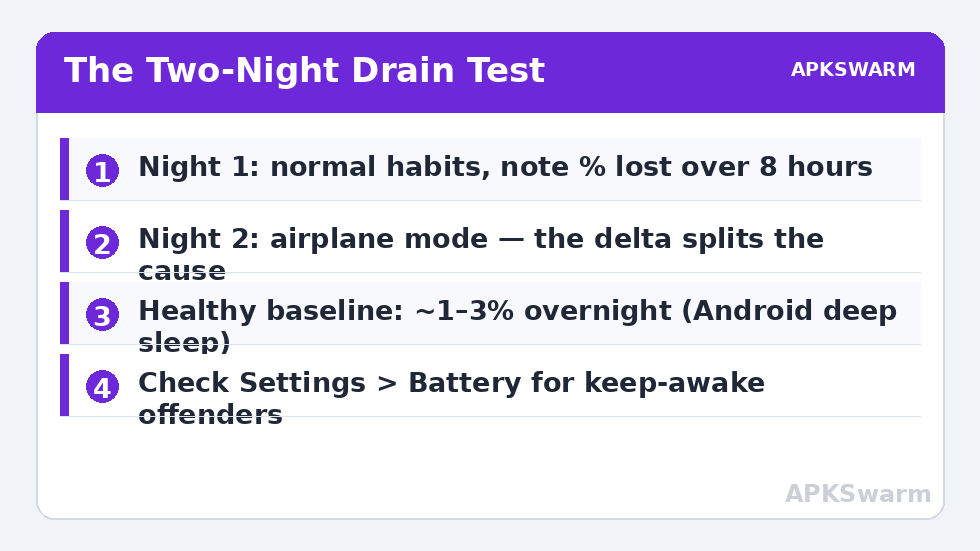
- Charge to 100%, unplug, note the time.
- Put the device to sleep in your normal way (whatever you usually do — the test must match your habit).
- Leave it 8 hours (overnight is perfect). Do not “check” it — every wake muddies the result.
- Record the percentage lost. Repeat once more the next night with airplane mode on. The difference between the two nights splits your problem: radios and sync (fixed by the airplane delta) versus core sleep-state failure (present in both).
On Android, Settings > Battery after the test shows which apps held the device awake — the list is usually short and damning. A chat app, a cloud-sync client, or a front end with a live widget will be sitting at the top with hours of “keep awake” time. That is your culprit list, in order.
The Fixes, in Impact Order
- Airplane mode for storage: if the handheld goes in a drawer for more than a day, airplane mode (or full shutdown) is the correct state. Radios searching for networks in a drawer are pure waste.
- Restrict background battery per app: on Android, set every non-essential app to restricted background battery. Front ends you use daily stay unrestricted; everything else earns its keep.
- Kill the sync accounts you do not need: a gaming handheld rarely needs full Google account sync. Calendar/contacts/email sync waking the device helps nobody mid-drawer.
- Wi-Fi during sleep: where the build offers “keep Wi-Fi on during sleep,” set it to never (or only when plugged in) for dedicated gaming devices.
- Widgets and live wallpapers: a clock is harmless; a widget polling a network service is not. Simplify the home screen — this is also why the restrained layouts in our Daijishō setup guide age well.
- Bluetooth: leave it off unless you actively pair controllers or earbuds; its scanning is a small but constant cost, and it pairs with the Wi-Fi radios in the same power domain on many devices.
Linux devices: prefer firmwares and settings that implement real suspend, shut the device fully down for multi-day storage, and turn Wi-Fi off in settings when you will not use RetroAchievements or scraping for a while — on the Mini Plus in particular, Wi-Fi state is the single largest standby variable (its setup is covered in the OnionOS setup guide).
Battery Health: The Slow Problem Behind the Fast One
Drain complaints sometimes track a cell that is simply ageing or was stored badly. Lithium rules apply to handhelds exactly as to phones: avoid long storage at 0% (cells can drop below safe voltage and refuse charge) and at 100% in heat; store around 50–60% for anything longer than a few weeks; and give stored devices a top-up every few months. A device that loses charge fast in use and in sleep, gets warm idle, or shows a swelling case back has a battery issue, not a settings issue — stop troubleshooting software and address the cell safely.
One last connection between sleep and perceived performance — a device that never deep-sleeps also tends to run background jobs during play:
All figures are estimates based on typical titles and stock settings; individual games vary widely.
More power and performance care is collected in the Handheld Tweaks category.
A Worked Example: Reading One Night’s Evidence
To make the method concrete, here is the pattern a typical diagnosis follows. Night one, normal habits: 100% to 88% — a 12% loss, clearly wrong. Battery stats show a streaming app with three hours of keep-awake time despite never being opened; it was syncing a library to a service the owner had forgotten signing into. Night two, after restricting that app’s background battery and enabling airplane mode at bedtime out of caution: 100% to 98%. The two-night delta points its own finger — 10 of the 12 points were one app’s wakelock, and most of the remainder was radio behaviour airplane mode suppressed. The fixes that stuck were the app restriction and a weekly habit, not airplane mode (which was only needed as a diagnostic). That is the shape of almost every successful drain hunt: one dominant offender, found by measurement, fixed once — followed by a handheld that simply behaves, losing its small percentage a night and asking nothing more of you.
Add one suspect to your second night’s test if the first night’s evidence is ambiguous: the microSD card. A card that is failing, counterfeit-capacity, or simply carrying a corrupt file in an indexed folder can keep a handheld waking to remount and rescan, and the drain shows up blamed on ‘system’ in most battery views. Sleep one night with the card removed — after a safe shutdown and a backup of anything irreplaceable — and compare the percentages. A card that costs you ten points a night is not storage; it is a leak.
Frequently Asked Questions
How much battery loss overnight is normal?
Around 1–3% for a healthy Android handheld in deep sleep, and typically under 1–2% for Linux handhelds with true suspend. Losses of 10% or more overnight indicate an app wakelock, radios left searching, or a firmware that only turns the screen off.
Is it better to shut down or sleep a handheld?
Sleep for same-day and next-day play — resume speed is the point of these devices. Shut down (or airplane mode) for storage beyond a couple of days. Full shutdown costs you a boot; sleep costs you percentage points per day.
Why did my drain get worse after installing apps?
New apps bring new background behaviour: sync accounts, push services, and widgets that hold wakelocks. Review Settings > Battery for keep-awake time and restrict background battery for anything that is not your front end or a tool you deliberately sync.
Does airplane mode really make that much difference?
Yes, especially stored away from your usual networks. Radios searching and re-associating are among the largest standby consumers. The two-night test in this guide will show you your own device’s exact figure.
My handheld was dead after a month in a drawer. Is the battery ruined?
Not necessarily, but deep discharge is hard on lithium cells. Charge it patiently on a standard charger — some devices need 15–30 minutes before showing signs of life. If it happens repeatedly, store at 50–60% with airplane mode on or powered off, and top up every few months.