The Retroid Pocket 5 arrives running a clean build of Android 13 on a Snapdragon 865, with a bright 5.5-inch AMOLED screen that flatters everything from Game Boy Color to GameCube. It also arrives with performance modes left on their gentlest setting, sticks that have never been calibrated, and storage pointers aimed at the wrong volume. This retroid pocket 5 setup guide walks through the first-day settings that actually matter — updates, display, performance modes, fan behaviour, controls, storage and emulator choices — in the order that avoids doing any step twice.
A note on scope: everything here assumes a library of games you dumped yourself from cartridges and discs you own, plus homebrew — the only library this site covers. Set the device up around that library once, properly, and it will stay set up.
First Hour: Charge, Update and Sign In Slowly
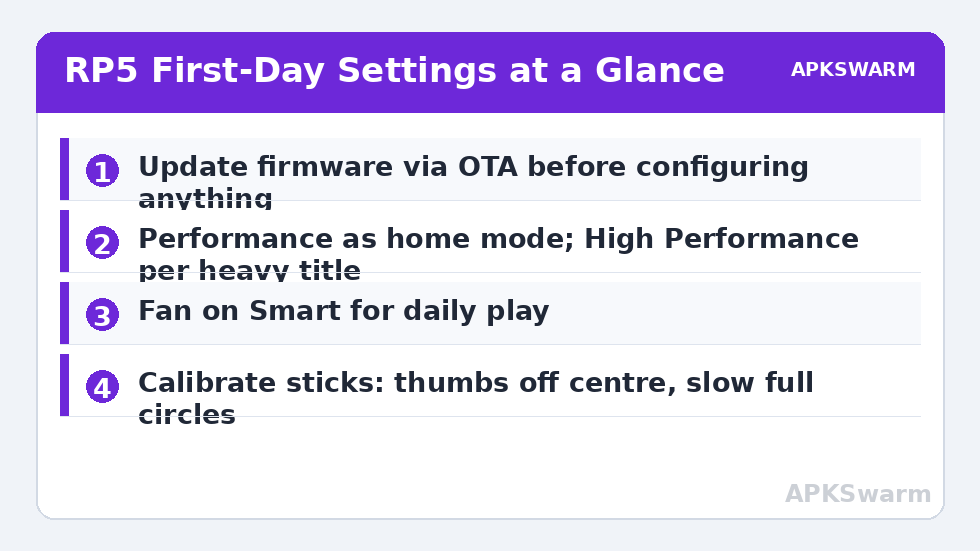
Plug the Pocket 5 in and let it charge while you work. The roughly 5,000 mAh battery typically arrives part-charged, and an over-the-air update interrupted by a flat battery is the one first-day accident worth avoiding entirely. Connect to your home Wi-Fi, then check Settings for the Retroid OTA update and apply whatever is offered before installing a single emulator. Updates on this class of device commonly fix fan curves, stick behaviour and sleep drain, and applying them first means you calibrate and configure against the firmware you will actually keep.
Sign in to the Play Store, but resist installing twenty emulators immediately — a file manager and one front end first; the emulators come later, in a deliberate order. Owners of the previous generation will find the layout familiar: our Retroid Pocket 4 Pro setup guide covers the shared performance-mode logic in depth, and its fan-profile reasoning carries straight over.
- Charge first: above 50% before any OTA update, ideally plugged in throughout.
- Update before configuring: fan, stick and sleep fixes land in firmware, not apps.
- Set the time zone and a device PIN: RetroAchievements and save sync both misbehave on a wrong clock.
- Format the microSD card in the device as portable storage, never as adopted internal storage.
Display Settings for an AMOLED Panel
The 1080p AMOLED is the Pocket 5’s party trick, and two settings decide how well it serves retro games. First, brightness: AMOLED power draw scales hard with brightness, and community-reported session lengths drop noticeably between 60% and full. Start near 55–65% indoors; most people never need more. Second, colour: if your firmware offers a colour mode, the natural or sRGB-style option keeps saturated 16-bit palettes honest instead of stretching them across the wide gamut.
For scaling, integer scaling in your emulators gives the cleanest image for low-resolution systems, and the 1080p panel’s pixel density makes it look sharp rather than small. Leave a modest margin rather than filling the screen edge to edge if you dislike cropped overscan areas on PlayStation games.
Performance Modes and the Fan, Explained Honestly
Retroid’s performance menu is where the Snapdragon 865 either idles or works. The modes trade clock speed and fan aggression against battery and noise. For Game Boy, SNES, Genesis and PlayStation, the standard mode is already more power than those systems can use; raising the mode only buys heat. GameCube, Wii and PlayStation 2 are where the higher modes earn their keep, and even there the honest picture is title-dependent: most of the GameCube library runs well, heavy PS2 titles vary, and no setting changes that ceiling.
| Mode | Best for | Typical trade-off |
|---|---|---|
| Standard / Smart | PS1 and below, GBA, DS | Quietest fan, longest sessions — typically 6–9 hours on light systems in community reports |
| Performance | PSP, Dreamcast, N64, lighter GameCube | Moderate fan, balanced drain |
| High Performance | Demanding GameCube/Wii, PS2 highlights | Audible fan, warm shell, shortest sessions |
Leave the fan on its smart profile for daily play. It ramps when the chip is genuinely loaded and stays near-silent for 2D systems. A fixed high fan is only worth choosing for a long, docked, heavy 3D session — and even then, check the rear of the device has airflow instead of a cushion behind it.
Calibrate the Sticks and Triggers Once
Hall effect sticks do not wear-drift the way older potentiometer sticks do, but they do ship with centre data that was captured in a factory, not in your hands. Open the system’s gamepad test and calibration tool, keep your thumbs completely off the sticks while the centre is captured, then move each stick in slow, complete circles — two to three seconds per revolution — out to the gate in every direction. Press the triggers through their full travel slowly as well, so analogue racing and GameCube titles read the whole range.
Verify before you play: at rest, both sticks should report dead centre, and the trace should draw a clean, round gate with no squashed side. If a side is squashed, re-run the calibration more slowly rather than reaching for a deadzone slider. Deadzones are a mask; calibration is the fix. Start any in-emulator deadzone near 0.05 and raise it only if a specific game shows a wandering camera at rest.
Storage: Internal for Apps, Card for the Library
The Pocket 5’s internal storage is fast and finite; treat it as the system volume. Android, your emulators and your front end live there. Your game library, scraped artwork and — most importantly — your save files belong on the microSD card in a tidy, standard folder layout: one lowercase folder per system inside a single roms folder. If the device is ever factory-reset or replaced, the card walks away with the irreplaceable data intact.
Whichever front end you choose, the platform-and-player setup logic is the same work; our Daijishō frontend setup guide walks through assigning the right emulator to each system, handling multi-disc games with .m3u playlists, and scraping cleanly — all of which applies verbatim on the Pocket 5 even if you pick a different launcher. Point every emulator’s save and save-state directories at the card while you configure it, not weeks later when a reset looms.
Before you settle your per-system resolution choices, it is worth estimating what your favourite titles actually demand at each internal resolution — our frame calculator on the APKSwarm homepage tools section lets you sanity-check the load a system places on a chip like the 865, so you leave sensible headroom instead of chasing numbers the screen cannot show.
All figures are estimates based on typical titles and stock settings; individual games vary widely.
Emulator Choices, System by System
The 865 rewards standalone emulators for the heavy systems and RetroArch for the classics. A sane first-day install list looks like this:
- RetroArch (Vulkan driver, threaded video): NES, SNES, Genesis, Game Boy family, PC Engine — one config, consistent hotkeys.
- DuckStation: PlayStation, with PGXP geometry correction as a taste option and Vulkan rendering.
- PPSSPP: PSP at 2x–3x internal resolution for most titles; demanding outliers drop to 2x gracefully.
- Dolphin: GameCube and Wii, Vulkan backend, per-title settings for the handful of games that need them.
- NetherSX2: PlayStation 2, treated as a highlight reel rather than a promise — test each title.
- melonDS or DraStic: Nintendo DS, where the tall screen layouts matter more than raw power.
Set one global hotkey scheme and keep it everywhere: Select as the hotkey modifier, Select + R1 to save a state, Select + L1 to load, Select + Start for the emulator menu. Muscle memory built on day one is worth more than any single graphics toggle. Comparing first-day priorities across this season’s devices is instructive, too — the Anbernic RG Cube setup guide shows how differently a square-screen device spends its setup time, while the AYN Odin 2 Portal setup guide covers what changes when the screen jumps to 7 inches and 120 Hz.
Small Settings That Prevent Big Annoyances
Finish with the unglamorous toggles. Restrict background battery use for anything that is not your front end or a sync tool, so nothing holds the device awake in a drawer. Keep the device awake while charging during long scraping sessions, and scrape on the charger rather than discovering power-saving Wi-Fi behaviour mid-library. Finally, export your front end and emulator configs to the microSD card — the day an update resets a setting, you will thank yourself.
Frequently Asked Questions
Should I leave the Pocket 5 in High Performance mode permanently?
No. The higher modes raise heat, fan noise and battery drain with zero benefit on PlayStation-era and lighter systems. Keep the standard or smart mode as home, and raise the mode per session for demanding GameCube, Wii or PS2 titles.
What microSD card size suits the Retroid Pocket 5?
128 GB covers a large curated library comfortably; 256 GB if your PlayStation, GameCube and PSP collections are extensive. Buy a name-brand A1 or A2 card from a reputable seller and test it before trusting it with saves.
Does the Pocket 5 play PlayStation 2 and GameCube well?
GameCube is broadly strong on the Snapdragon 865 with Dolphin on Vulkan. PlayStation 2 is title-dependent: many popular games run well in NetherSX2, but the heaviest titles will not hold full speed on any setting, and no setup guide can change that ceiling.
Why do my sticks feel off-centre in some games?
The factory centre data is a starting point, not a guarantee. Run the system calibration once — thumbs off for the centre capture, then slow full circles — and verify dead centre in the gamepad test view before adding any deadzone.
Can I move my setup to a new Retroid device later?
Mostly yes. Your games and saves live on the microSD card and travel freely. Emulator apps and front-end configuration live in internal storage, so export configs to the card and expect a short re-configuration on the new device rather than a clone.