This vita3k android setup guide ps vita walkthrough starts from an honest position: Vita3K on Android is an experimental emulator for a difficult system, and setup quality matters more than raw phone power. Firmware installation, game installation through the emulator itself, and GPU driver choice decide whether a title boots at all, long before resolution settings matter. Configure it in the order below, using only firmware from Sony’s update channel and games you own on PS Vita cards or your own PSN purchases, and you will avoid the black-screen loops that make most first attempts fail.
Install Vita3K, Firmware, and Font Packages Correctly
Download the Android release of Vita3K from the project’s official site and install the APK. On first launch Vita3K asks for the PS Vita firmware. Download the official firmware update file, called PSP2UPDAT.PUP, from Sony’s own system software page on your PC or phone browser, then in Vita3K choose File > Install Firmware and select that file. Also install the separate font package offered on the Vita3K setup screen, because many games and the LiveArea interface render text incorrectly or not at all without it. This is Sony system software distributed by Sony for console owners, not a BIOS dump to source elsewhere, and the emulator will not proceed properly until both steps finish.
Next set your user profile, language, and time zone in the emulated system settings, because several games read region and language from the system rather than asking in-game. Under Vita3K’s Settings > Core, leave Modules Mode on Automatic. Manual module selection exists for debugging specific titles and breaks more games than it fixes when changed casually. Enable Show FPS temporarily during setup so you can judge each later change with evidence instead of impressions.
Games are not loaded as loose files. Vita3K installs content in the same package style as a real Vita. From File > Install File, install the package for a game you own, whether that is a .pkg with its licence file from your own purchase or content transferred from your own console. After installation the game appears as a bubble on the LiveArea home screen. Launch from the bubble, not from a file browser. If a bubble appears but crashes instantly, the usual cause is a missing firmware font or an incomplete install, not your GPU settings.
Vita3K Android Setup Guide PS Vita Graphics and Driver Settings
Open Settings > GPU. The Renderer should be Vulkan on any device that supports it. Vita3K’s Android build is designed around Vulkan, and the compatibility difference versus fallback paths is large. The critical variable is your GPU driver. Stock Qualcomm drivers on many Snapdragon phones have known issues with Vita3K’s shader handling, and the community solution is a custom Mesa Turnip driver loaded through Vita3K’s GPU > Driver selection where supported. Which Turnip version suits which Adreno generation changes over time, so read the driver notes for your exact GPU rather than installing the newest file blindly. The background in our Mesa Turnip custom drivers guide for Snapdragon and the related Turnip driver setup for Switch emulators explains how Adreno 6xx, 7xx, and 7xx-plus generations differ in driver support.
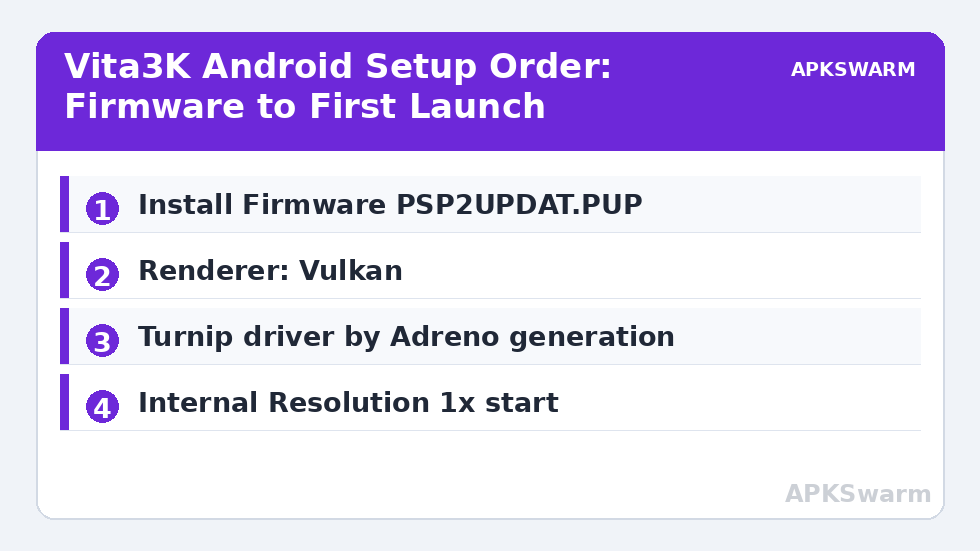
Set Internal Resolution conservatively. The Vita’s native resolution is 960×544. On Snapdragon 6xx devices, stay at 1x. On 7xx devices, 1x to 1.5x is realistic in compatible 3D titles. On 8xx flagships, 2x is achievable in lighter games but should be earned per game after confirming full speed at 1x, not set globally on day one. Vita3K’s bottleneck is often shader compilation and CPU translation rather than fill rate, so raising resolution can look free in menus and then collapse in busy scenes. Enable Disable Surface Sync only if you see persistent stutter with a high reported frame rate, and leave Texture Cache enabled, because disabling it to save storage causes repeated texture work that hurts weaker chips most.
Under Settings > Display, enable Fullscreen and choose whether to show the touch pointer overlay. Many Vita games use the front touch screen and rear touch pad. Vita3K maps the rear pad to an on-screen area or to extra gamepad inputs depending on configuration under Settings > Controls. For gamepad play, map the rear touch zones to L2 and R2 or to stick clicks for the specific game you are playing, because a game that uses rear touch for sprint will be unplayable if that input is left unmapped.
All figures are estimates based on typical titles and stock settings; individual games vary widely.
Compatibility Reality, Per-Game Fixes, and Performance Expectations
Check the Vita3K compatibility database before blaming your settings. Titles are rated from playable through in-game, menu, bootable, and nothing, and a large share of the Vita library still sits below fully playable on any platform, desktop included. A game rated in-game with graphical faults will show those faults on a flagship phone too. Prioritise titles rated playable, keep the emulator updated because compatibility moves month to month, and save your configuration time for games with a realistic chance of running well.
When a playable-rated game misbehaves, change one thing at a time in this order: confirm firmware and fonts are installed, try the recommended Turnip driver for your Adreno generation, set resolution to 1x, and disable any forced settings you carried over from another emulator’s habits. If audio crackles while the frame rate looks correct, raise Audio Buffer Size slightly under Settings > Audio; Vita3K’s audio thread is sensitive on Android’s mixer, and a small buffer increase fixes crackle in several titles with no visible latency penalty at these frame rates. Save data lives inside Vita3K’s emulated memory card structure, and moving phones means exporting that whole data folder, a process similar in spirit to the method in our guide to transferring save states and memory cards between PC and Android.
Honest expectations by tier: Snapdragon 6xx devices handle 2D titles, visual novels, and light 3D games at native resolution, with demanding 3D titles often below full speed regardless of settings. Snapdragon 7xx devices run a solid slice of the playable list at 1x to 1.5x. Snapdragon 8xx devices with a suitable Turnip driver run most playable-rated 3D games at full speed at 1x to 2x, with shader compilation hitches in new areas being the normal remaining flaw. Thermal limits apply to all tiers in long sessions. For the wider set of system profiles, browse the Emulation Configs archive.
Keep a short setup log for each game you test: firmware version, driver file name, resolution, and the compatibility rating you expected. Vita3K updates change behaviour often enough that a note made today explains a regression or an improvement three updates later. Back up the Vita3K data folder before switching drivers or installing a major update, so a failed experiment costs minutes of restoring rather than a full reinstall of firmware, fonts, and every game package you own.
Frequently Asked Questions
Does Vita3K on Android need PS Vita firmware?
Yes. Install the official PSP2UPDAT.PUP firmware file from Sony’s system software page using Install Firmware inside Vita3K, and also install the font package. Many games will not boot or will show missing text until both steps are complete.
Why does my installed game crash from the LiveArea bubble?
The most common causes are a missing font package, an incomplete game install, or a title that is not yet rated playable. Reinstall the fonts, confirm the game finished installing, then check its rating in the Vita3K compatibility database before changing GPU settings.
Should I use a custom Turnip driver for Vita3K?
On many Snapdragon phones, yes. Stock Adreno drivers have known shader issues with Vita3K, and a Mesa Turnip driver matched to your Adreno generation usually improves compatibility. Choose the version recommended for your exact GPU rather than the newest file.
What resolution should I start with in Vita3K Android?
Start at 1x, the Vita’s native 960×544, on every device. Raise it to 1.5x or 2x per game only after that game holds full speed at native resolution, because Vita3K is usually limited by shaders and CPU translation before pixel count.
How do Vita games that use the rear touch pad work on a gamepad?
Vita3K lets you map rear touch zones to gamepad inputs under Controls settings. Map them per game, for example to L2 and R2 or stick clicks, so actions like sprint that used the rear pad remain reachable without touch overlays.